01
AI reads the company
Every agent
AI crawls the site and writes the offer, the audience, the voice, and the brand. Website chat, card flows, LinkedIn, and mail start from that.
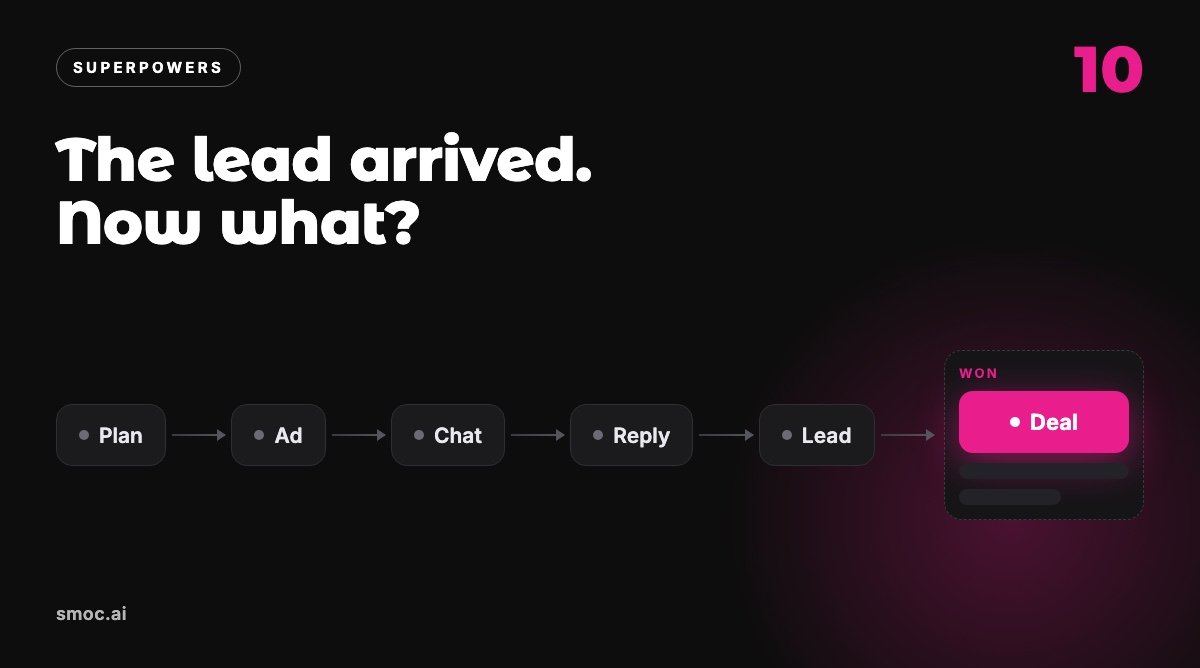
Console has a sales pipeline of its own. Deals sit next to the people and companies your agents already found, and the conversation with the agent sits next to what your team adds. Use it as your CRM, or bring your HubSpot history over and keep working in both.
Open Contacts. There are three tabs:
Deals opens the board for the selected company.
Choose Board or List at the top.
The board shows up to 500 deals at a time. Refine the search to see the rest.
Choose New deal on the board. You can also choose Add deal on a company, on a contact, or on the contact pane next to a thread in Inbox. The deal then starts linked to that company or person.
Pick the Pipeline and the Stage, and give the deal a Title. Then Create deal.
Open a deal to see and edit:
Activity sits on the company, the contact, and the deal. The tabs are All activities, Notes, Emails, Calls, and Meetings.
The timeline also shows what the agents did: a form that was submitted, LinkedIn messages, emails, and stage changes. Each item says where it came from, for example Web, LinkedIn, Meta, or Google.
Open Settings → Sales pipelines.
The deal value uses the billing currency of the company unless you add another currency.
From the board choose Sales dashboard, or open Dashboard → Sales. It reads the deals in the selected pipeline, or in all pipelines that are included in default reports.
On the dashboard overview, the revenue view follows the lead from the first click to the signed contract.
If your team already works in HubSpot, copy the history into SMOC instead of starting over. Open Settings → Integrations → HubSpot and choose the HubSpot import tab. Prepare sync first, map the owners and the pipelines, then copy companies, contacts, deals, tasks, activities, and lists. The steps are in Connect SMOC to HubSpot.
The import goes one way, from HubSpot to SMOC. New leads from your agents still go to HubSpot when Sync smart leads is on.
Where AI runs
Website chat, card flows, LinkedIn, and mail share one system. AI does each job below. The line under the title says where that job runs.
Every agent
AI crawls the site and writes the offer, the audience, the voice, and the brand. Website chat, card flows, LinkedIn, and mail start from that.
Dashboard · Lead Strategy
Set your lead goal. AI simulates thousands of channel mixes, ranks them by efficiency, and shows the most cost-effective plan. Your data and constraints shape the math.
Every agent · theme on web · lists on LinkedIn and mail
AI writes the flow. Theme runs on website chat and cards. Translation runs on every agent. AI finds the prospect list on LinkedIn. Mail uses the prospect lists you already have.
Path on every flow · web, LinkedIn, and mail
Reinforcement learning on the flow path runs on every agent. Recommendations run on web. Right timing and reply reading run on LinkedIn and mail.
Every agent
AI proposes a variant, uses your review on the next draft, and starts from an example that already works. You apply the change.
Continue learning with these related guides
Get product updates and perspective on proactive AI agents, multichannel orchestration, and conversion—without the noise.
 Weekly signal on proactive AI sales
Enter your email below to get started with SMOC.AI