Understanding Contact Card Information and Its Uses The contact card is shown when you click on a specific contact in the list. You see all data on the customer and you also get a few vital actions you can do on the customer.
Section 1: Overview

- Check box: Choose "all" by clicking on the top box, or click on each customer you want to choose. This is helpful when choosing customers to export or when sending out rewards.
- Name & Email: Depending on what you have asked for in the flow, the email and name will be shown here. If the email and the name start with "Guest", it means that you have not asked for it in the flow.
- Inviter: When a lead comes from a referral flow, the person inviting the lead will be shown here.
- To be issued: If a flow has been rewarded with a direct reward, the reward will be shown here straight away. If the reward is set so that you choose who is going to get a reward, the balance will be shown after you convert the lead to a customer.
- Number of referrals: When it's a referral flow, this shows how many this person has invited/referred that have also completed the form and left their information. (The inviter can have shared the link with multiple people, but this only shows how many have been registered through this person's link.
- Last conversation: When a customer last interacted with a flow. This will be updated if a customer goes to several flows.
- Status: Here you can see the status of what the customer came in as, based on what you sat in the flow or the status you have changed it to.
If you click the small arrow pointing up/down next to each topic, you can sort the list based on the amount/name/number.
Section 2: The Customer
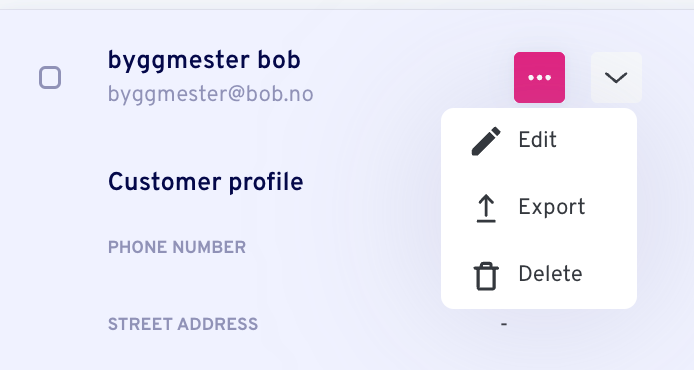
If you click on the three small dots next to a customers' name/email, you get three options:
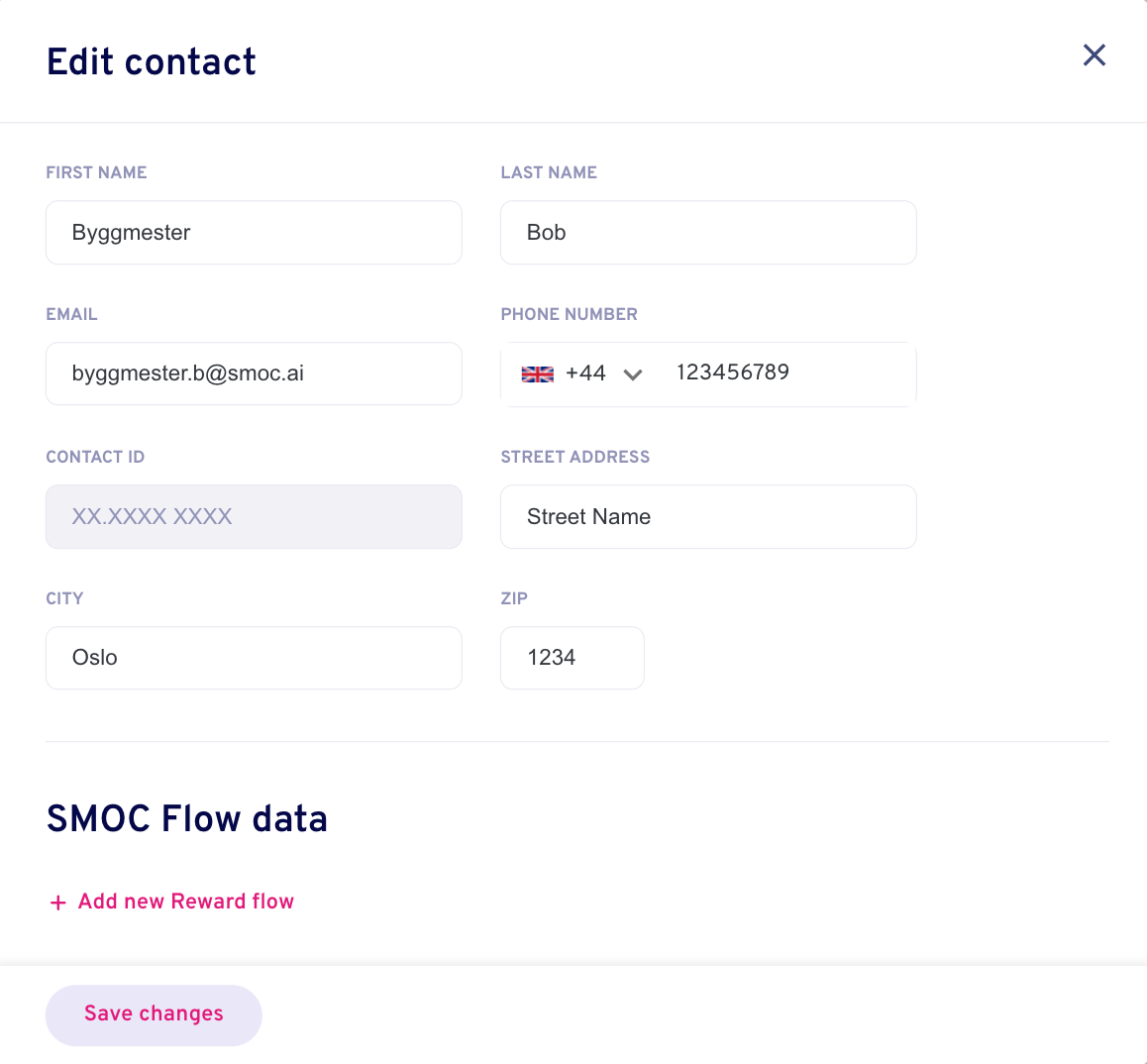
- Edit: Here you can edit the basic information about a customer. This is useful if a customer has filled in something wrong when they registered.
- Export: Here you can export this customer with the information connected to them.
- Delete: If you want to delete the customer with all the information connected to them.
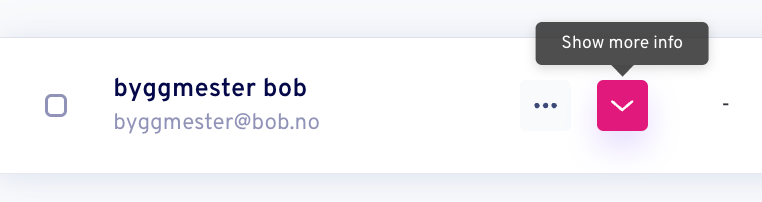
If you click the arrow pointing down, you'll get the extended version about the customer. We refer to it as the "Customers card".
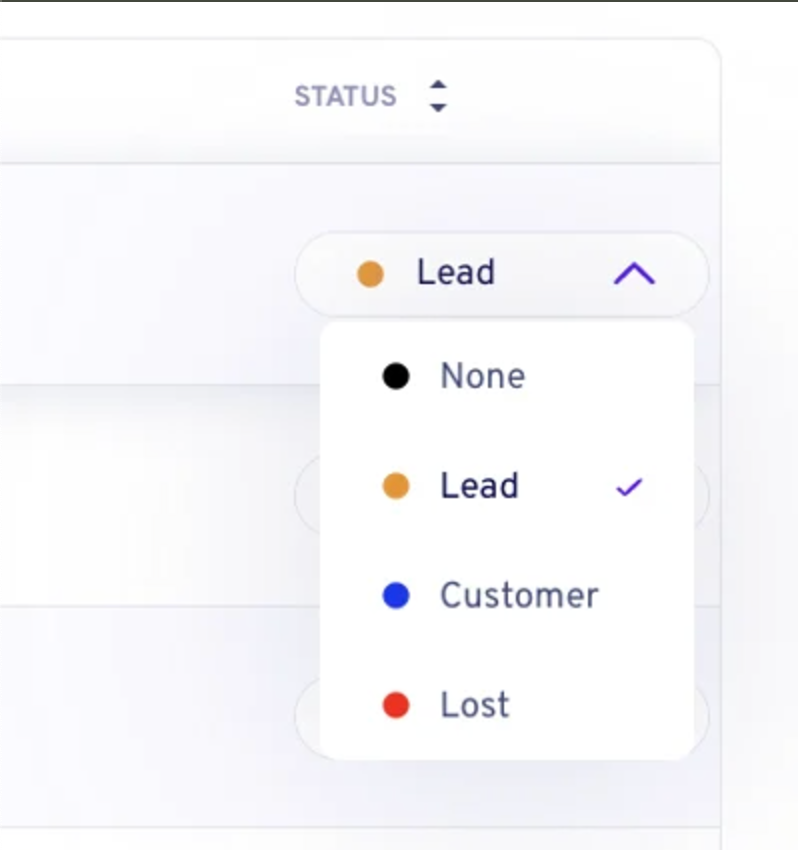
If you click on the arrow pointing down next to the customer status, you can convert the customer to what you want the status to be. If you convert a customer from "Lead" to "Customer" you'll also see a green arrow with a circle around it next to the Customers name. This indicates that it's a "converted customer" You will also see "1" added to the statistics on the top under "Converted customers".
Section 3: Customer Information
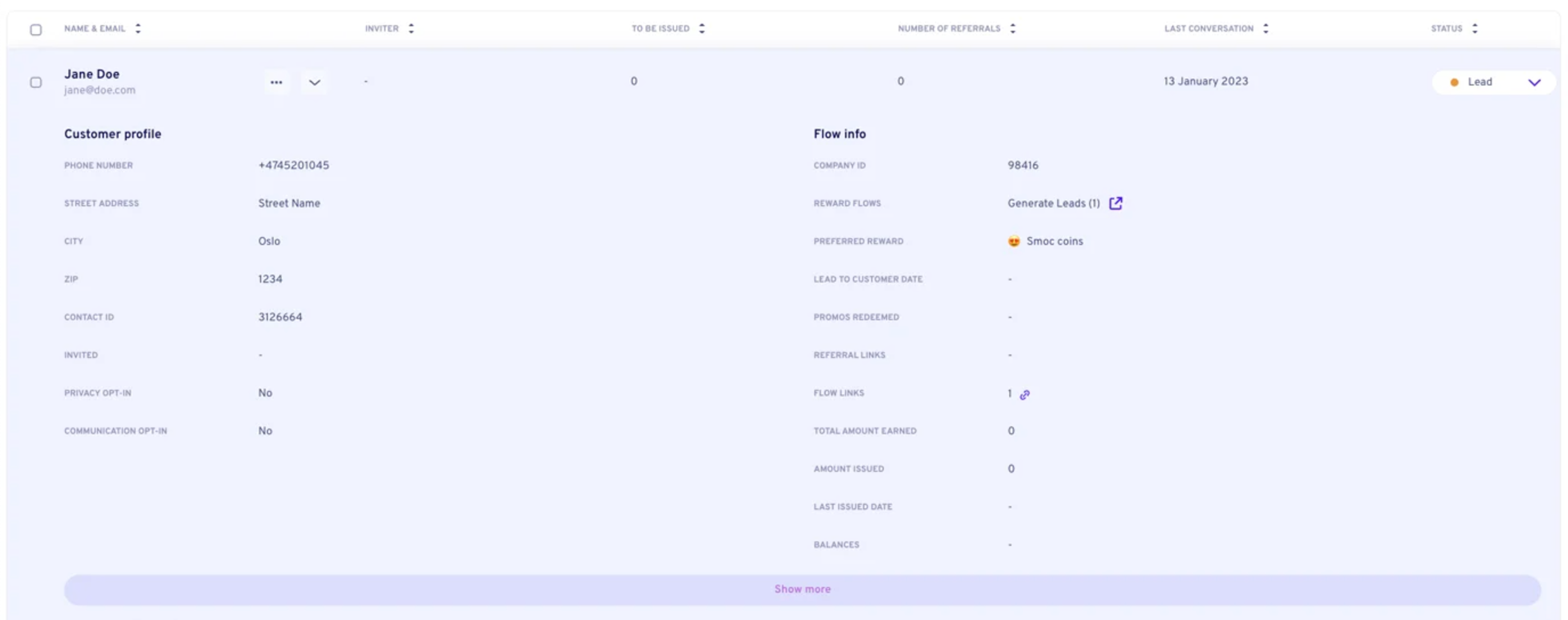
- Customer profile
- Phone number, Street address, city, and zip: Only the information you have asked for will be shown here.
- Contact ID: An unique ID number for this customer.
- Invited: If the customer has been part of a referral flow, this will show which contacts this customer has invited.
- Privacy opt-in: It will default say "No" if you don't have the option to agree to terms in the flow. Privacy Opt-in and communication Opt-in are just two versions of the same things, and you can use one or two of them as you want.
- Communication opt-in: See point 4.
- Flow info
- Company id: We are going to remove this.
- Reward flows: This shows the name of the flow the customer has gone through. The name in parentheses symbolizes which version of the flow. This could be one, or it could be multiple flows. The purple arrow is a direct link to the flow.
- Preferred reward: If the flow did not include any reward, the default currency for your company will be shown.
- Lead to customer date: What date you converted the customer from "lead" to "customer"
- Promos redeemed: If you have sent out any rewards to this customer.
- Referral links: If you have had a referral flow, this is the unique referral link connected to this customer.
- Flow links: This customer's unique link to the flow they have gone through.
- Total amount earned: If they have been collecting points, amount of rewards, and so forth, this amount will be shown here.
- Amount issued: Based on what they have earned, this is how much that has already been sent out to the customer.
- Last issued date: The last date that you sent out a reward to this customer.
- Balances: If you have converted the customer, but have not sent out the amount jet, this will be shown as the customer's balance.
- Show more
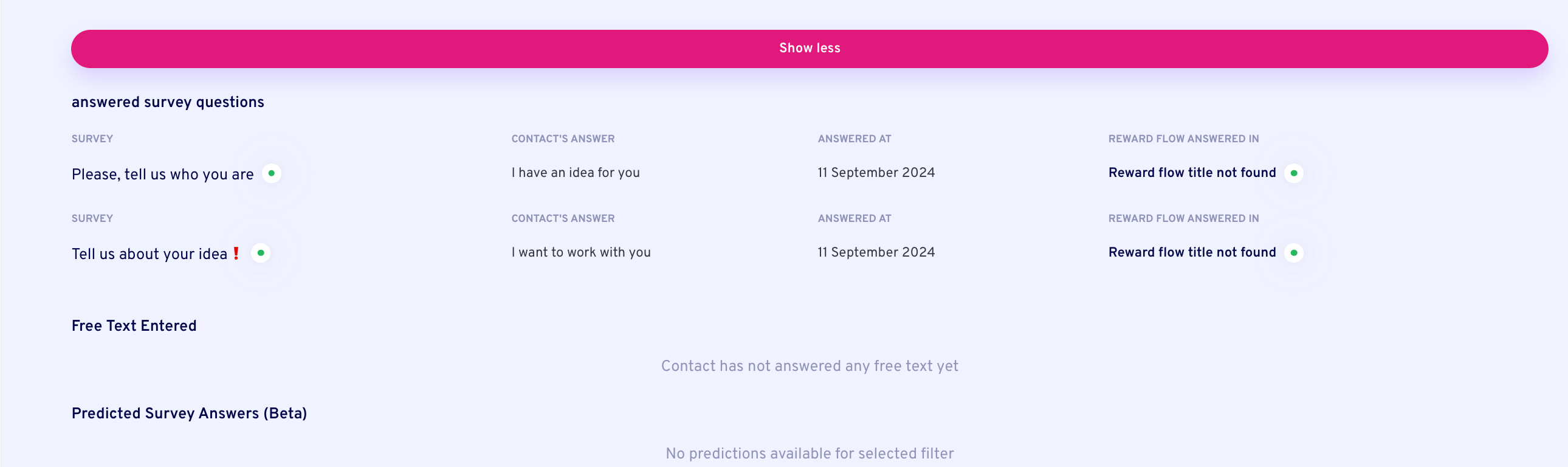
If you click on "Show more", you will get all the surveys with responses that the customer has responded to. This could be from one or multiple flows.
- Survey: The question the customer responded to.
- Contacts answer: The customers answer.
- Reward flow answered in: The Flow name, and variant, with a direct link to the flow.
Where AI runs
AI does the work. You review it.
Website chat, card flows, and LinkedIn share one system. AI does each job below. The line under the title says where that job runs.
01
AI reads the company
Every agent
AI crawls the site and writes the offer, the audience, the voice, and the brand. Website chat, card flows, and LinkedIn start from that.
02
AI plans your growth
Dashboard · Lead Strategy
Set your lead goal. AI simulates thousands of channel mixes, ranks them by efficiency, and shows the most cost-effective plan. Your data and constraints shape the math.
03
AI drafts the agent
Every agent · theme on web · list on LinkedIn
AI writes the flow. Theme runs on website chat and cards. Translation runs on every agent. AI finds the prospect list on LinkedIn.
04
AI runs the conversation
Path on every flow · web and LinkedIn split
Reinforcement learning on the flow path runs on every agent. Recommendations run on web. Right timing and reply reading run on LinkedIn.
05
AI gets better
Every agent
AI proposes a variant, uses your review on the next draft, and starts from an example that already works. You apply the change.
 Weekly signal on proactive AI sales