Frequently asked questions
Sales Launch, Studio, Console, LinkedIn message flows, integrations, Credits, and pricing—with deep links into matching eGuides.
Start here
This FAQ covers how SMOC’s proactive AI agents work, what’s included in delivery, integrations, and how credit-based pricing maps to outcomes.
- What’s new this year? See the release log.
- New to pricing? Start at /pricing.
- Looking for integrations? See /integrations.
- Paid ads (Meta, Google Ads / Performance Max, LinkedIn conversions)? See the conversion guide or conversion FAQ (standalone page).
Where can I see what’s new in SMOC? Link
The monthly release log lists major product work for 2026 — Sales Launch, credits, MCP, LinkedIn message flows, Inbox, prospecting, and Studio Recommendations — with links to the matching blogs, guides, and FAQs.
Open the 2026 release log.
What is Sales Launch? Link
Sales Launch is Console onboarding that generates your first website agent, LinkedIn flow, and first prospect list from a scan of your site. You review, approve, and Connect LinkedIn to send. It replaces a blank-canvas sequencer start with guided review, Credits, and Go live.
Walkthrough: Sales Launch end-to-end.
What is the difference between a website agent and a LinkedIn agent? Link
A website agent qualifies inbound visitors on web or landing pages, captures interest, and hands off leads. A LinkedIn agent runs outbound message flows—profile views, connects, DMs—with human-in-the-loop Inbox for replies.
See also: Web flow vs message flow.
How do I go from scan to live agent? Link
Typical path: Sales Launch builds the agent → Review in Studio (Website Studio / LinkedIn Studio) → mark reviewed → ensure Credits → Connect LinkedIn if needed → Go live. Going live publishes the website agent after review. If Commercial Profile is still generic, add product and commercial URLs on Company → Crawl sites and recrawl before you regenerate.
Do I need Credits before go-live? Link
Yes. Sales Launch includes a Credits ready step. New accounts start on a 14-day Starter trial with 99 credits. A Free web agent always remains for low-traffic sites on a small monthly allotment. LinkedIn connect and monthly LinkedIn account costs also draw Credits. Top up or upgrade under Settings → Billing if you are short.
Details: Credits, fuel, and going live.
What are Company assets in Console? Link
Company in Console holds the Commercial Profile and Brand Assets Sales Launch and Studio use when drafting agents. Crawl and refresh them from Company → Crawl sites. Settings → Company assets is the same extracted context for review.
Keep this current when your site or offers change: recrawl from Company → Crawl sites, then review drafts in Studio after major asset updates.
End-to-end path: Sales Launch end-to-end.
How do I crawl a company website? Link
Open Company → Crawl sites. The company URL is included by default. Add about, product, pricing, and commercial pages, then Crawl site(s). When the run finishes, use Update Profile and data from latest crawl if results are not applied yet. Review Commercial Profile and Brand Assets, and edit thin fields.
Step-by-step: Crawling company sites for a richer Commercial Profile.
Why is the Commercial Profile thin after a crawl? Link
Console follows one hop from each seed URL and reads about 10 pages. A homepage that is mostly news, campaigns, or a JavaScript-heavy hero fills that budget instead of product, pricing, about, or audience pages. Brand Assets can still look complete because logos and style often sit on the home page.
Add those commercial URLs on Crawl sites, crawl again, then Update Profile if prompted. Edit any remaining thin fields. Sales Launch’s first scan uses the homepage only—recrawl from Company after onboarding if the profile is still generic.
Which pages should I add as crawl sites? Link
Keep the company URL, then add standing-offer pages: about, products or services, pricing, who you sell to, and how to buy. Skip news, blogs, and one-off campaigns—they crowd out the pages agents need. A shop or app on another domain can be added the same way.
Examples: B2B software — about, product, pricing, solutions, customers or case studies, and a demo or contact page. B2B with a consumer brand — those plus the wholesale/partner pages and the shop or membership pages. Consumer or club — about, the offer (shop, tickets, or membership), commercial or partners if you also sell to businesses, and FAQ; skip news and campaign landings.
Examples and recrawl steps: Crawling company sites for a richer Commercial Profile.
How do I style my flow? Link
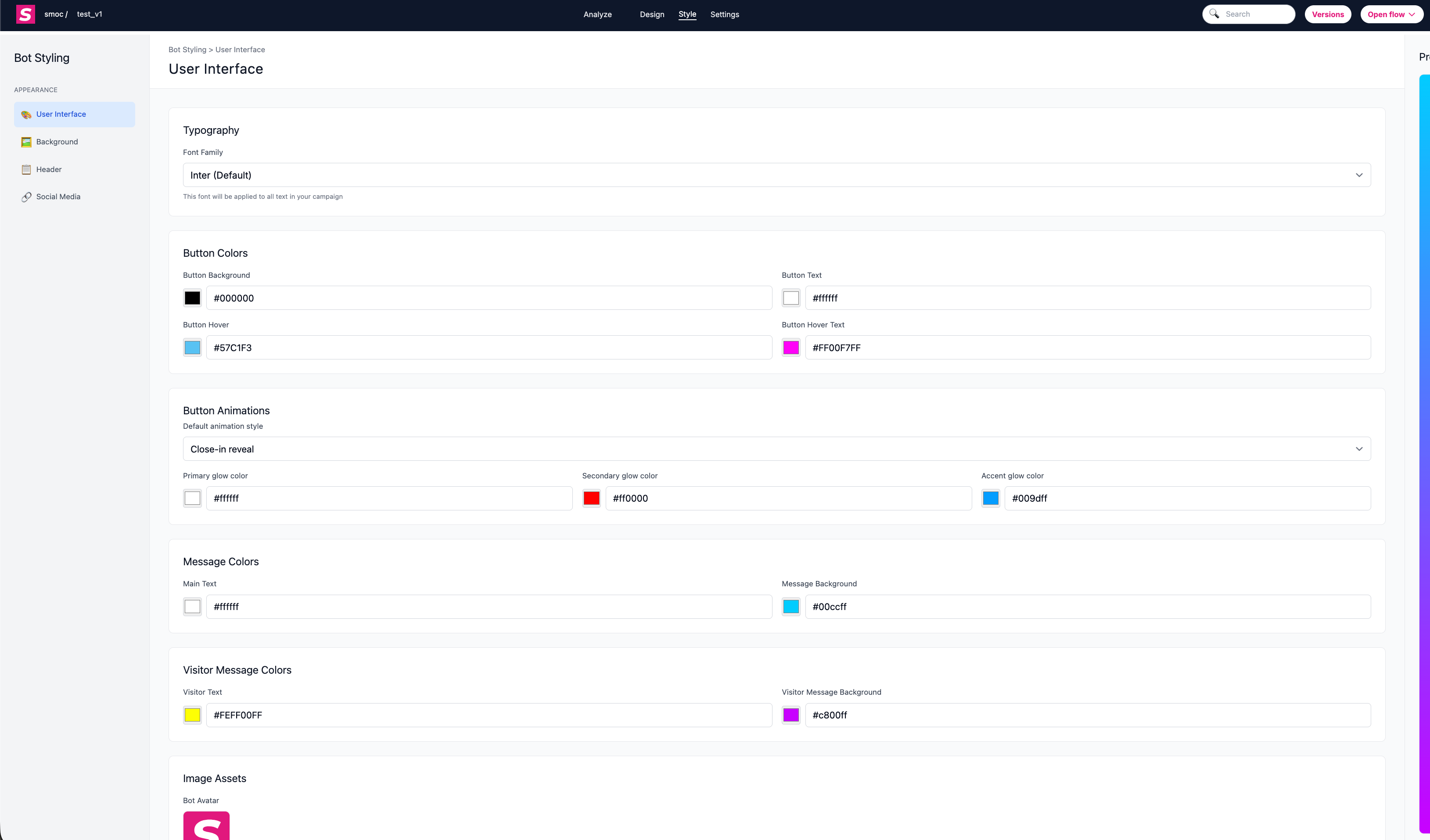
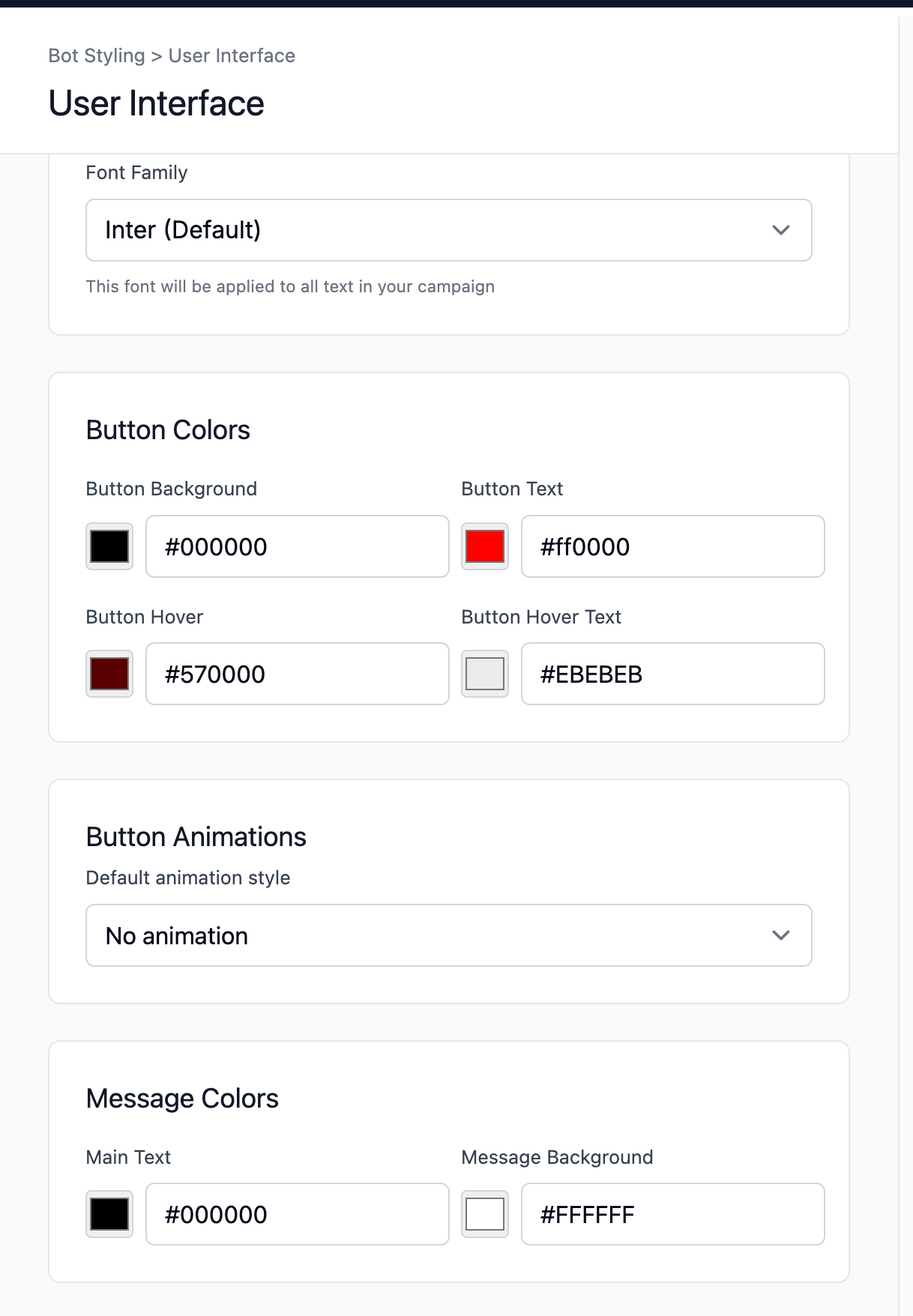
1) User Interface Styling
Customize the core look and feel of messages and buttons:
- Typography: choose the global font family.
- Button colors: background, text, hover background, and hover text.
- Button animations: select a default animation style.
- Glow colors: set primary/secondary/accent glow colors when animated styles are enabled.
- Message colors: bot text and bot message background.
- Visitor message colors: visitor text and visitor message background.
- Image assets: set bot avatar and visitor avatar.
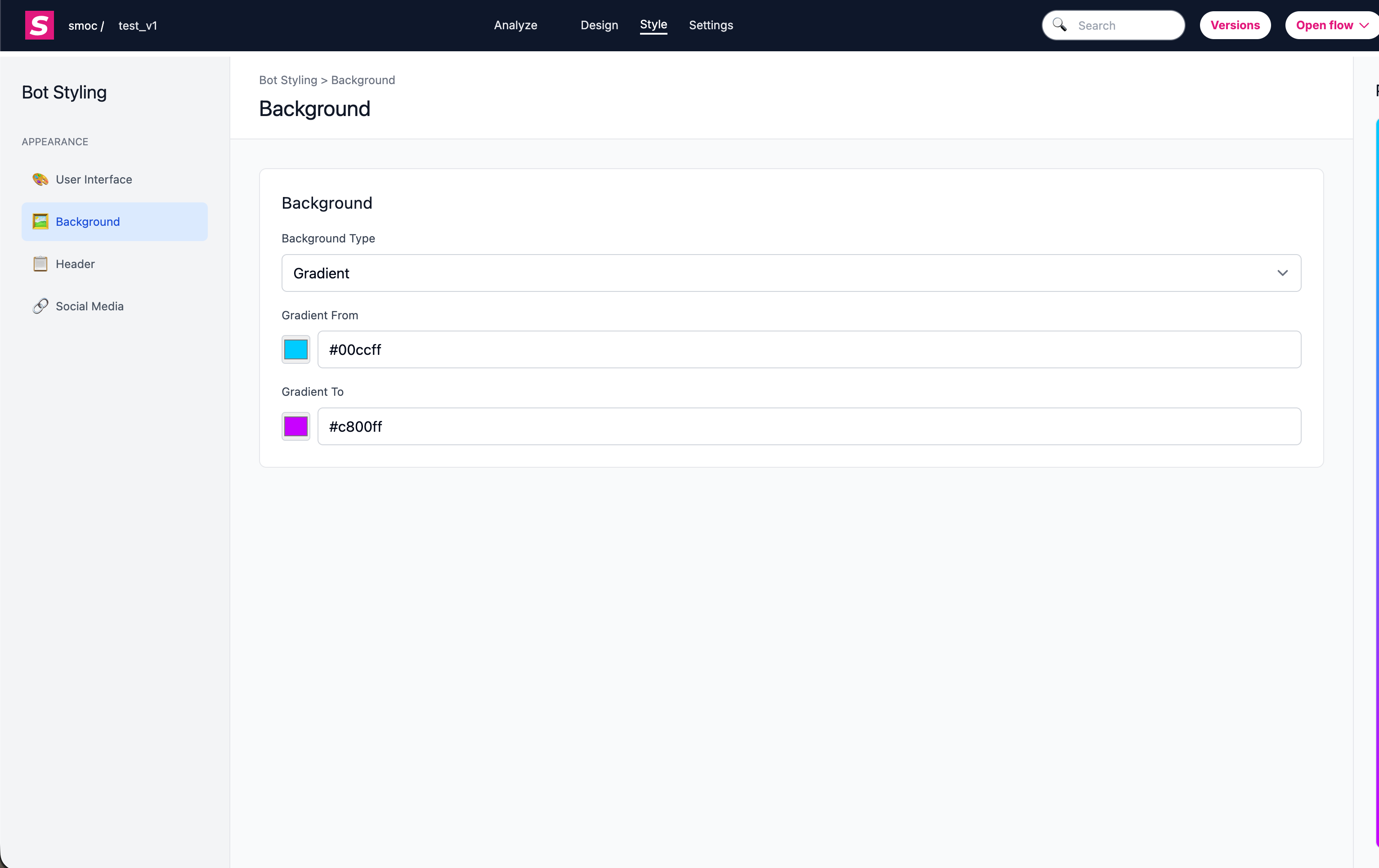
2) Background Styling
Control the page background for the flow:
- Background type: none, image, solid color, or gradient.
- Image background: upload/reset background image and choose fit mode (cover/contain).
- Color background: choose a solid background color.
- Gradient background: configure gradient start and end colors.
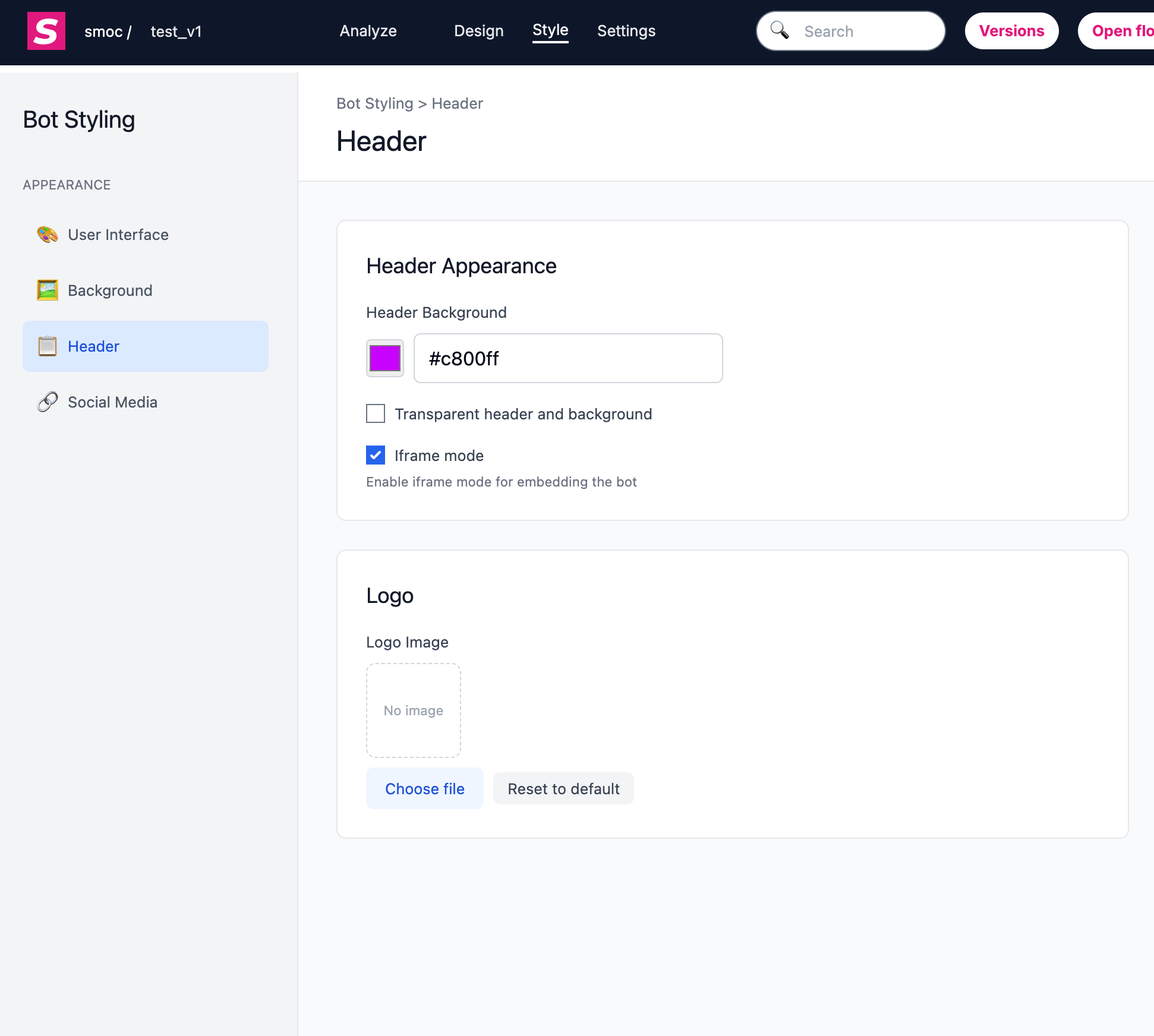
3) Header and Brand Styling
Adjust header and branding presentation:
- Header background color
- Transparent mode (transparent header/background)
- Iframe mode
- Logo image upload/reset
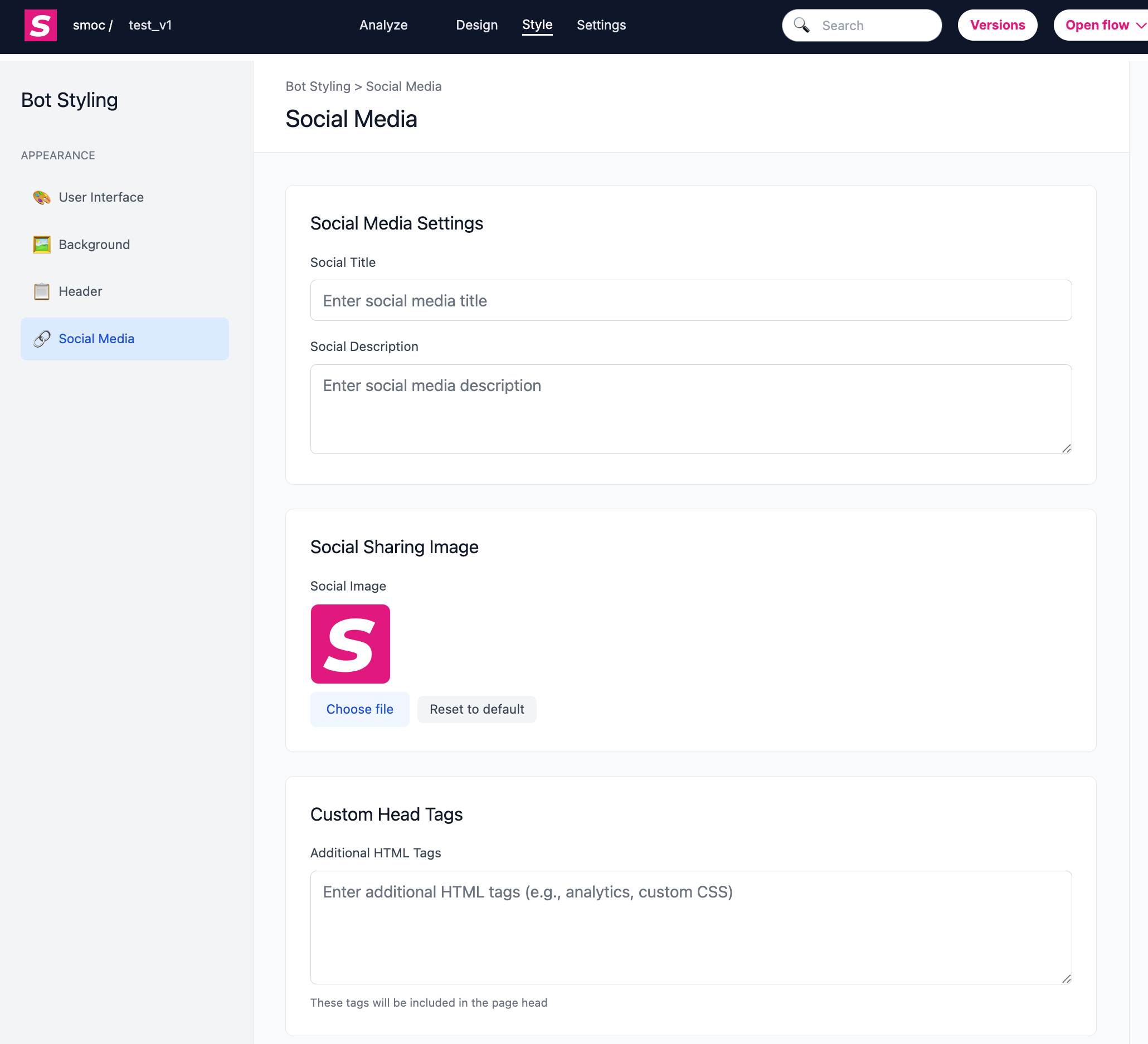
4) Social and Share Styling
Set how the flow appears when shared:
- Social title
- Social description
- Social sharing image
- Custom head tags
5) Extra Presentation Controls
Additional settings that affect experience/presentation:
- Conversation speed (message delay presets)
- Localization defaults (forced language/default country)
How can I change the URL of a SMOC Flow landing page? Link
A SMOC flow URL is structured like:
https://go2.smoc.ai/<company_key>/<flow_key>/<variant_key>
You can change parts of it as follows:
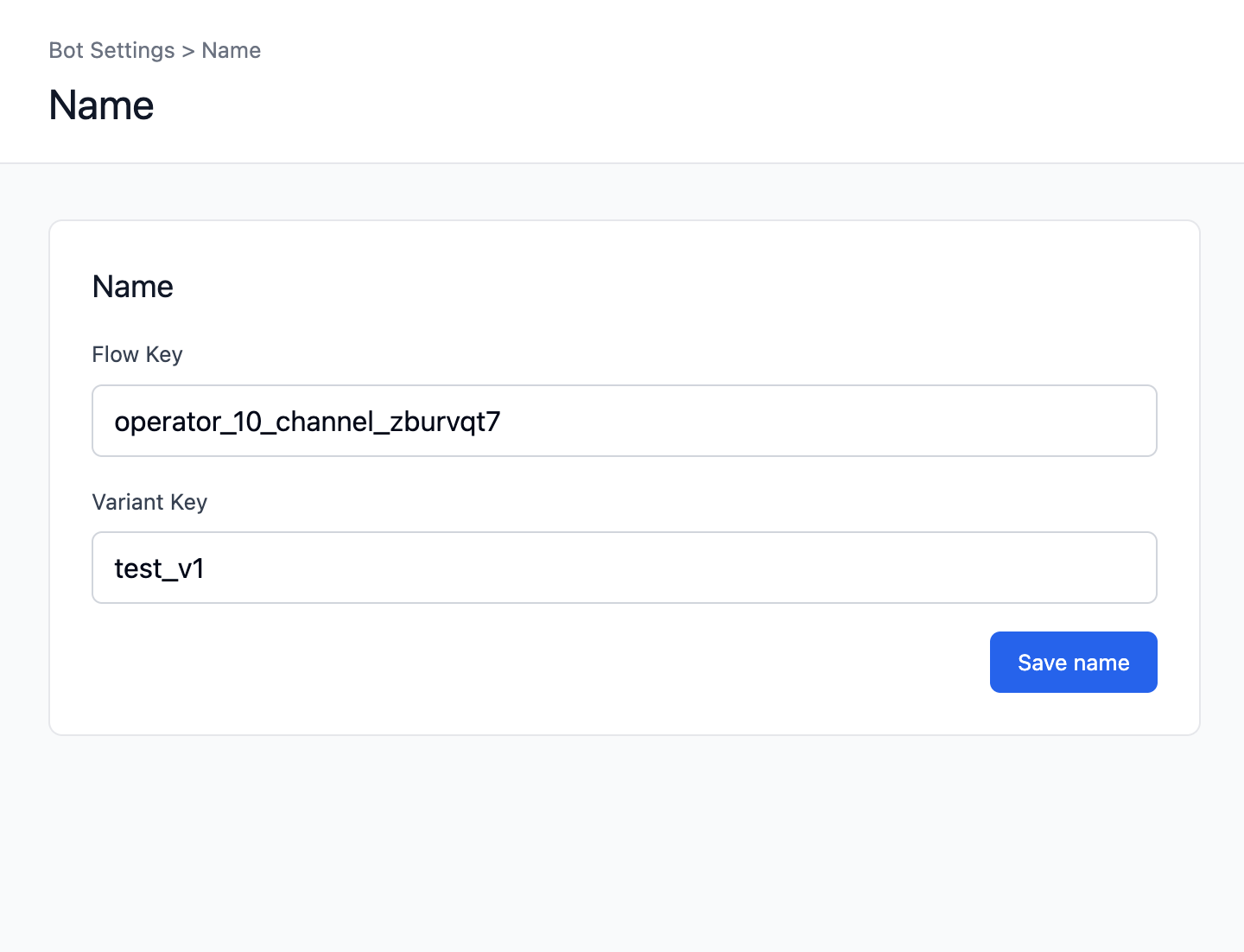
1) Change flow_key and variant_key (in Studio)
- Open the flow in SMOC Studio.
- Go to Settings -> Name.
- Update:
- Flow Key (this is the flow_key)
- Variant Key (this is the variant_key)
- Click Save.
2) Change company_key
- company_key is tied to your company/operator identifier, not the flow itself.
- It is not changed in SMOC Studio Name settings.
- If you need to change it, do it from the relevant company-level settings/process and plan a migration (all existing public links/embeds may need updating).
3) Important impact
Changing URL keys can break old shared links, ads, emails, and embeds unless redirects are in place.
So update all distributed links after key changes.
How to Set and Change the Settings for a Specific Flow? Link
To set and change settings for a specific flow, open the flow in SMOC Studio, then click Settings.
Current settings are organized by sections (not “General / View Alternatives / Rewards” anymore).
1) Core Flow Settings
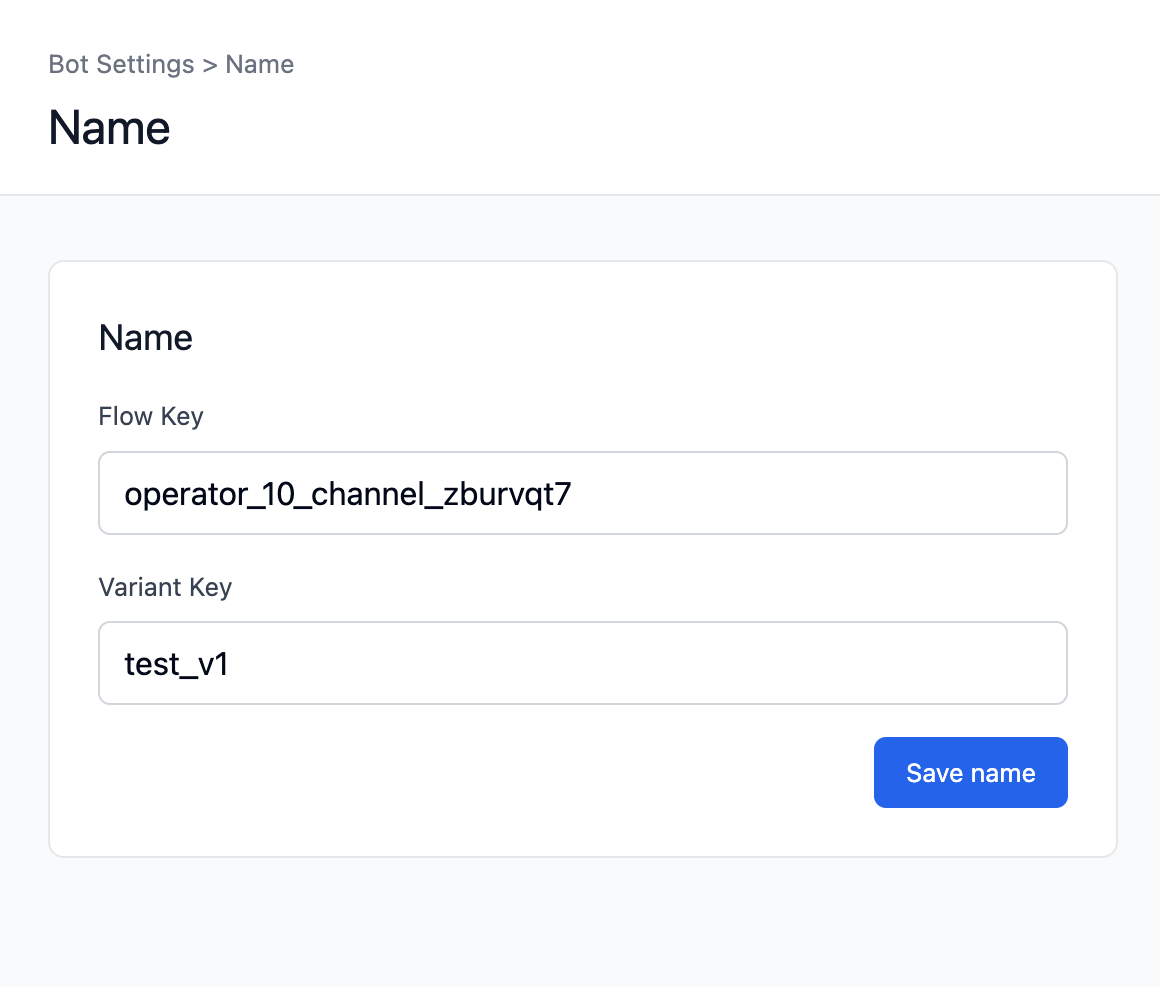
Name
- Set:
- Flow Key
- Variant Key
- This controls the flow URL path.
- Click Save name after changes.
Flow Status
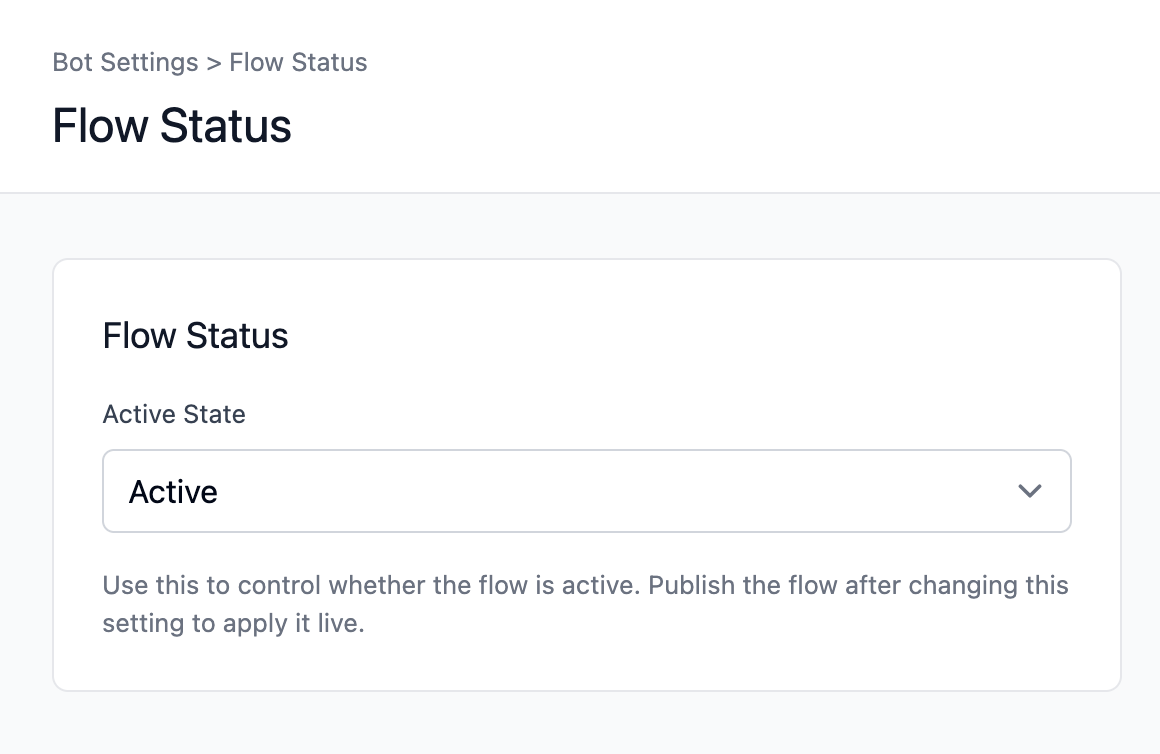
- Set flow as Active or Inactive.
- Publish after changing this so it takes effect live.
Conversation Speed
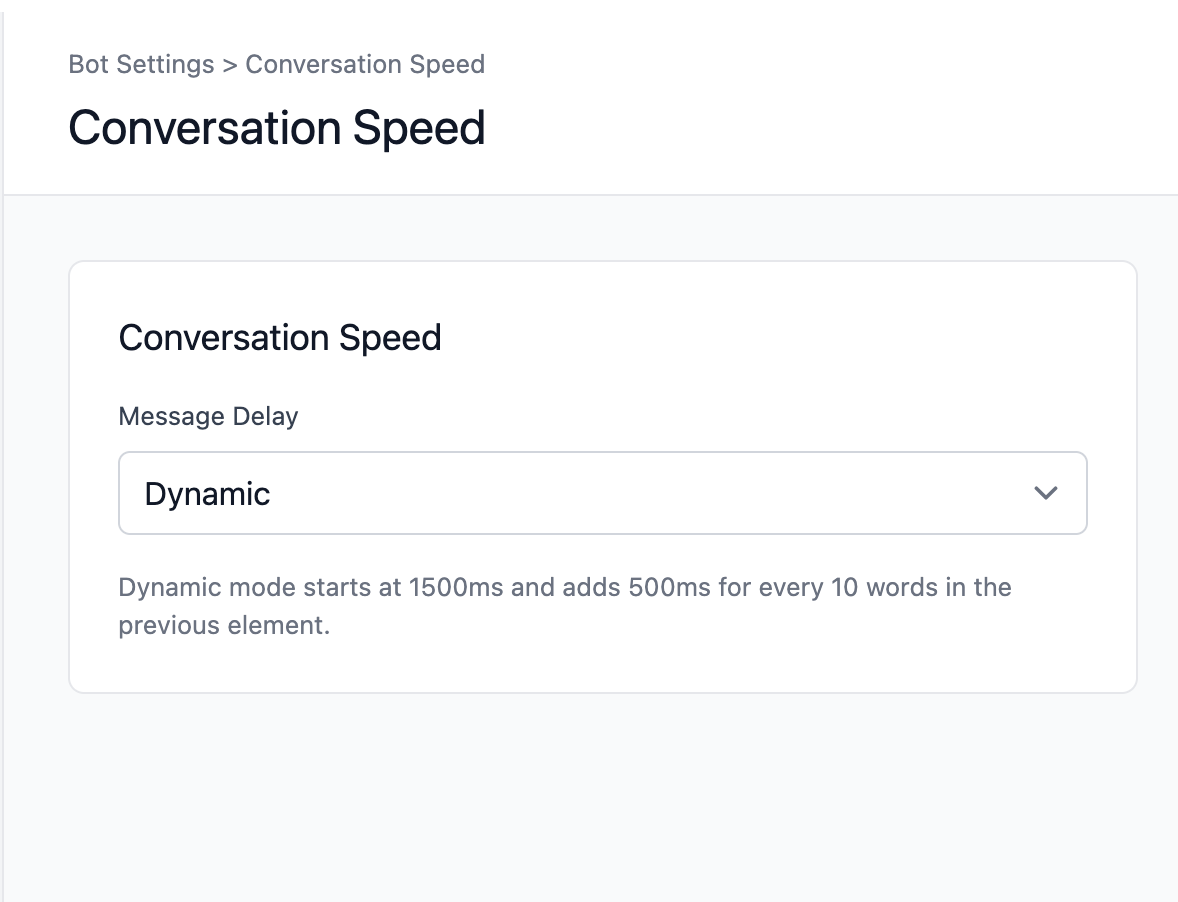
- Choose message delay mode:
- Slower
- Normal
- Faster
- Dynamic
Localization
- Configure:
- Forced Language (optional)
- Default Country (optional)
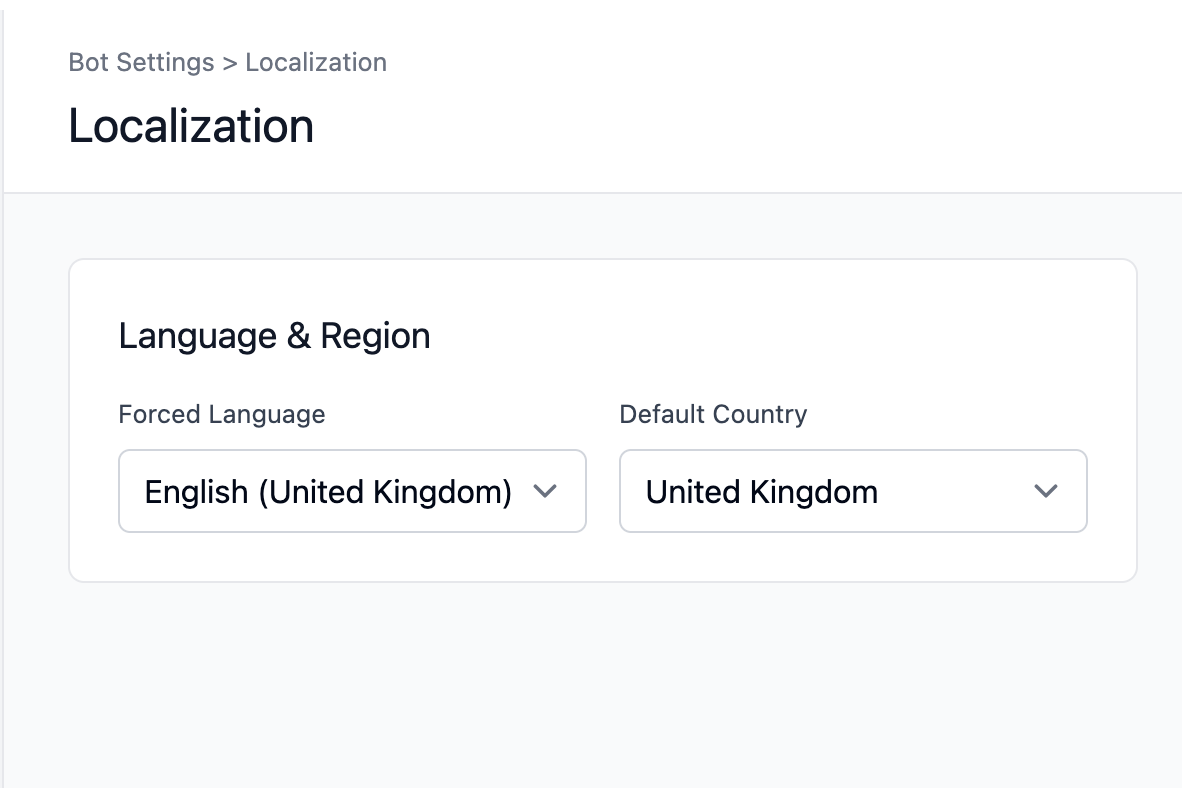
Notifications
- Set Notification Email for flow notifications/leads.
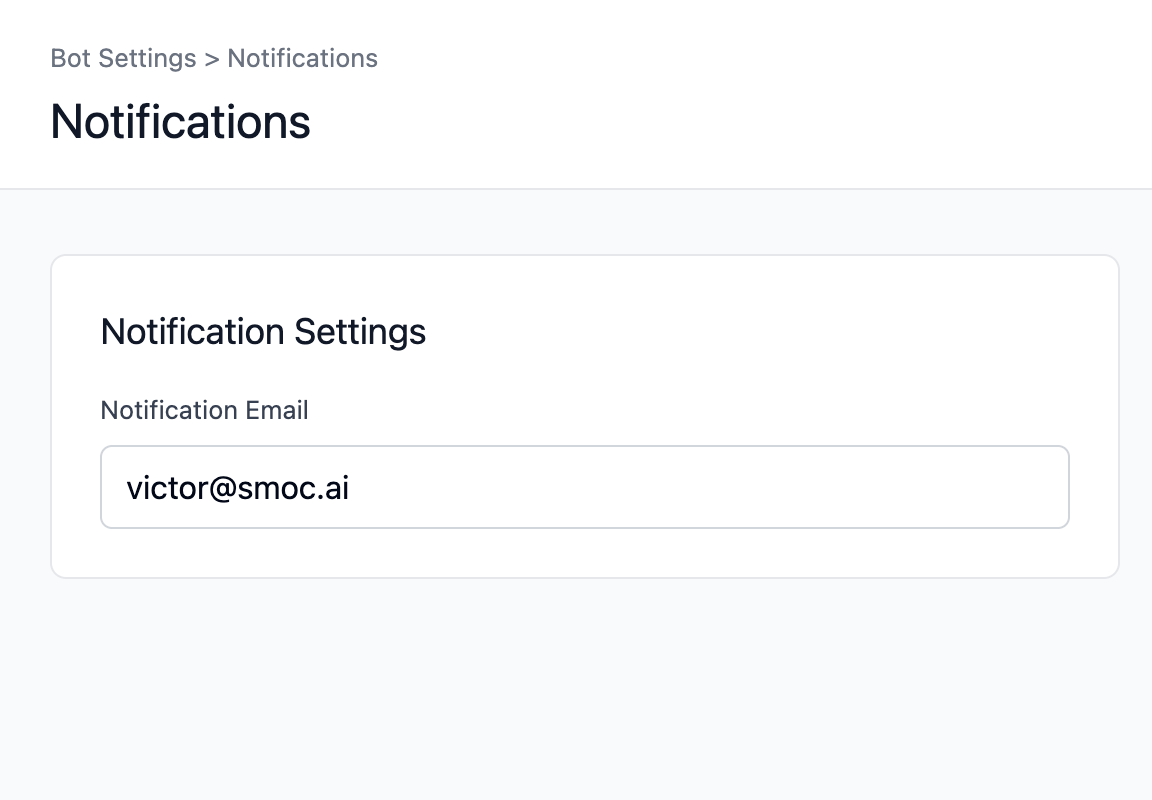
2) Embed and Link Settings
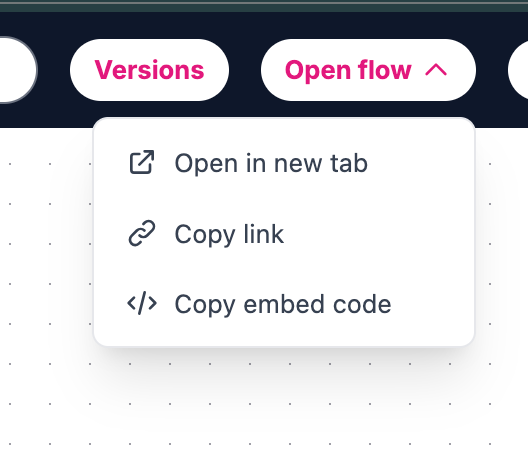
Open flow (top bar dropdown)
- Open in new tab
- Copy link
- Copy embed code
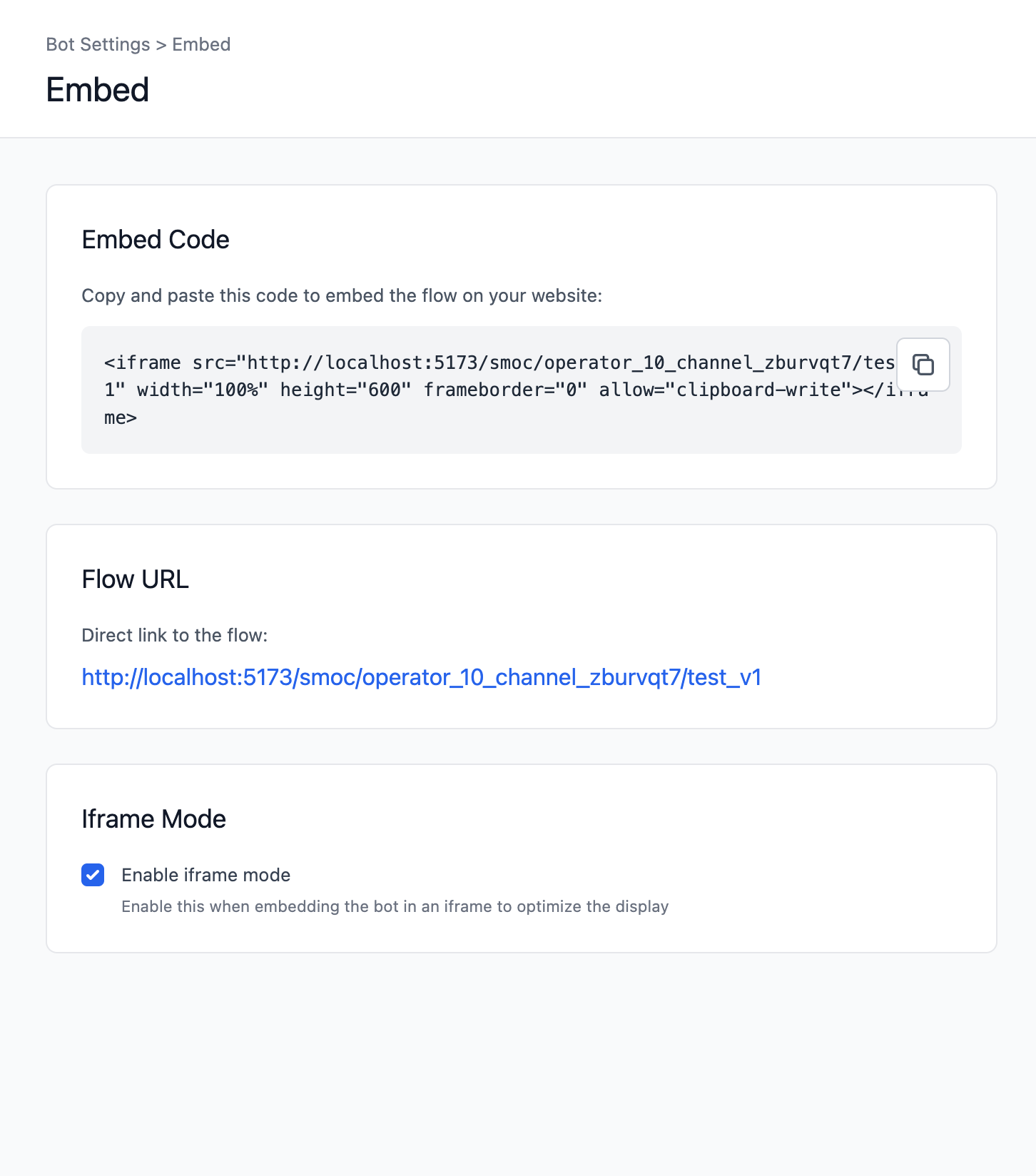
Embed section in Settings
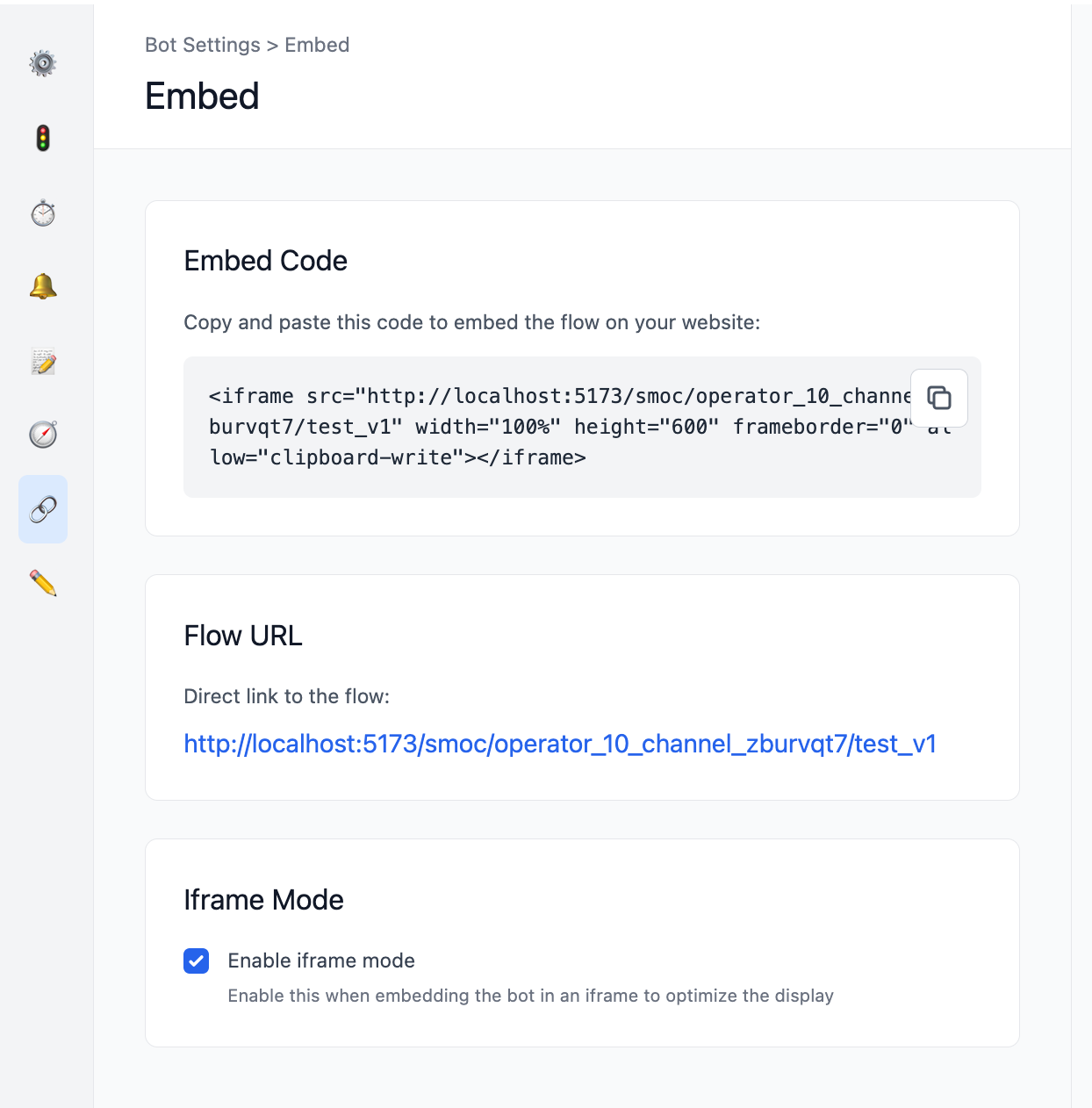
- View Embed Code
- View Flow URL
- Toggle Iframe Mode (recommended when embedded in iframe)
3) Tracking / Scripts
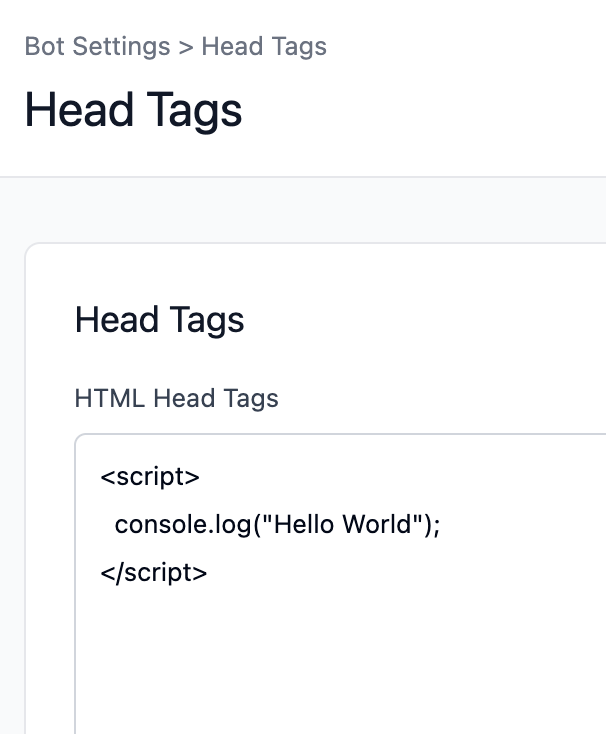
Head Tags
- Add custom head HTML (for example GTM, analytics scripts, meta tags).
- This replaces the old “GTM Code” field approach.
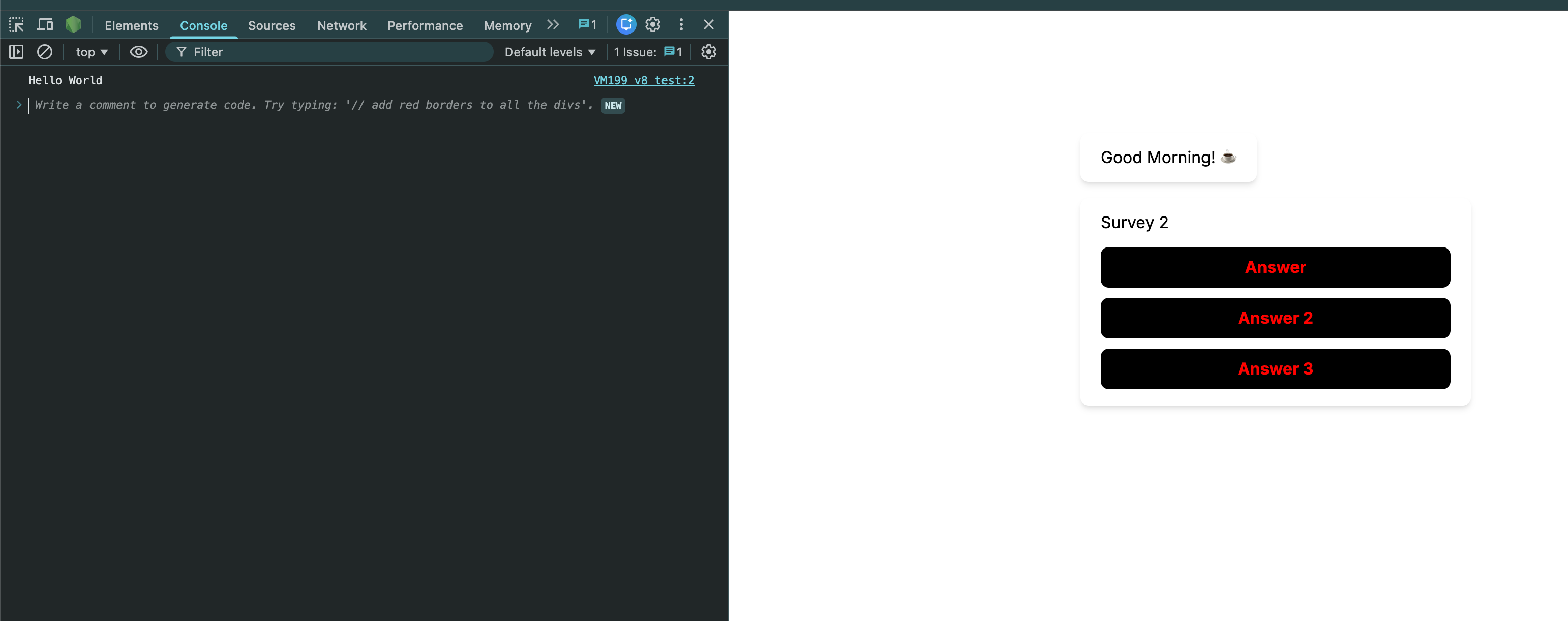
4) Editor Preferences
Editor
- Toggle Always show hover elements for easier node/edge editing in Studio.
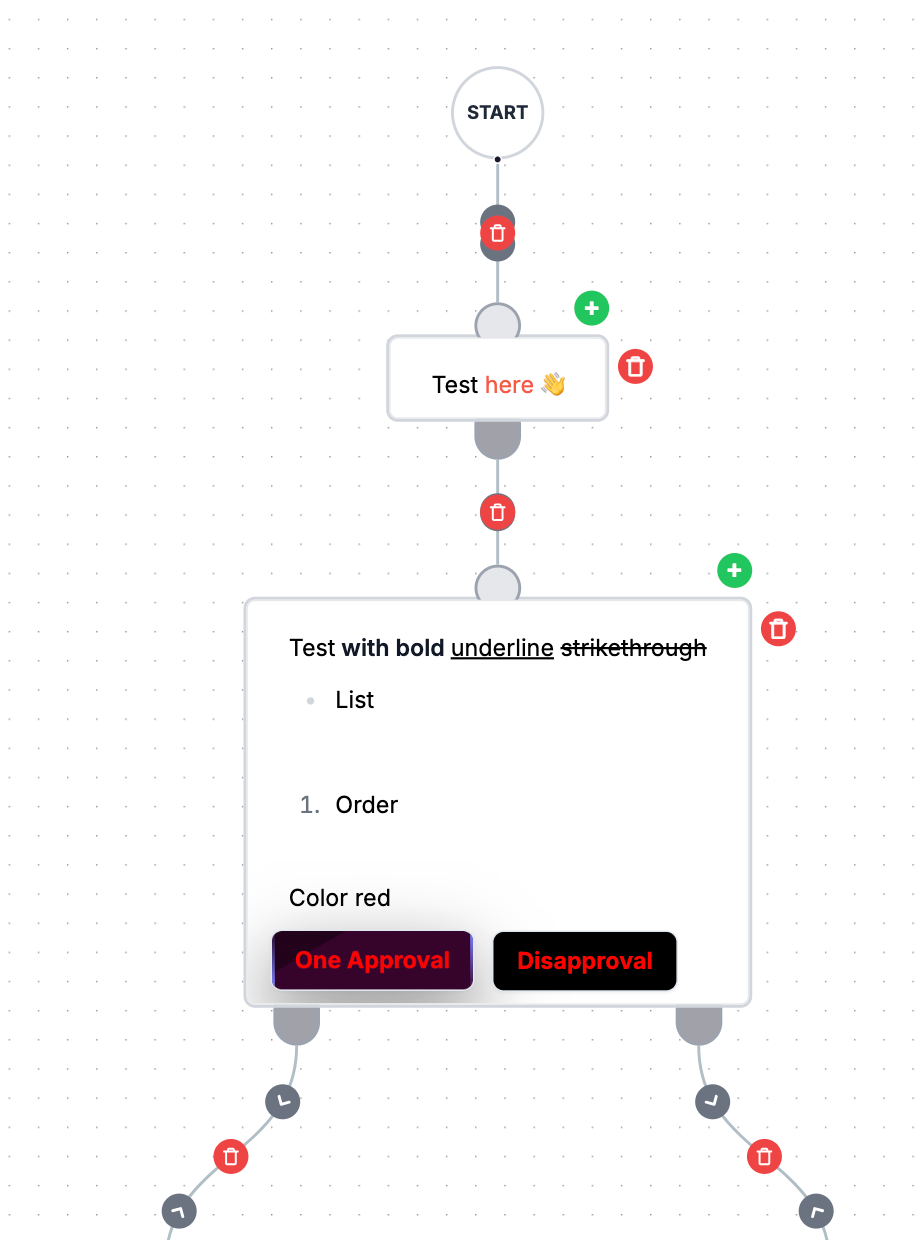
5) Styling
Flow appearance is configured in the styling sections (fonts, buttons, colors, backgrounds, logo, social share title/description/image, etc.), then published.
6) About Rewards
There is no standalone “Rewards settings” section in flow settings like before.
Rewards are configured through promo/reward nodes and elements inside the flow itself.
Why do conversion callbacks use an empty image with onerror? Link
Pixels and callback functions belong in Settings → Head Tags so they load with the page. Conversation steps are injected HTML. An empty <img src=""> fails to load, so onerror runs report_conversion_interaction() (or qualified / lead_captured) when that Custom HTML node is shown — without a page reload.
Guide: Track conversions for Meta, Google Ads, and LinkedIn · Head Tags FAQ.
What are good benchmark values for SMOC KPIs? Link
Benchmarks for SMOC metrics such as interaction rates, lead rates, completion rates, and click rates depend on the distribution channel and the flow’s purpose. Below is a summary of typical benchmarks:
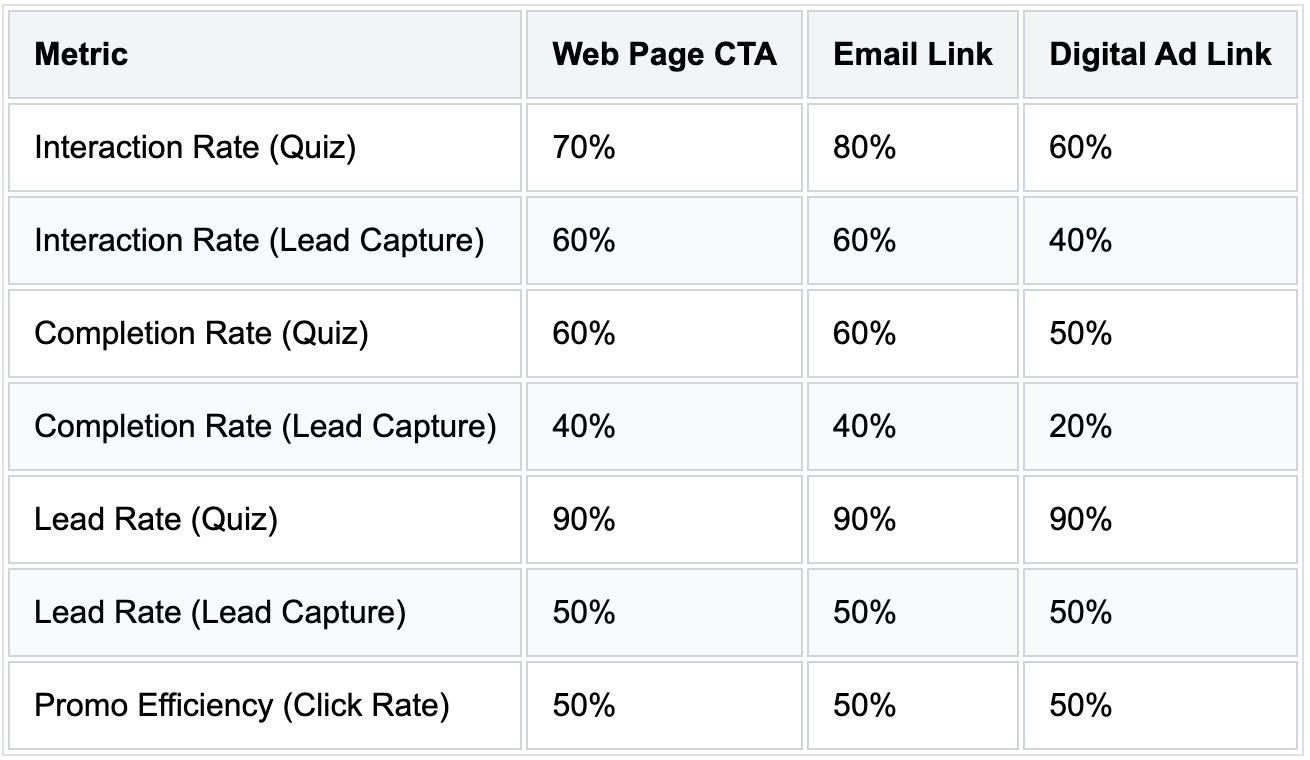
Key Insights:
- - Quizzes vs. Lead Captures: Quizzes typically see higher interaction rates as they require less user commitment than lead capture flows.
- - Distribution Channel Matters: Metrics vary by how the flow is distributed:
- -- Web Page CTA: Often has steady engagement due to existing visitor interest.
- -- Email Link: Benefits from personalized communication and familiarity.
- -- Digital Ad Link: Typically lower engagement as it relies on external traffic.
How do I understand the Studio layout, modes, and core navigation? Link
SMOC Studio is your workspace for building, editing, and analyzing flows.
This guide helps you quickly understand where everything is and what each area does.
What are the main areas in Studio?
When you open a flow, Studio is typically split into these core areas:
- Top bar: flow actions like Open flow, Publish, Versions, and utility actions.
- Canvas: the visual flow map where nodes and connections live.
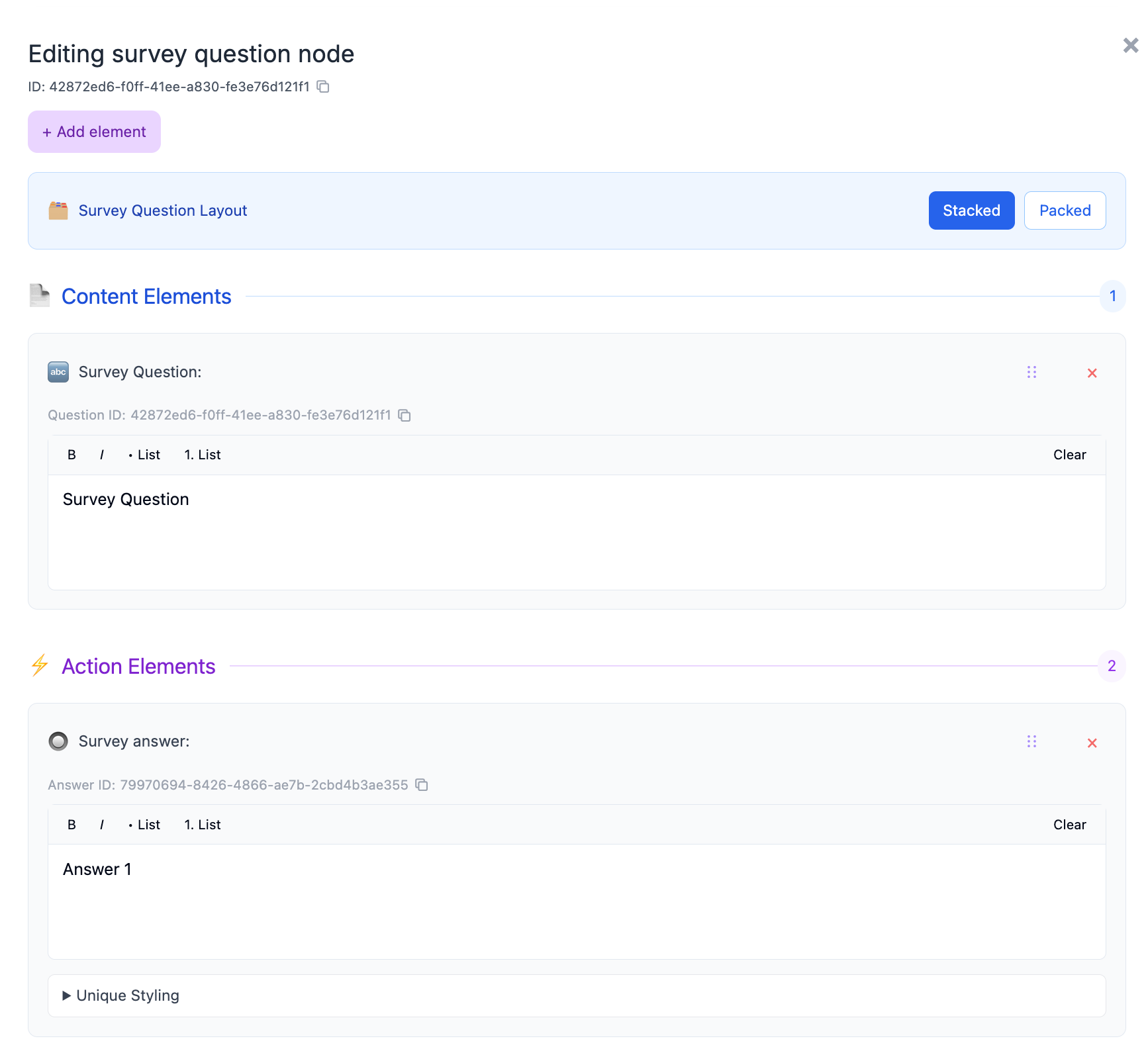
- Node editor panel: opens when you select/edit a node, where you configure content and elements.
- Settings / Styling areas: where you configure flow-level behavior and appearance.
- Mode controls: switch between building and performance analysis views.
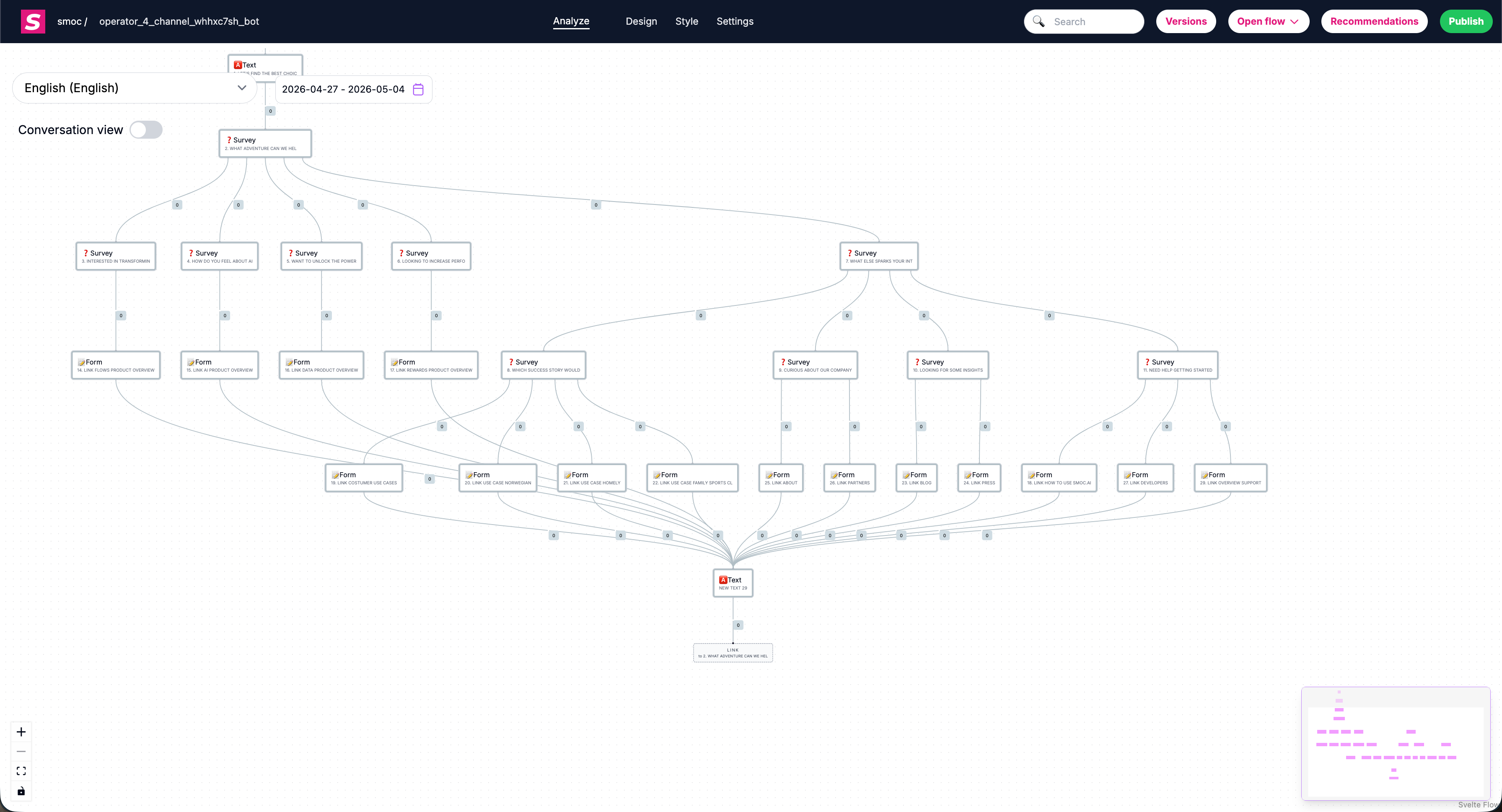
What are the core Studio modes?
Studio is used in two primary modes:
- Design mode
Use this when building flows: adding nodes, connecting paths, editing content, and configuring behavior.
- Analyze mode
Use this when reviewing performance: node visits, path behavior, completion signals, and optimization opportunities.
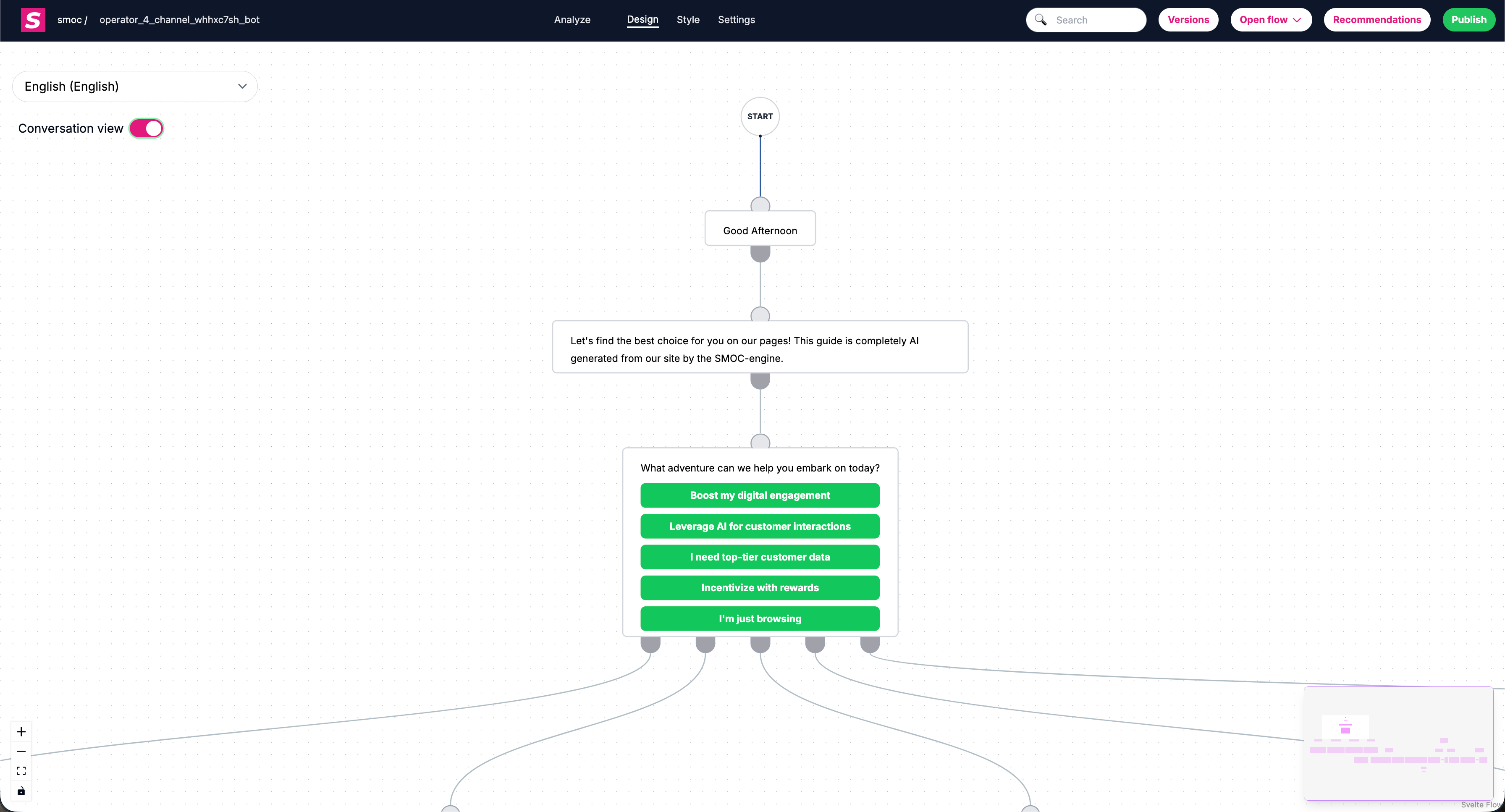
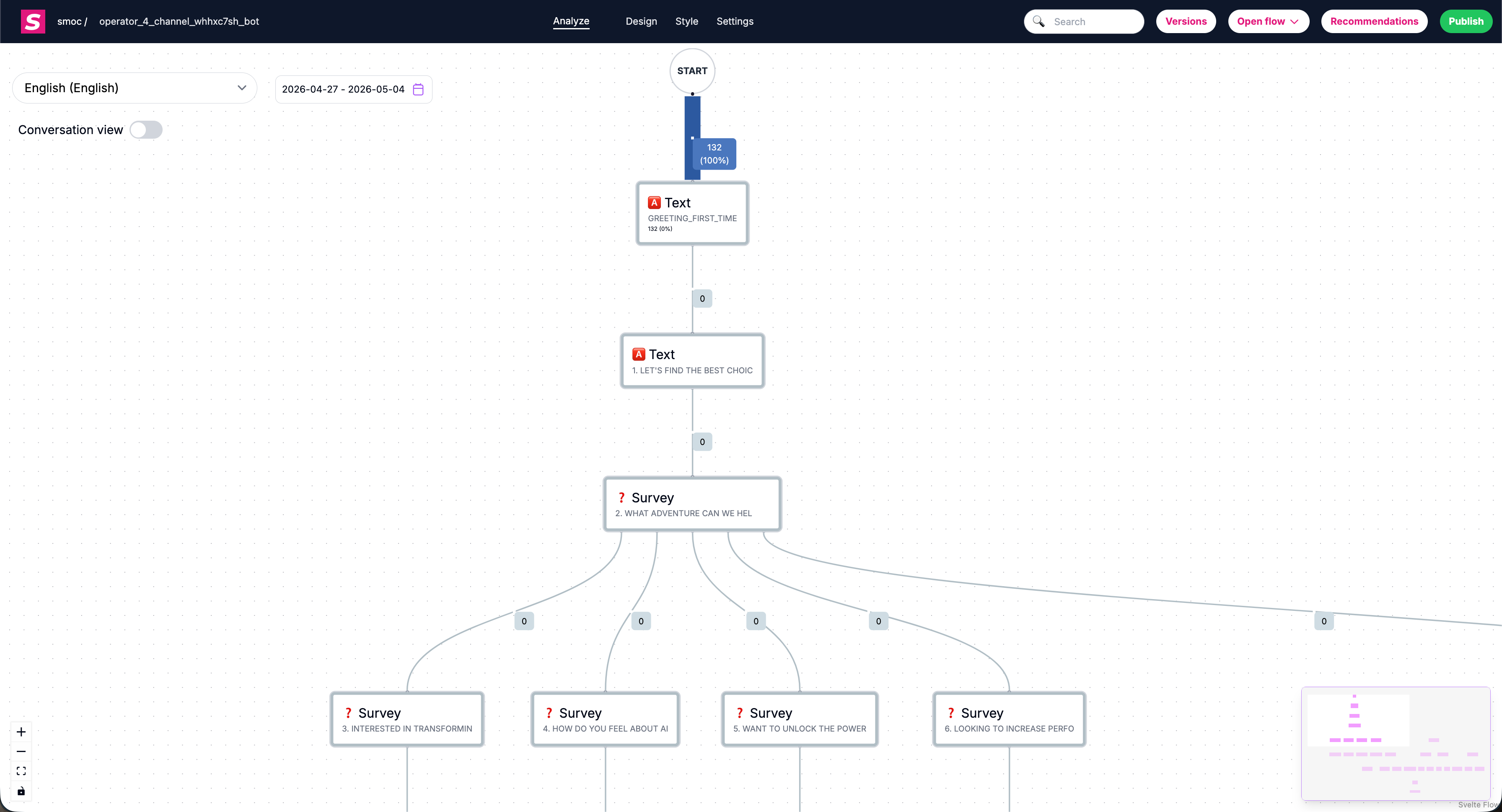
How do I move around the flow canvas?
To navigate quickly in larger flows:
- Click and drag empty canvas space to pan.
- Use mouse wheel/trackpad to zoom in/out.
- Click a node to focus/select it.
- Use search to jump to matching nodes fast.
- Use the navigation arrows on edges to jump to previous/next node.
- Enable Always show hover elements in Editor settings to keep navigation arrows visible at all times.
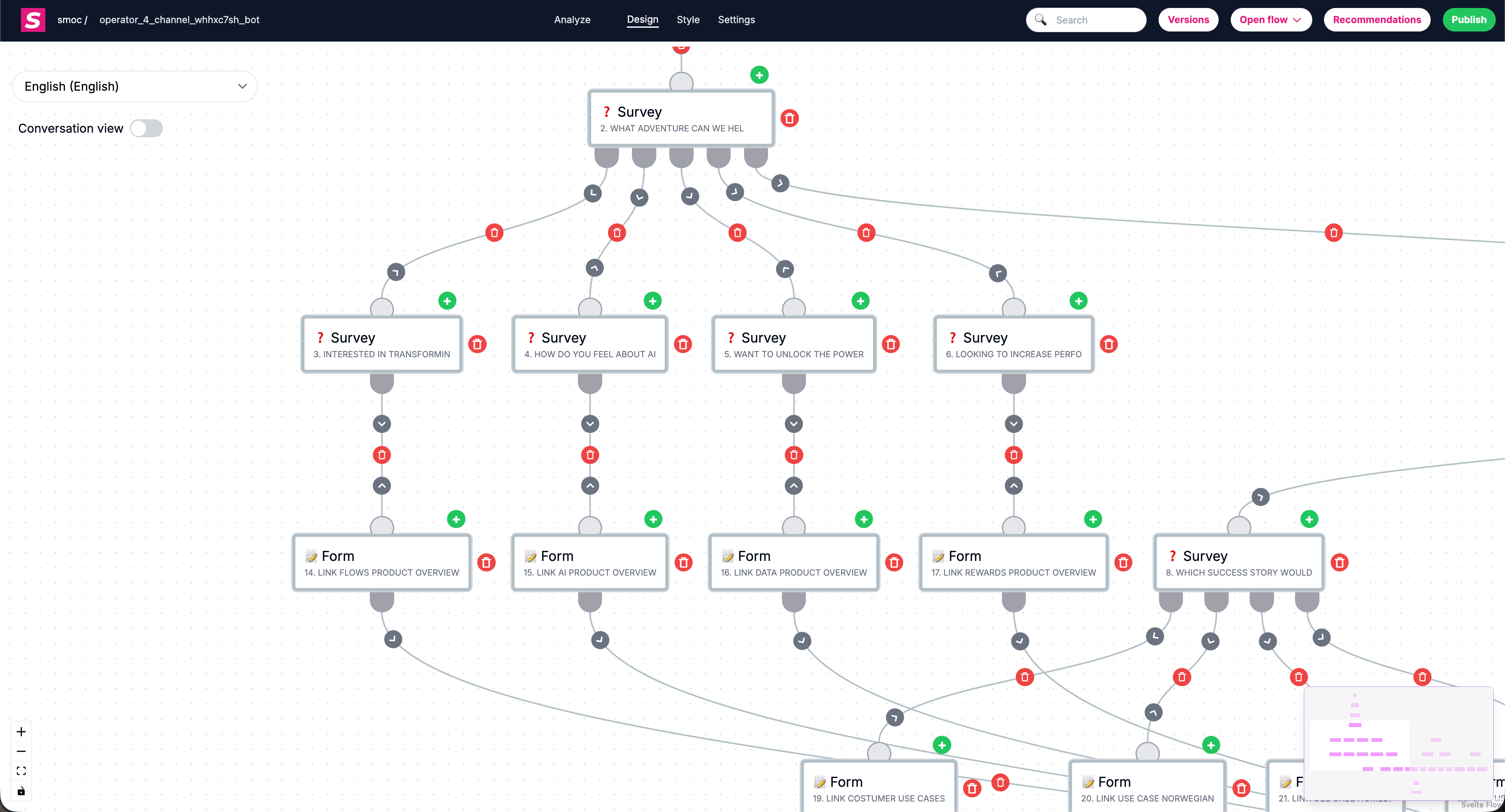
What are nodes, handles, and edges?
- Node: a flow step (for example Text, Survey Question, Form, Promo, etc.).
- Handle: a connection point on a node (used for outgoing/incoming paths).
- Edge: the line/path connecting one node to another.
In branching nodes, multiple handles represent different outcomes (for example one per survey answer).
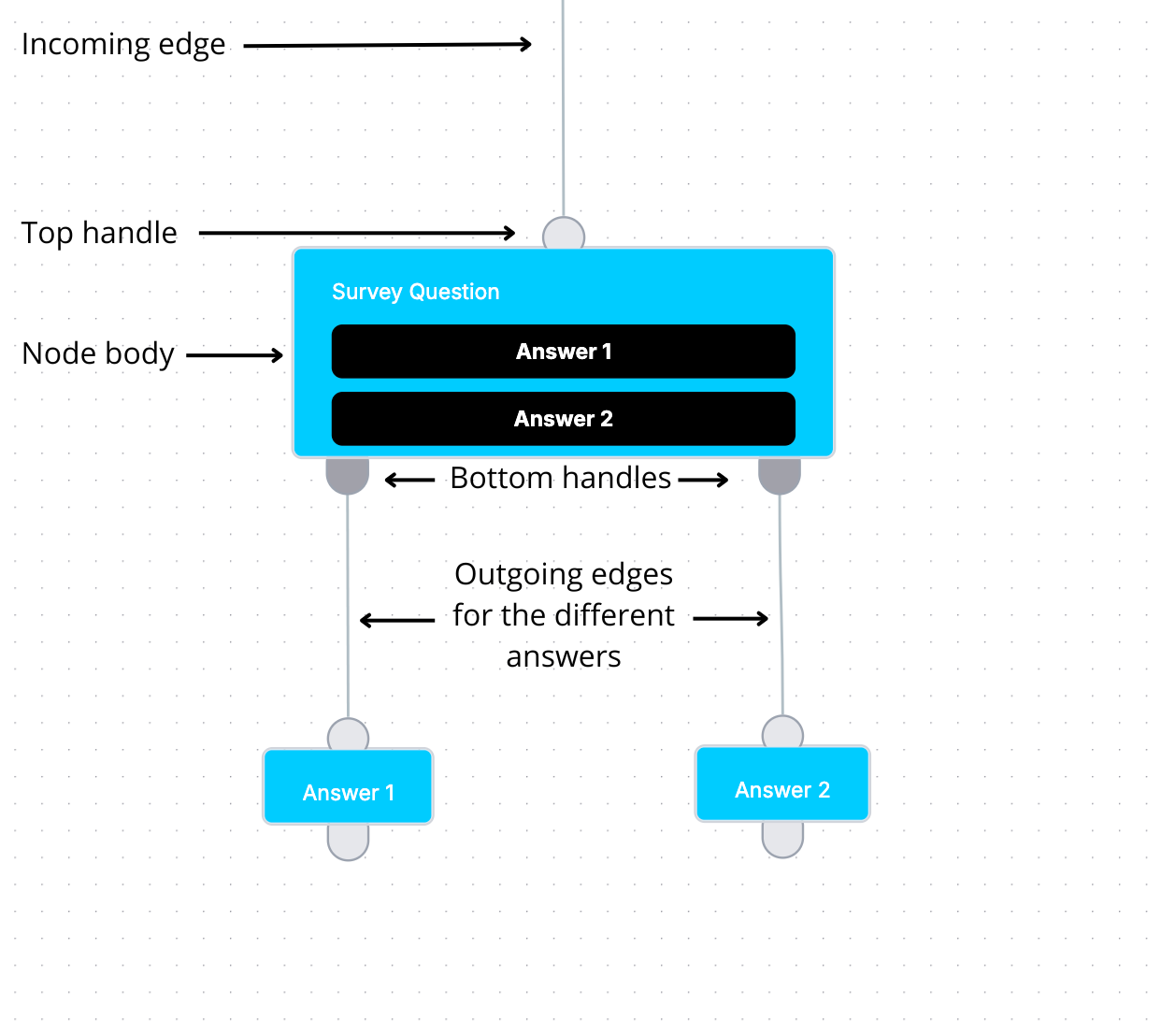
Where do I edit flow content vs flow settings?
- Edit node content inside the node editor (text, buttons, form fields, links, etc.).
- Edit flow-level settings in Settings (for example localization, conversation speed, notifications, head tags, embed, keys).
This separation helps keep message content and global flow configuration organized.
Quick tips
- Keep node names/content clear so searching is easier later.
- In large flows, zoom out first to understand structure, then zoom into one branch at a time.
- Use Analyze mode regularly to validate real behavior, not just intended behavior.
How do I add, connect, reorder, and delete nodes in SMOC Studio? Link
1) Add a new node
You can add nodes in two common ways:
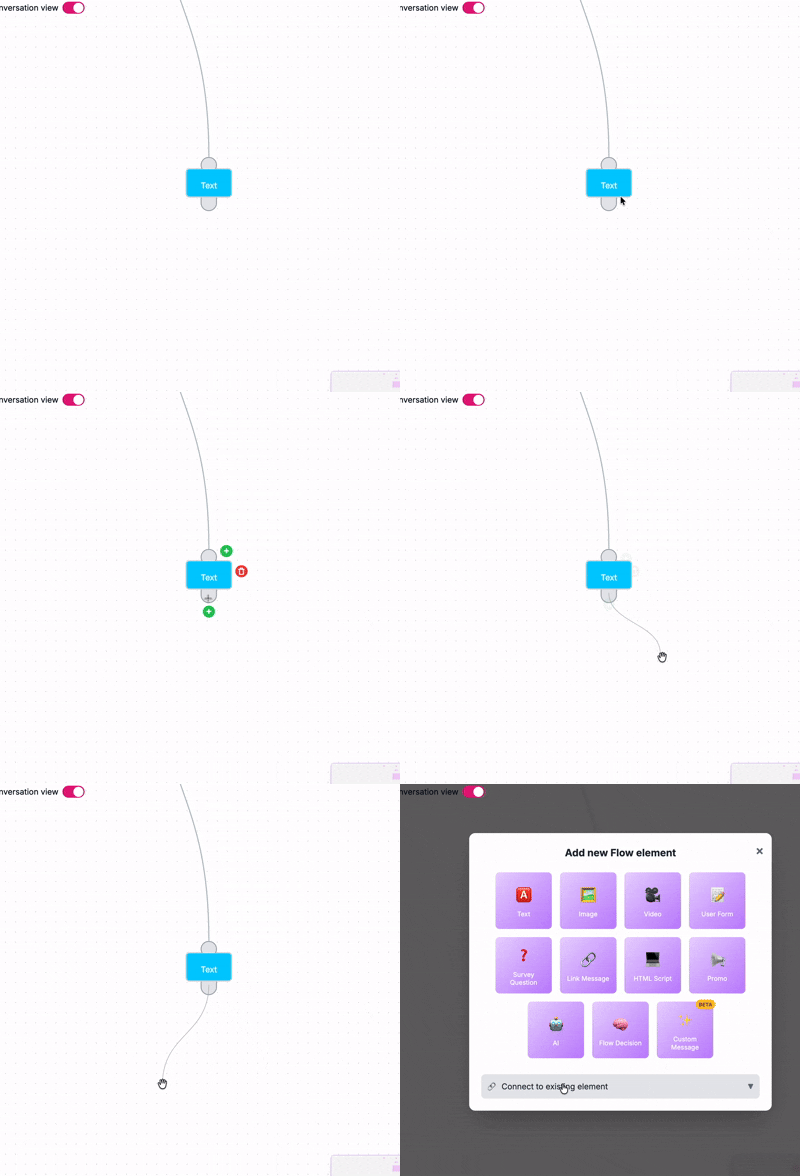
- - Click the + under an available output handle to add the next step in that path.
- - Click the + above a node to insert a node before it.
Then in Add new Flow element, choose the node type (Text, Survey Question, Form, Promo, etc.).
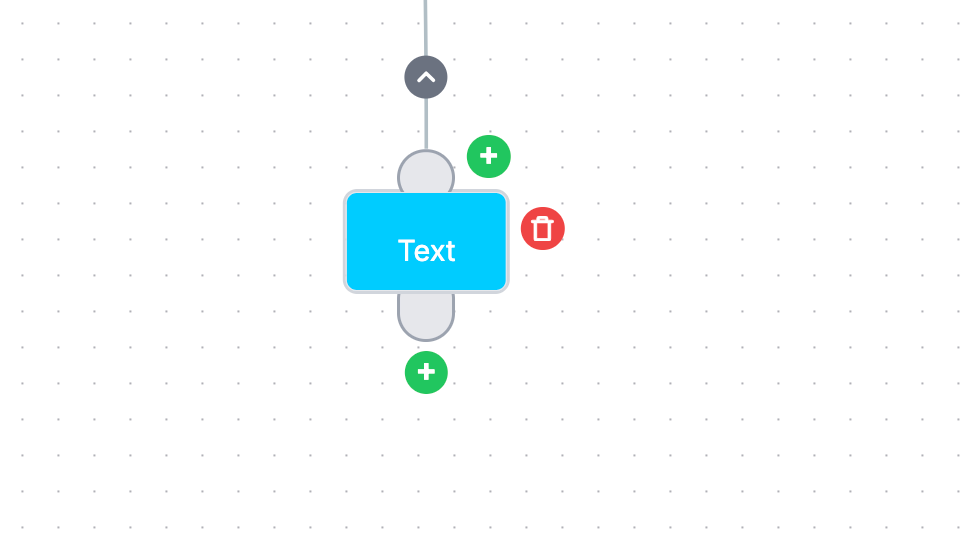
2) Connect nodes
To connect paths:
- - Drag from a source handle to another node (or to empty space to create a new node).
- - For branch nodes (Survey/Decision/AI), connect each output handle to its own next node.
- - If relevant, use Connect to existing element in the add modal to link to an existing node instead of creating a new one.
3) Reorder nodes (change flow order)
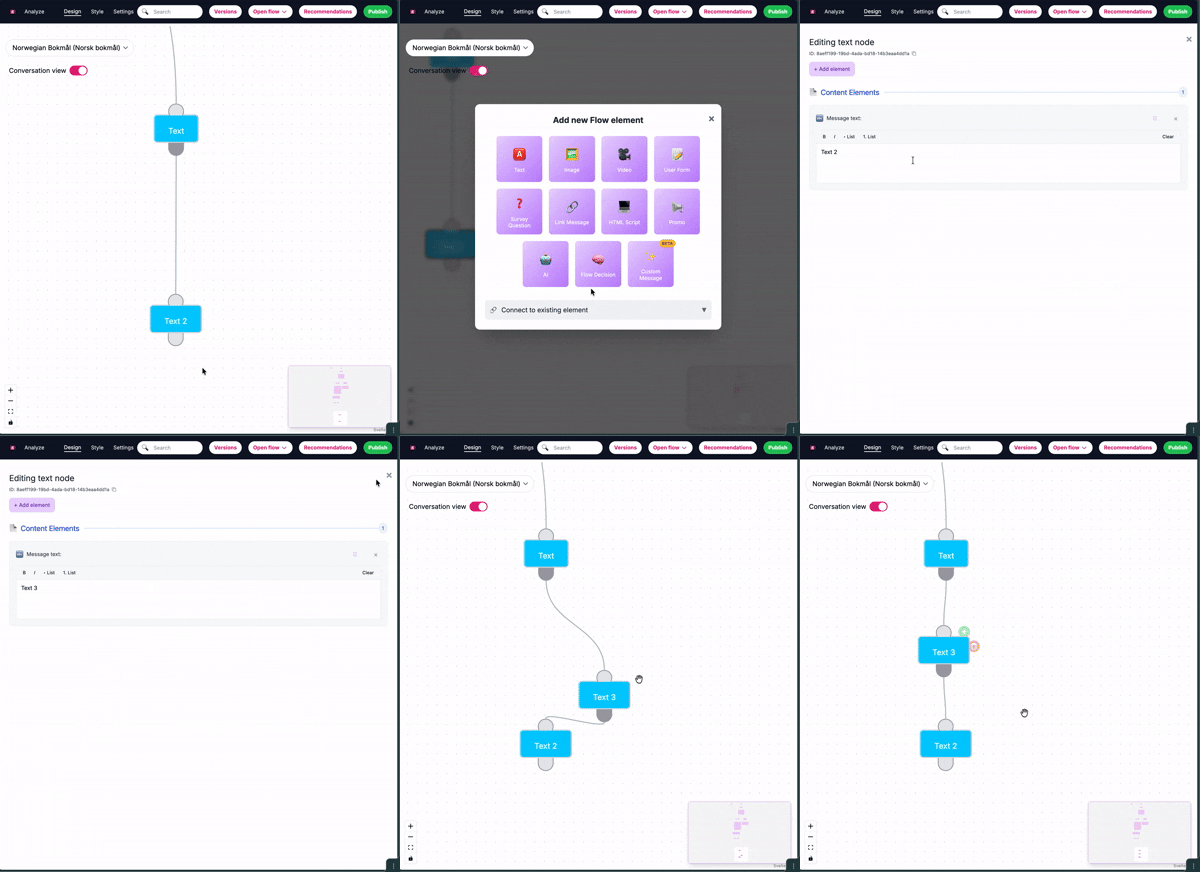
In Studio, “reorder” usually means changing execution order by inserting/reconnecting nodes, not just moving visuals.
- - Use insert above (+ above node) to place a step earlier in the path.
- - Add from a specific output handle to place a step in the right branch.
- - Reconnect edges when needed to move a node to a different position in the flow logic.
4) Delete a node
To remove a node:
- - Hover/select the node in Design mode.
- - Click the red delete button on the node.
- - Confirm the flow still has valid paths after deletion.
Tip: delete intentionally in branched flows, since removing one node can affect downstream routing.
5) Safe editing workflow for large flows
- - Zoom out and identify the exact branch first.
- - Add/connect one change at a time.
- - Test each edited path.
- - Use Versions checkpoints before major restructuring.
How can I create and configure different flow elements in SMOC? Link
The Flow Editor in SMOC Studio is where you create and configure your flow elements. Click the + on a path/handle, choose a node type, then edit that node in the right-side editor panel.
Core Flow Elements
1. Text
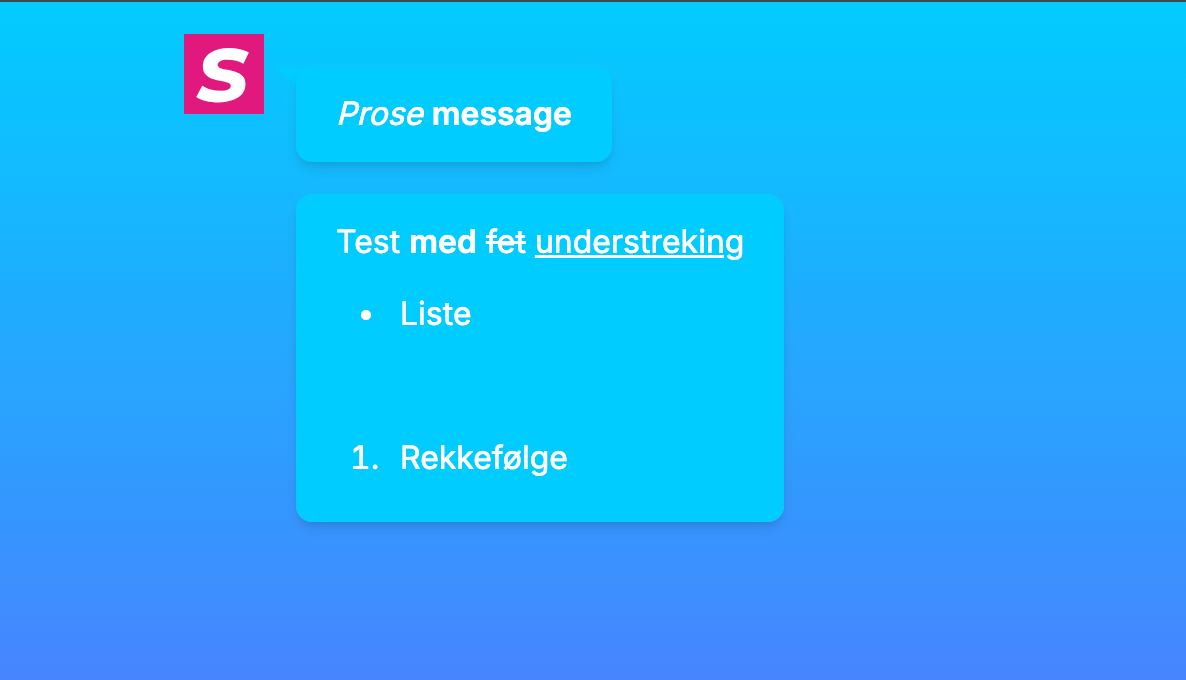
Add a Text node for regular messages.
- Write your content directly in the editor.
- Use rich text formatting (for example bold and styled text).
- Save/close to keep it in the flow.
2. Image
Add an Image node to show a picture.
- Paste an image URL, or upload an image from your device.
- Preview and update the image in the editor panel.

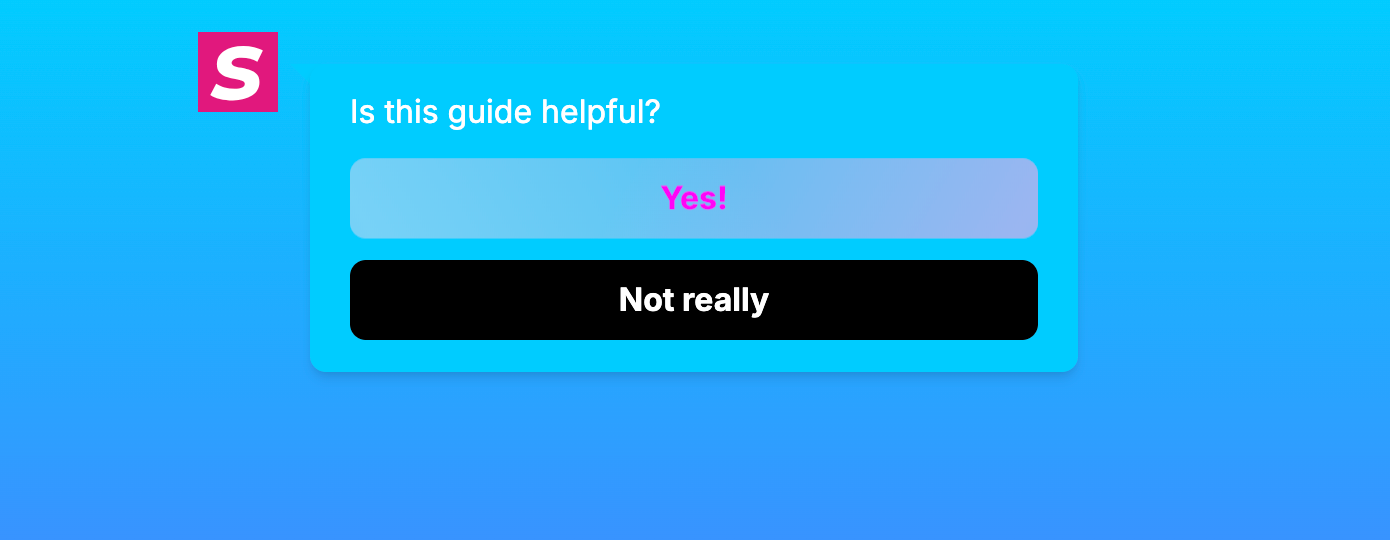
3. Survey Question
Add a Survey Question node to collect responses.
- Add the question text.
- Add answer buttons (each button becomes a selectable answer).
- Reorder, edit, remove, or restore answers in the element editor.
- Configure survey answer layout (for example stacked/packed).
4. Promo
Add a Promo node, then choose a promo type.
Available promo types include:
- Visit Promo
- Visit & Action Promo
- Display Campaign
- Video Visit Promo
- Video Visit & Action Promo
- Video Display Campaign
- Referral Promo
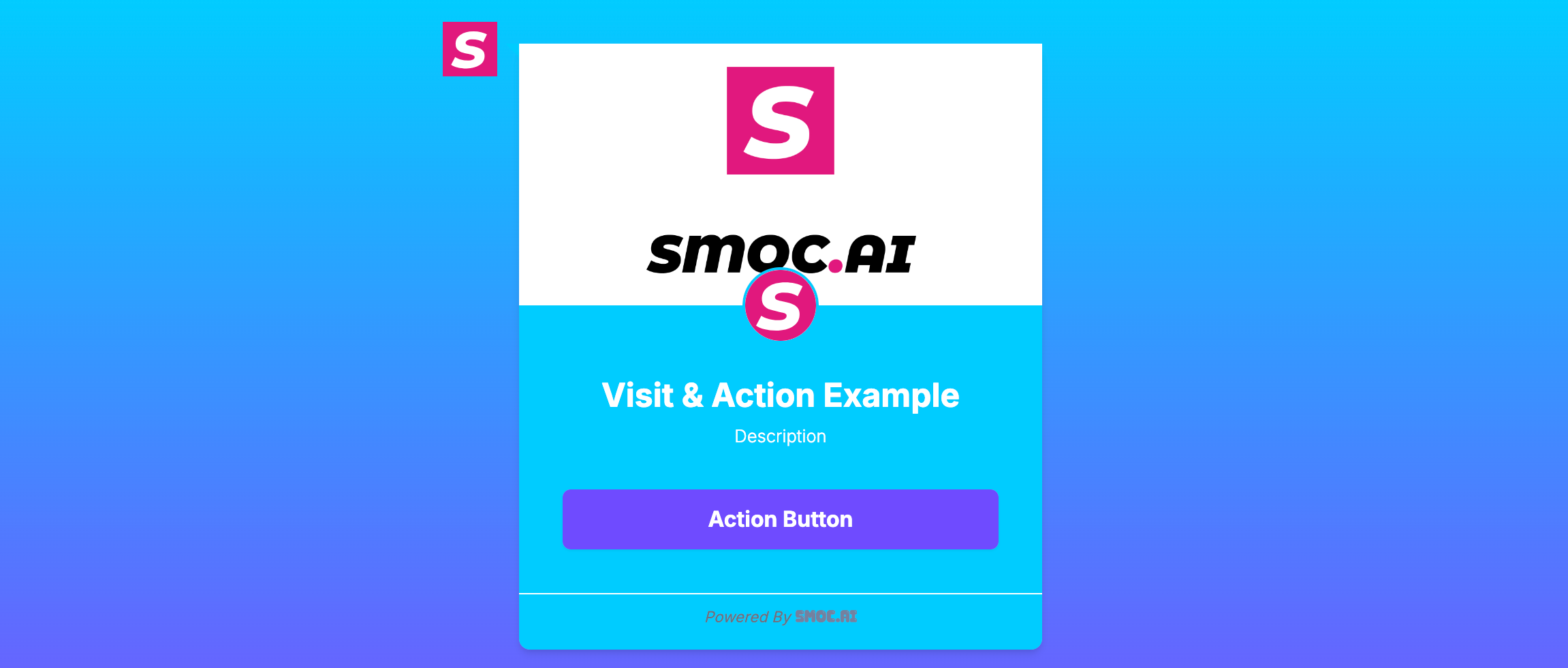
Example of Visit & Action Promo
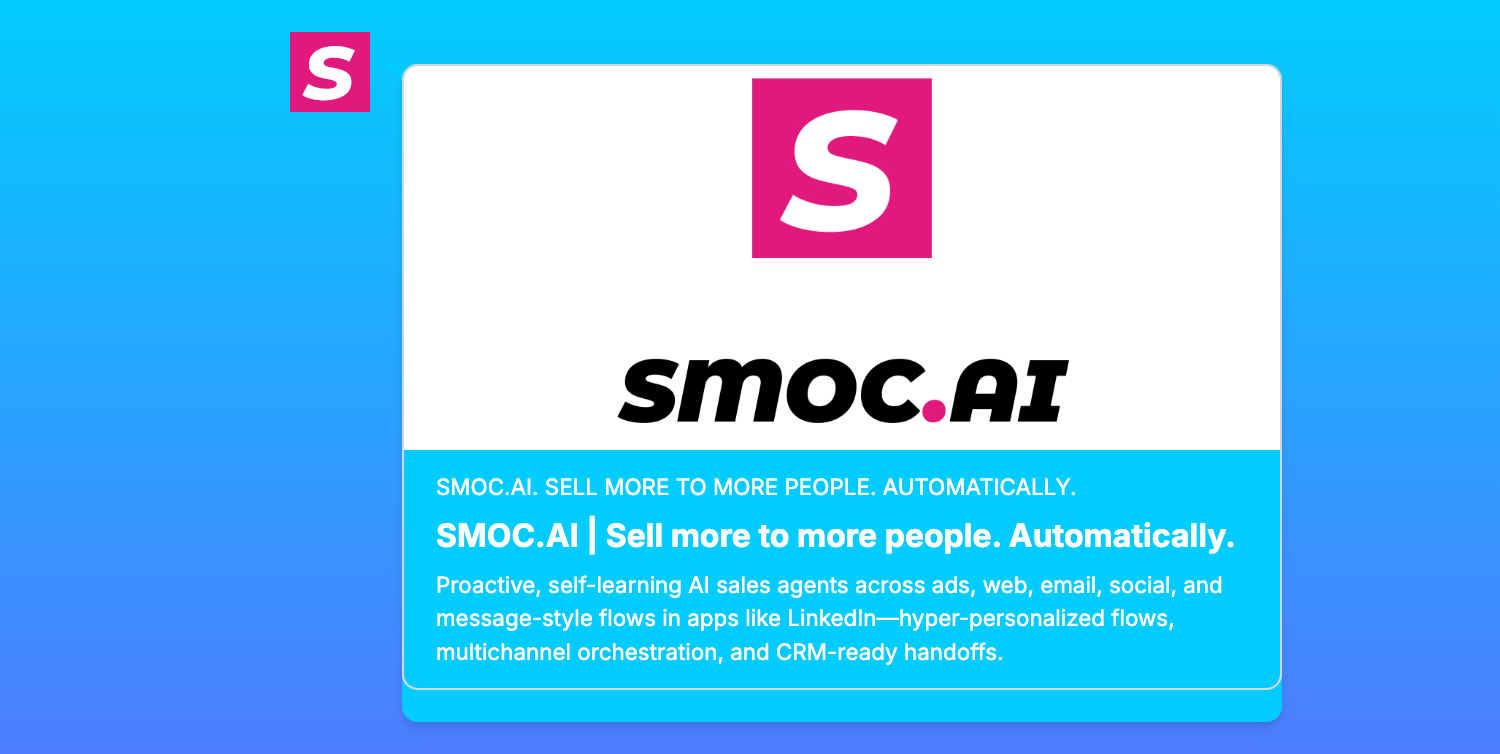
5. Link Message
Add a Link Message node to send users to a URL.
- Set Link text (what users see).
- Set Link URL (destination).
- Optionally enable Open Graph for preview-card style links.
- Optionally enable Forward UTM & click IDs to append incoming campaign parameters (utm_* plus gclid, fbclid, and other ad click IDs) to the destination URL.

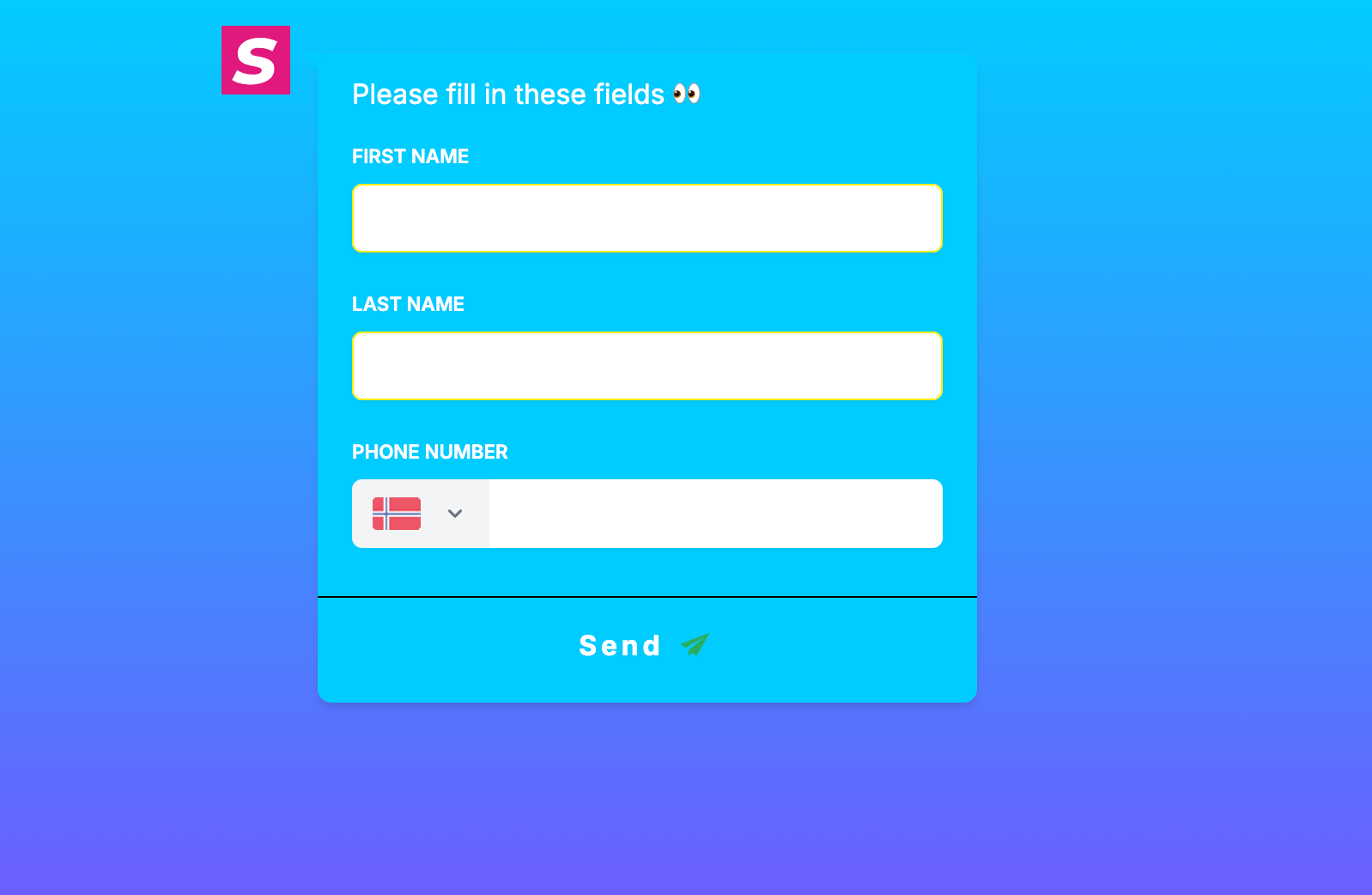
6. User Form
Add a User Form node to collect lead/contact data.
- Add fields such as first name, last name, email, phone, and more.
- Reorder and adjust form fields in the editor.
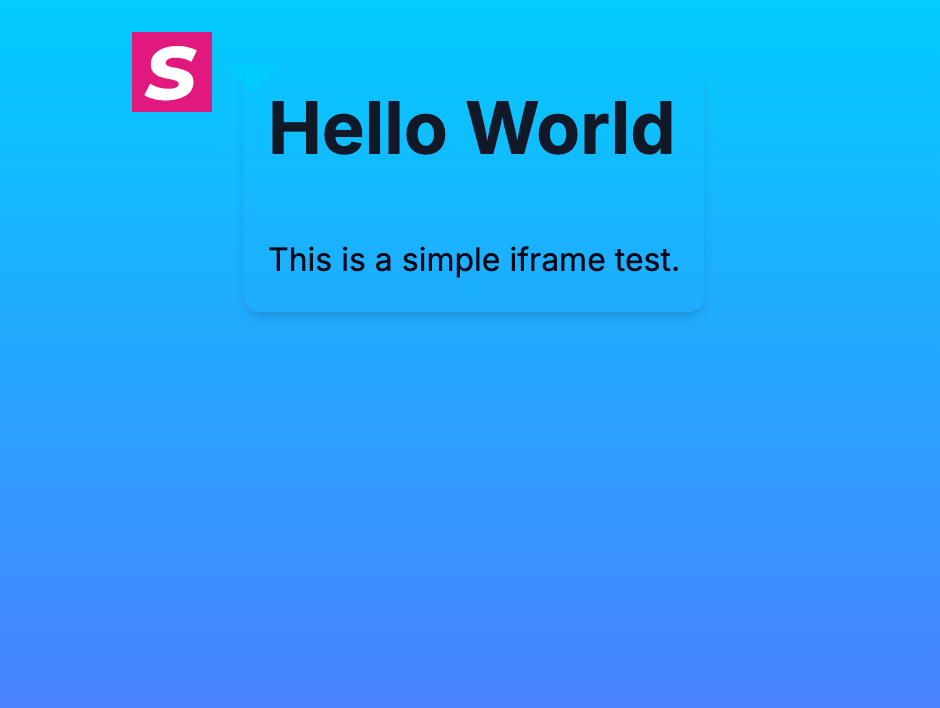
7. HTML Script
Add an HTML Script node (previously called iFrame).
- Paste your HTML/embed/script content in the node editor.
- Use this for embedded external widgets/content.
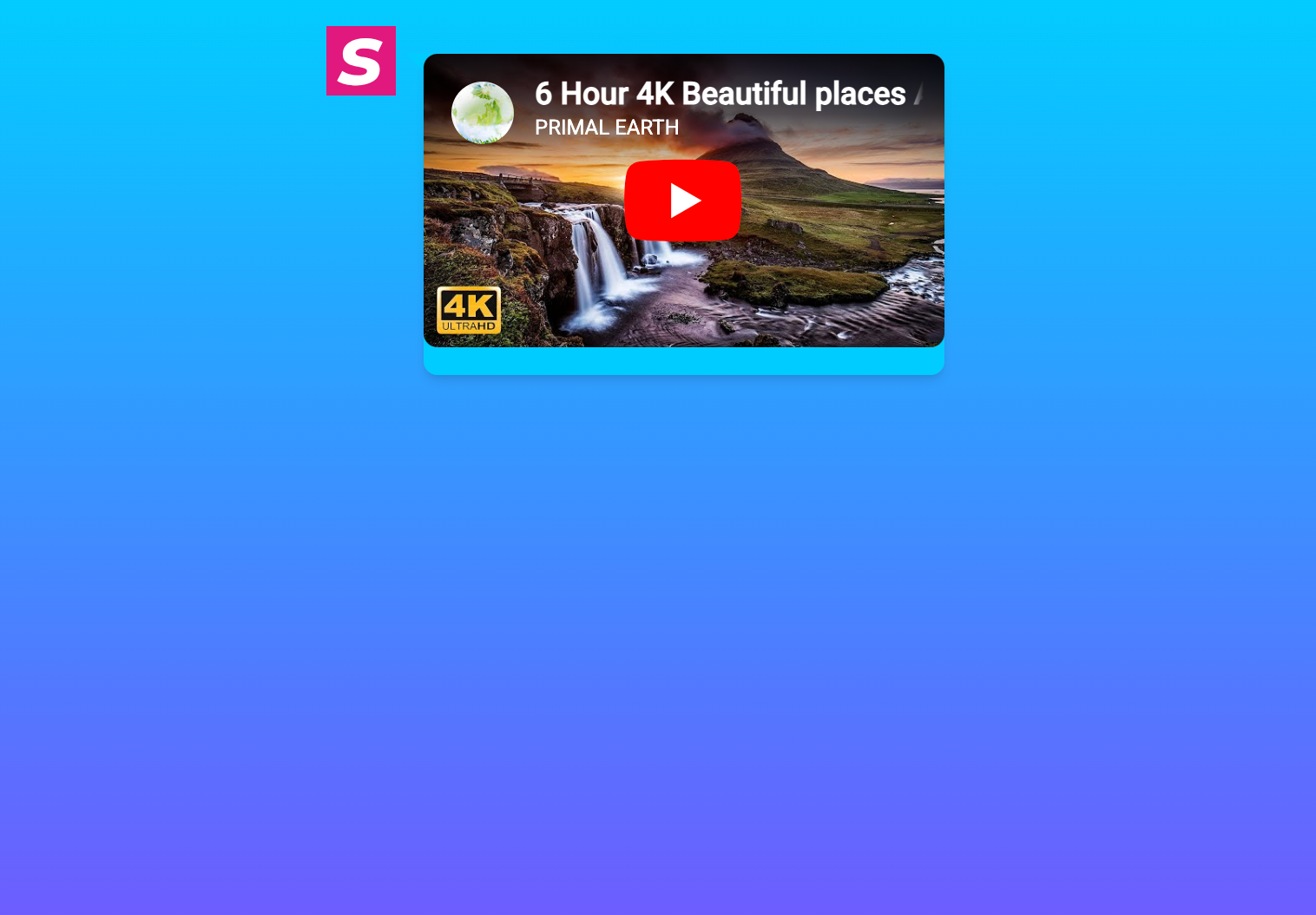
8. Video
Add a Video node for video content.
- Paste a supported video URL.
- Configure accompanying text/elements if needed.
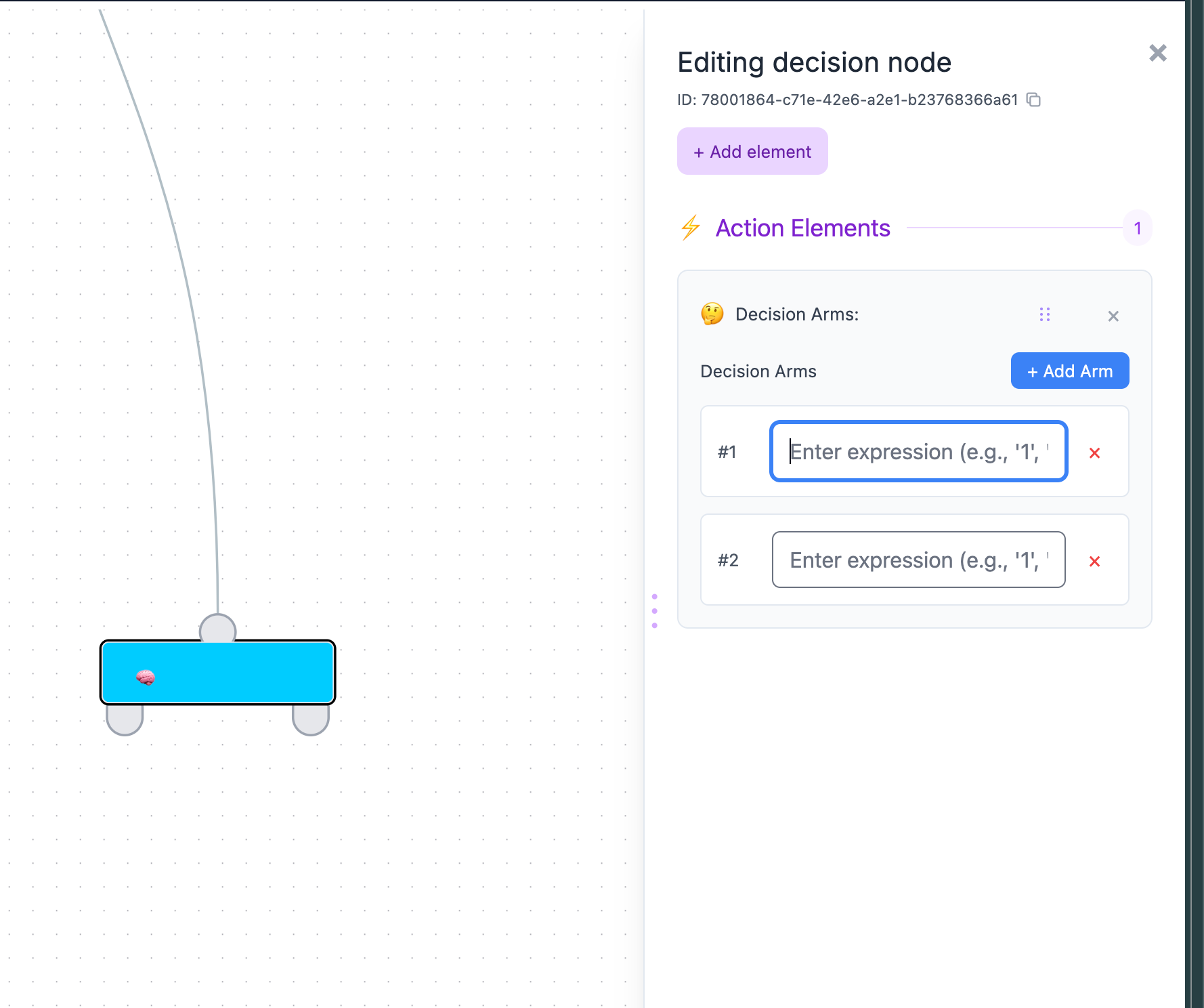
9. Flow Decision
Add a Flow Decision node for expression-based branching.
- Create one or more decision arms.
- Define expressions per arm to control routing.
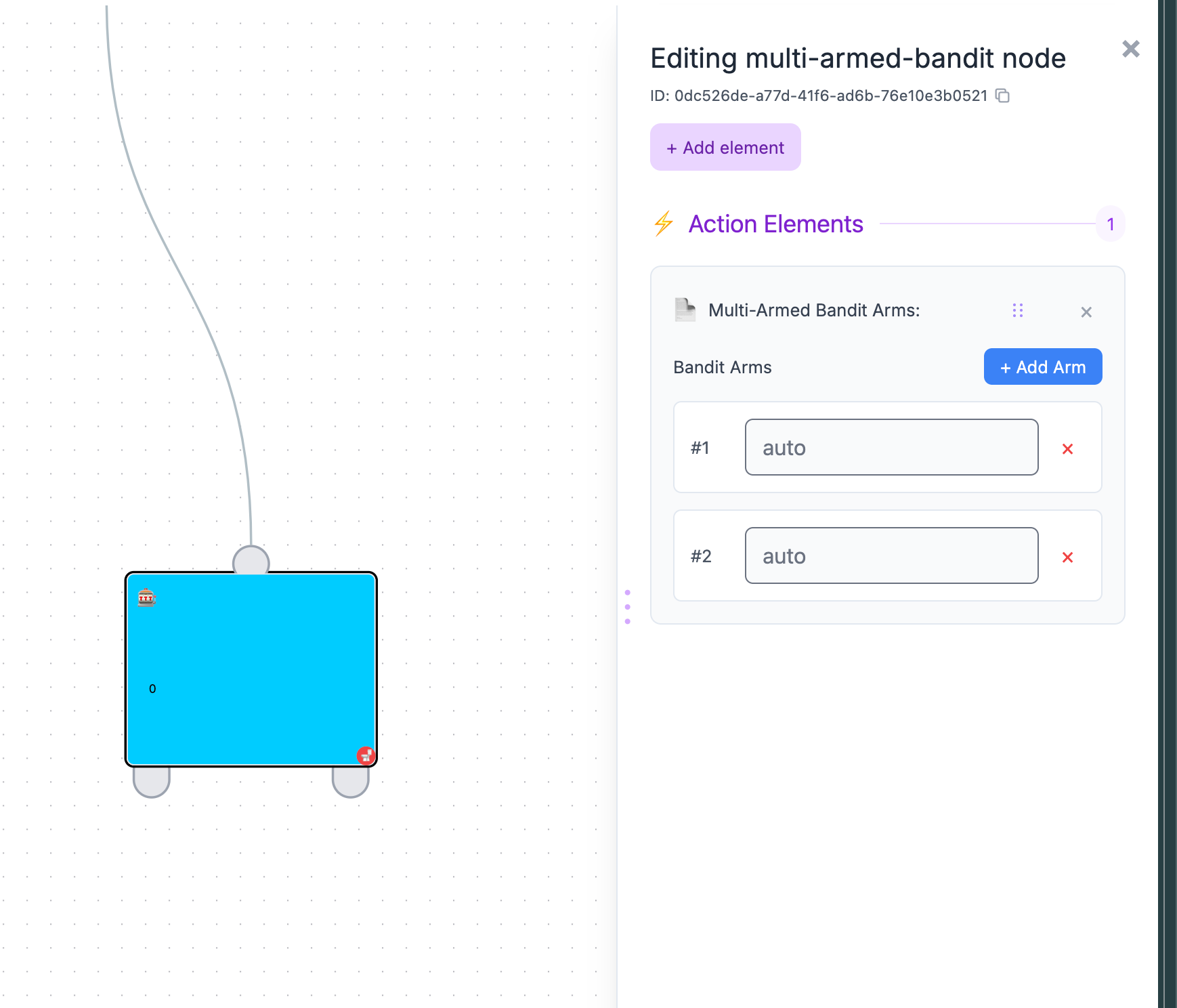
10. AI
Add an AI node (multi-armed bandit) to distribute traffic across paths automatically.
- Add arms/paths.
- Connect each arm to downstream nodes.
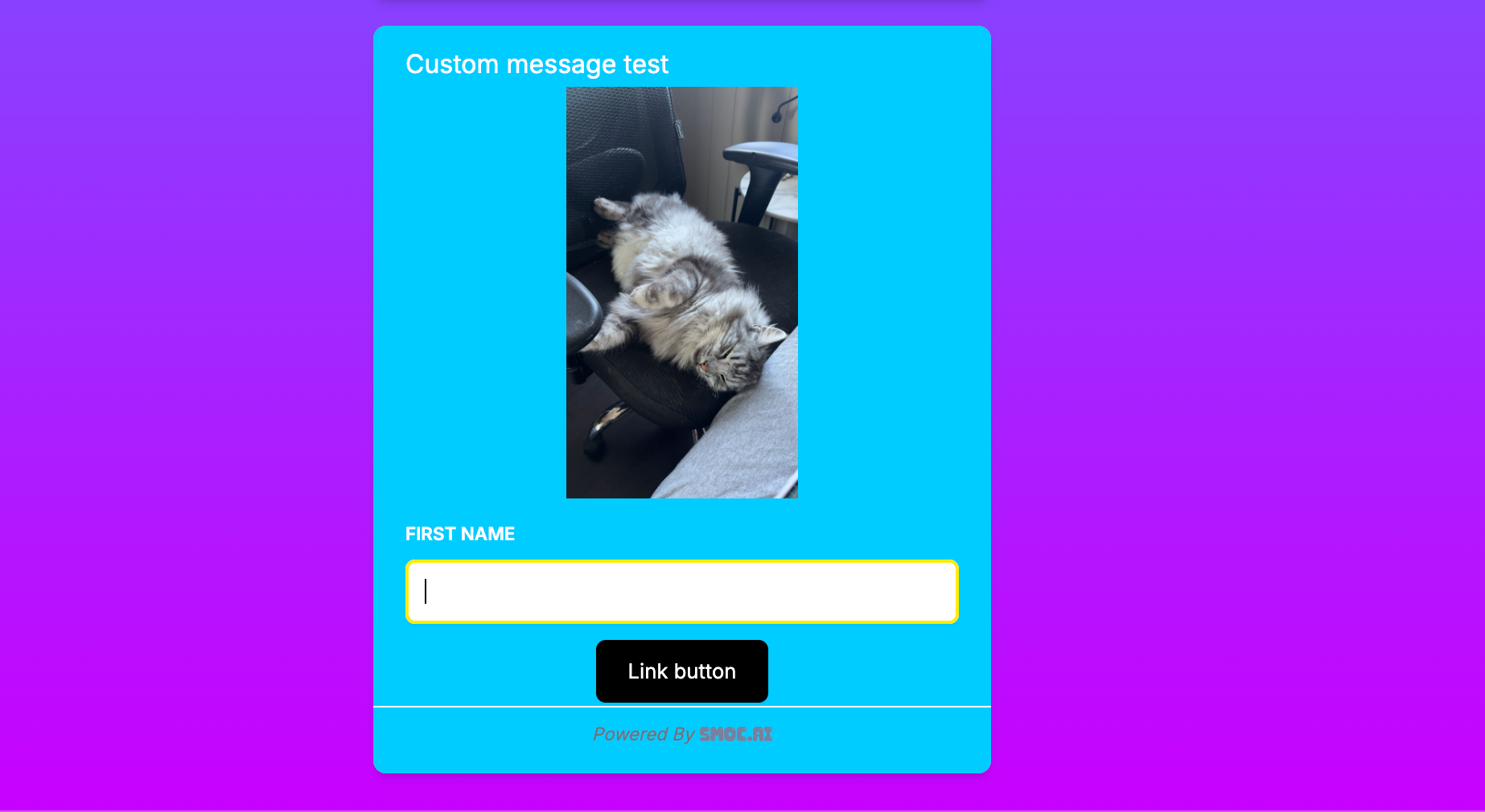
11. Custom Message (Beta)
Add a Custom Message node when you need more flexible element combinations.
- Combine multiple element types in one node.
- Configure each element from the same editor panel.
How can I add different paths and buttons in the SMOC Studio? Link
You can add buttons directly inside a node (for example in a Survey Question node), or create a Link Message node for URL redirects.
- Open or create the node you want to edit.
- Click Add element in the editor panel.
- Choose button if you want selectable answer buttons.
- Enter the button label in the Survey answer / button text field.
If you want to send users to a URL:
- Create a Link Message node.
- Fill in Link URL.
- Set the visible label in Link text.
- (Optional) enable Open Graph if you want a preview card instead of a simple link.
- (Optional) enable Forward UTM & click IDs to pass incoming UTMs and ad click IDs onto the destination URL.
Structuring Different Paths
Paths let you build straight flows, branches, and loops based on user interaction.
Single Direction Paths
A single direction path keeps the flow consistent regardless of user input.
- Use one outgoing connection from the node to the next node.
Decision Tree Paths
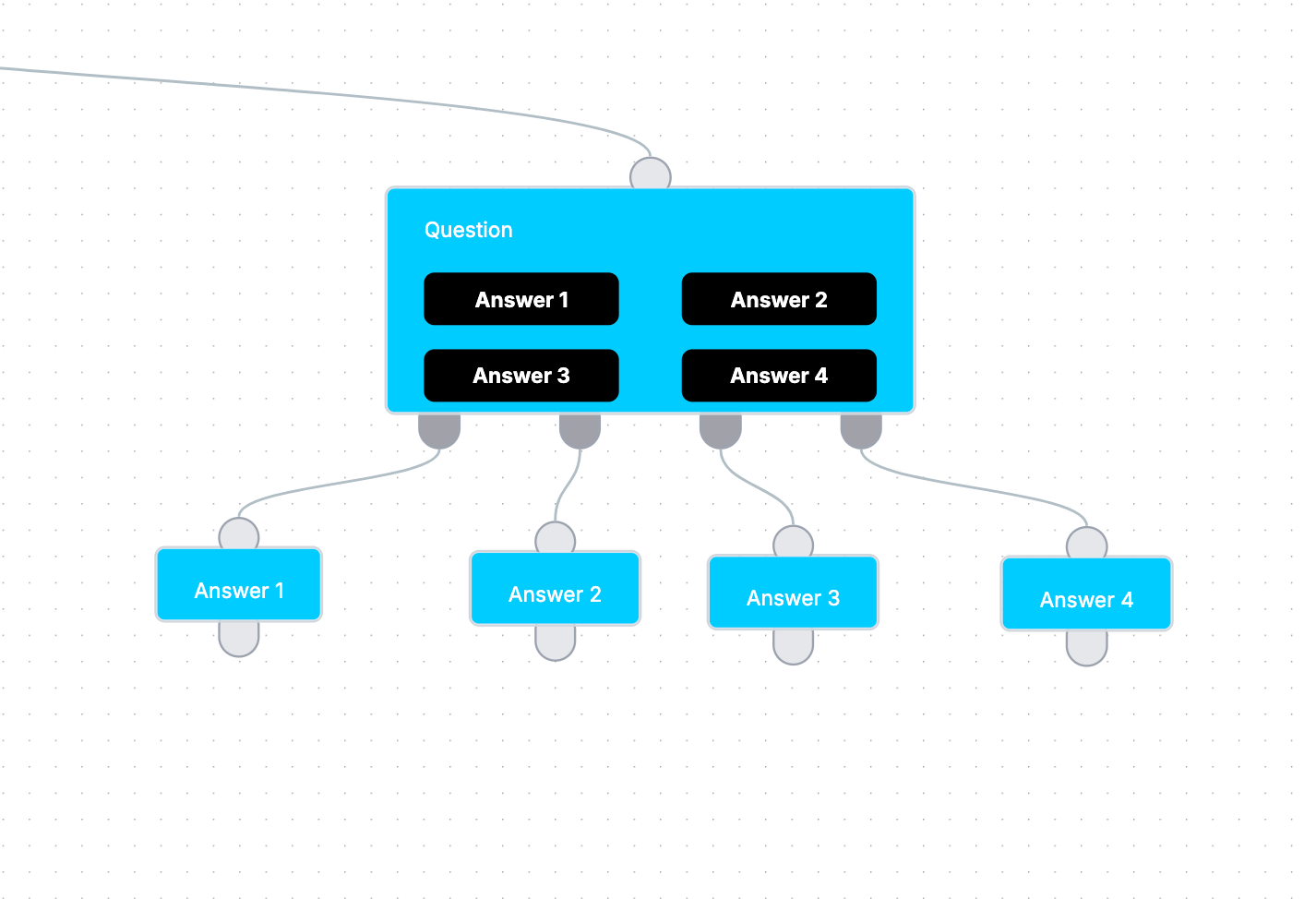
A decision tree branches based on selected answers.
- Create a Survey Question node with multiple answer buttons.
- In the canvas, use the outgoing handles at the bottom of the node (one per answer).
- Click the + under a specific handle to create and connect the next node for that answer.
- Repeat for each answer to build separate branches.
What is the difference between Compose and the AI routing node? Link
Compose (the Setup tab) is where operators generate or regenerate a flow with AI—goal, audience, tone, and languages. It helps you draft the graph before you edit it on the canvas.
The AI node on the canvas is different: it is a multi-armed bandit that learns which path performs best. Visitors never see it as a chat LLM. Use Decision nodes for explicit expression-based branching, and the AI node when you want the agent to explore and reinforce winning paths.
What is the difference between a web flow and a message flow in Studio? Link
A web flow runs in-page (chat or cards) on your site, ads, or a SMOC landing page (for example go2.smoc.ai). Studio tabs are Compose, Design, Style, and Settings.
A message flow runs async LinkedIn outreach (profile view, connect, DM/InMail, waits, suggested replies). Studio tabs are Compose, Design, and Targeting—there is no Style tab because the conversation happens in LinkedIn, not a branded web widget.
Guide: Web flow vs message flow.
Which Studio tabs should I use when editing an agent? Link
Web agents: Compose → Design → Style → Settings. Message (LinkedIn) agents: Compose → Design → Targeting.
Design is the canvas. Analysis view on Design shows heatmaps and path performance. Settings/Targeting covers publish options, schedule, sender accounts, and enrollment exclusions.
What is Analysis view in Studio? Link
On the Design tab, toggle Analysis view to see a heatmap of node visits and completion rates, with edge visit counts on connections.
Edges default to traffic weighting—color and thickness reflect visit ratio versus the source node. Use the date-range calendar to reload the heatmap for selected days, and optionally scope from a specific node.
Related Console metrics: Understanding the specific flow statistics dashboard.
How do versions and variants work in Studio? Link
The Versions control lists Published and All snapshots so you can restore a historical flowchart by date.
In-flow exploration uses the AI / multi-armed-bandit node to try and reinforce paths. Recommendations can Apply as variant to insert an alternate branch; web flows can also be reached with a variant key in the URL. Dashboard Improve Agents shows one Generate card per agent, not a row per version UUID.
Variant workflow: Using Studio Recommendations.
How do Studio Recommendations work? Link
Open Recommendations from the Studio top bar (sparkles). The badge is the pending count. Review each item, then Apply, Apply all, Apply as variant, or Reject with an optional comment. Applied and rejected items leave the pending list and show in History at the bottom of the panel.
Hover or click a recommendation to focus its target node. Publish when you are ready. Generation uses the last saved flowchart, not unsaved canvas edits.
Step-by-step: Using Studio Recommendations.
How do I generate recommendations in Studio? Link
Open the sparkles Recommendations panel. If the queue is empty, click Generate. You can generate again anytime from that panel; a new job starts even if older recommendations already exist. The sparkles button animates while the job runs, and the panel shows live progress until results arrive.
Save the flow first if you want the job to see your latest canvas edits. You can also start the same job from Console Dashboard → Improve Agents after a flow reaches 100+ interactions.
What do recommendations cover on LinkedIn message flows? Link
Message-flow recommendations focus on LinkedIn copy and A/B tests: connection notes, DMs, follow-ups, InMail, suggested replies, and bandit-arm variants. Web-only suggestions (forms, locale maps, thank-you pages) are skipped because prospects see LinkedIn, not a branded widget.
Web flows still get copy, structure, and conversion-oriented A/B recommendations.
How do I add translations to a flow? Link
Open the Translation panel to see languages (✓ marks the current language). Choose Translate from, add a language, and run fill-missing or overwrite translation.
Retranslate can overwrite existing copy after confirm. You can also translate individual messages in the node editor. Large jobs run asynchronously—keep the panel open until they finish.
How do SMOC Expressions work in decision elements? Link
Decision edges use SMOC Expressions that score numeric outcomes with + − * / and parentheses. The highest positive score wins; ties pick randomly. If no edge scores positive, the flow can stall—add a default like 0.5.
Variables use ${name=arg} form (for example ${answer=34}) and cover answers, geo, device, UTMs, and more. Expressions are not ICU message templates.
Syntax guide: Understanding the syntax for SMOC expressions.
How do I add dynamic content to messages? Link
Message text uses ICU-style templates such as {country_name} or {var, select, A {…} other {…}}. The same variable catalog as Expressions is available, written without the ${…=} wrapper.
Survey selects should reference answer ids. Nest select statements when you need layered personalization.
Examples: Creating dynamic content in text messages.
How do I configure LinkedIn message-flow targeting and schedule? Link
In a message flow, open Targeting settings. Set the flow Active, assign at least one LinkedIn account, then choose Autotarget segments/portfolio or Prospect lists plus manual tags.
Schedule the enrollment window in the flow timezone: days of week plus start/end hours (defaults are often 09:00–17:00). Use Exclude options to avoid overlapping agents or senders, and set a per-flow lead notification email if needed.
Connect senders first: Connecting a LinkedIn sender.
What happens when I uncheck a LinkedIn sender and publish? Link
Contacts enrolled on that sender who have not had a first send yet are reassigned to another sender on this flow. Enrollment stays in place. Adding a sender does not move existing enrollments. You must Publish for the change to take effect.
Contacts that already had an outbound send stay on the removed sender, unless you also select another sender that is the same LinkedIn person (login email, or a unique profile name in this workspace). In that case, in-progress conversations continue with that person and the sequence does not restart. Ended enrollments are not moved.
Why can’t I publish a flowchart? Link
When publish fails, Console/Studio shows Cannot publish flowchart with the blocking problems—often missing settings, invalid nodes/edges, or message-flow targeting gaps.
Typical message-flow blockers: no LinkedIn account, no prospect list/tag or ready Autotarget portfolio, no weekday selected, invalid timezone, flow not Active, exclusions wiping enrollable contacts, or migration sender mapping issues.
Fix the listed items, then publish again. Successful publish starts or continues enrollment for eligible contacts. If you removed a sender, contacts still waiting for their first send are reassigned to another sender on this flow. Adding a sender does not move existing enrollments.
After applying recommendations: Using Studio Recommendations.
What is a SMOC credit? Link
A credit is the unit you spend on outcomes across the funnel—interactions, smart clicks, and smart identified leads. On Free list pricing, an interaction costs 0.3 cr, a smart click 1 cr, and a smart identified lead 10 cr. Each plan includes a monthly credit allotment and applies a progressive discount on the list unit price.
How many credits does each plan include? Link
Free includes 19 credits, Starter includes 99 credits, Growth includes 499 credits, and Professional includes 999 credits per month. Enterprise plans are custom-sized.
Is SMOC a LinkedIn sequencer? Link
No. Static sequencers are flowcharts you import lists into and operate. SMOC is a self-learning sales agent: we generate the prospect list and the flow from your website. Reinforcement learning improves from live conversations. You review, approve, and Connect LinkedIn — then it can send the same day on the Starter trial.
What happens after the 14-day Starter trial? Link
You start on Starter—99 credits, no credit card—so you can go live and see real outcomes. If you subscribe, you keep Starter or a higher plan and pay for pipeline. A Free web agent always remains for low-traffic sites (19 credits a month). Subscribe when volume grows.
What happens if I run out of credits? Link
You can top up credits any time during the month—there is no interruption to your flows. Credits can be topped up during the month if your balance runs low—no interruptions to flows or campaigns. Topped-up credits roll over month to month and are saved for future use. Upgrading to a higher plan gets you a bigger bundle and a deeper discount on every unit type.
Do you offer discounts for annual subscriptions? Link
Yes. Annual plans are 20% cheaper than monthly billing across every paid tier. The discount is reflected when you switch the billing toggle above.
How do per-campaign and LinkedIn costs work? Link
Each active ad campaign and connected LinkedIn account draws credits monthly at a rate that decreases as you move up tiers—from 20 cr per campaign on Free down to 10 cr on Professional, and from 35 cr per LinkedIn account on Free down to 17.5 cr on Professional.
What does prospect enrichment cost? Link
Public registry search + LinkedIn matching bills 1 credit per 100 newly enriched prospects on Free, then 0.8 / 0.6 / 0.5 on Starter / Growth / Professional (Custom on Enterprise). Cache-fresh re-imports of people you already enriched in this company do not bill again. Landing names on a list is a separate, cheaper per-100 import meter.
Can I change my plan later? Link
Yes. Upgrade or downgrade any time—changes take effect immediately and any cost adjustments are prorated. Enterprise customers can tailor credit bundles and unit pricing directly.
What payment methods do you accept? Link
All major credit cards for self-serve plans, and invoicing in USD, EUR, NOK, SEK, DKK for Professional and Enterprise customers.
What conversation channels does SMOC support natively? Link
Native conversation runtimes today are web flows (chat/cards on sites and landing pages) and LinkedIn message flows. Those are where the agent actually runs the conversation.
Email, WhatsApp, SMS, and similar channels are useful for distribution—links, QR codes, or notifications that send people into a web or LinkedIn conversation—not peer native runtimes yet.
How do I embed a web flow on my site? Link
In Studio, publish the flow, open it, and copy the embed code. Enable Iframe Mode (or iframe_mode=true) when the agent runs inside an iframe. Hosts include go.smoc.ai and go2.smoc.ai.
Landing URLs follow https://go2.smoc.ai/<company_key>/<flow_key>/<variant_key>. Pass UTM parameters through so Console analytics keep campaign attribution. To append those same parameters to a Link Message destination, enable Forward UTM & click IDs on the link.
How do I pass UTM parameters to outbound Link Message URLs? Link
Incoming UTMs on the Flow URL are captured for Console analytics. They are not copied onto outbound Link Message or Open Graph URLs unless you turn that on in Studio.
Open the Link Message (or Open Graph link), enable Forward UTM & click IDs, and publish. The destination then receives incoming utm_* keys plus ad click IDs (gclid, fbclid, msclkid, ttclid, wbraid, gbraid).
The toggle is off by default. Parameters already on the destination URL are kept. Empty values are skipped. Studio preview does not forward.
How do I connect SMOC landing pages to Meta, Google Ads, and LinkedIn ads? Link
Point the ad at your SMOC Flow URL with UTMs, put pixels in Studio Settings → Head Tags, and fire conversion callbacks from Custom HTML when the visitor reaches interaction, qualified, or lead steps. That is how engagement ads, Performance Max, and LinkedIn conversion ads learn from the conversation — not only from a landing-page view. To pass those UTMs on to a shop or partner URL, enable Forward UTM & click IDs on the Link Message.
Guide: Track conversions for Meta, Google Ads, and LinkedIn.
Also: Integrations — paid ads · Head Tags in Studio · UTMs on the Flow URL.
How do I connect SMOC to Zapier? Link
In Console go to Settings → Integrations → Zapier, create an invite, and authenticate with your private API key. A common pattern is the New Contact trigger into your CRM, sheets, or enrichment tools.
How do leads leave SMOC for my systems of record? Link
Use Zapier, REST v2, the Public Contacts API, CSV export from Contacts, or MCP. Customer keys are read-only by default; write-enabled keys may call limited writes including inbox send. Choose Zapier or GET /api/company/mongocontact for existing contact syncs; POST /api/v2/{toolName} for scripts; MCP for AI clients.
What is the Public Contacts API? Link
It is a read-only HTTP API for company contacts: GET https://v2.api.smoc.ai/api/company/mongocontact. Authenticate with the token header (not Bearer). Create keys under Settings → Integrations → API. Limits are typically 1–500 rows per request.
How do I use the SMOC REST API? Link
Generate a key under Settings → Integrations → API. Existing Zapier/compat clients keep GET https://v2.api.smoc.ai/api/company/mongocontact with the token header. New pipelines use POST /api/v2/{toolName} (Bearer or token). Customer keys are read-only by default; write-enabled keys may call limited writes including inbox send.
How do I use SMOC MCP with Claude or Cursor? Link
Generate a key in Console under Settings → Integrations → MCP. Point your MCP client at https://v2.api.smoc.ai/mcp with Authorization: Bearer <API key>. Customer keys are company-scoped and read-only by default. Write-enabled keys may update contacts, tags, lists, company profile, add CPCS URLs, triage inbox, and send text inbox replies. They cannot delete data, publish flows, toggle live, or start LinkedIn outreach campaigns. REST v2 mirrors the same domain tools at POST /api/v2/{toolName}.
Guide: Connecting SMOC with MCP.
What do the Dashboard KPIs mean? Link
Hero metrics include Flow Sessions, Unique Users, Interactions, Smart Leads, Smart Clicks, and Replies Waiting. Flow Sessions and Unique Users mean different things for web flows vs LinkedIn message flows.
Web flows — Flow Sessions: each time someone opens or begins the flow experience.
Web flows — Unique Users: distinct people across sessions in the date range (deduplicated for the whole period, not summed day by day).
LinkedIn message flows — Flow Sessions: each contact with successful LinkedIn activity in the period—profile view, connection request, DM, or InMail. Enrolling a contact alone does not create a session.
LinkedIn message flows — Unique Users: distinct contacts with that outreach activity in the range (also period-deduplicated).
Interactions are engaged sessions on web/ads; for LinkedIn message flows they count connection accepts or replies. Smart Leads are captured contacts from web or qualified positive LinkedIn replies. Smart Clicks are promo or qualified link conversions. Replies Waiting are Inbox threads that need an operator.
Guide: Reading Agents analytics in Console.
Walkthrough: Reading and analyzing the Dashboard.
What is Improve Agents on the Dashboard? Link
Improve Agents is the Dashboard feed of next useful edits. When a flow first reaches 100+ interactions and has no recommendation job yet, you get one Generate card for that agent (versions and variants are collapsed, so you do not see a list of IDs). Generate starts the Studio recommendation job. Skip hides the card in this browser; it does not run a job.
When recommendations are ready, the card becomes Open Studio. You can still generate anytime from Studio’s sparkles panel. Guide: Improving agents from the Console dashboard.
What is Sales Launch? Link
Sales Launch is the Console onboarding card that helps you build your first website agent (and optionally a LinkedIn lead agent). It scans your site, drafts agents from a commercial profile, then walks you through review in Studio, Credits, Connect LinkedIn, and Go live.
Walkthrough: Sales Launch end-to-end.
How do Agents analytics tabs work? Link
The Agents area lists your flows with tabs for Agents, Breakdown, Time series, and Cohorts. Breakdown rolls up LinkedIn outreach across all message flows for the company. Opening a single agent adds Breakdown, Time series, and Cohorts at flow level; message flows also expose Contacts for that flow.
Use Breakdown for outbound actions in the selected period, a seven-day planned-actions schedule, and the live outreach funnel. Use time series for trend lines and cohorts to compare segments over time. Heatmaps and path analysis also live in Studio Design → Analysis view.
What do Flow Sessions and Unique Users mean for web vs LinkedIn agents? Link
On an agent Breakdown, Flow Sessions and Unique Users come from the same analytics pipeline for web and LinkedIn—but what starts a session differs.
Web: a session starts when someone opens or begins the flow. Unique Users are distinct people in that range.
LinkedIn message flows: a session starts only after successful LinkedIn activity—profile view, connection send, DM, or InMail. Enrolling a contact (or waiting for a scheduled send) does not count. Unique Users are distinct contacts with that activity.
Message-flow Breakdown also shows outbound actions (date-filtered), planned actions for the next seven days, and an outreach funnel (enrolled, profile views, connects, and so on). Funnel and planned schedule counts are separate from Flow Sessions—do not expect enrolled to match sessions.
Full walkthrough: Reading Agents analytics in Console.
What are outbound actions and planned actions on message-flow Breakdown? Link
On Breakdown for a LinkedIn message flow—or on the company Agents Breakdown tab rolled up across all message flows—you see three LinkedIn-specific sections below the hero KPIs.
Outbound actions count LinkedIn steps completed in your selected date range: connects, accepts, DMs, InMails, profile views, follows, likes, withdrawals, send failures, and paused runs.
Planned actions — next 7 days is a day-by-day table of upcoming LinkedIn steps (Connect, Message, InMail, View profile, Follow, Like, Withdraw). It always rolls from today in Europe/Oslo and ignores the date filter. Overdue sends count on today. Below the table, Awaiting first action lists enrolled contacts with no outbound milestone and no due wake in the next seven days.
LinkedIn outreach totals show the live enrollment funnel (target, enrolled, connects, accepts, messages, replies) and conversion rates. These reflect current enrollments, not the date range.
How do I read a single agent’s flow statistics? Link
Open Agents, select an agent, then use the analytics tabs for that flow—KPIs, breakdowns, and session charts differ slightly for web vs LinkedIn message flows.
Use date ranges and variant filters when comparing experiments. Flow Sessions and Unique Users are defined differently for web and LinkedIn—see the companion FAQ on that topic.
Deep dive: Understanding the specific flow statistics dashboard.
How do Contacts, Smart Leads, and prospect lists relate? Link
Contacts is the searchable directory of people who interacted with your agents—filter by status, tags, prospect lists, flows, UTMs, device, and dates. Export with streaming CSV when you need offline analysis.
Smart Leads highlight high-intent captures. Prospecting is its own Console section above Contacts: import lists (LinkedIn search, public registry search, CSV, Sales Navigator) live there. Autotarget lists stay separate from imported lists. Those lists still enroll LinkedIn message flows.
Deep dives: Getting the most out of your contact list and Understanding contact card information.
How do I import contacts from a CSV? Link
Open Prospecting → Import. Choose the CSV mapping tab, upload your file, map columns to SMOC fields, then confirm the import.
You can also import LinkedIn profile URLs or a Sales Navigator search URL when building prospect lists for LinkedIn message flows.
Walkthrough: Getting the most out of your contact list.
What's on a contact card? Link
A contact card shows identity (name, email, company), customer status (Lead ↔ Customer), overview fields such as inviter and rewards, visit/UTM history, and reward-flow activity.
From the card you can manage tags, update status, and export that contact’s data when you need a snapshot outside Console.
Field-by-field guide: Understanding contact card information.
How do prospect lists differ from Contacts? Link
Contacts is the full searchable directory of people who interacted with your agents—leads, customers, and related statuses.
Prospect lists are enrollment pools for LinkedIn message flows. You build them under Prospecting (LinkedIn search, public registry search, CSV, or Sales Navigator), then assign imported lists on a message flow’s Targeting settings. Autotarget lists are filled by agents and are not treated as CSV lists.
See also: Getting the most out of your contact list.
How do I export contacts? Link
On Contacts, apply any filters you need, then choose Export. You can stream CSV or JSON for the current filtered set; Console shows how many contacts will be included before you confirm.
API alternative: SMOC Public Contacts API.
How does Inbox work for LinkedIn replies? Link
Inbox mirrors LinkedIn threads for message flows. When a flow pauses on Suggested Replies (sender), the composer shows that the flow is waiting until you send a reply. Chips follow the prospect's reply sentiment: positive (or not yet classified) uses the positive list; negative uses the negative list. If the negative list is empty, type a reply from scratch. Sending unblocks the run.
Use Resync flow status on a thread if LinkedIn and SMOC drift (for example after offline activity). Inbox is human-in-the-loop, not an auto-send LLM for operators’ final replies.
Guide: Inbox for LinkedIn replies.
What do the Inbox filters mean? Link
Inbox filters narrow LinkedIn message-flow threads. Common axes include Inbox vs Archived, Sender, Flow/agent, Prospect list, Manual tag, and Lead outcome (positive/negative).
Reply state filters cover who replied (replied, not replied, never replied, sender replied), plus Unanswered messages and Unread messages. Search matches name or company.
Full walkthrough: Inbox for LinkedIn replies.
How do I tag and archive threads? Link
Open a thread’s menu to Manage tags or Archive conversation. Tags appear as chips on the thread and can be filtered from the Inbox sidebar.
Archiving removes the thread from the default Inbox view; switch the Inbox filter to Archived when you need it again.
More Inbox tips: Inbox for LinkedIn replies.
What does pausing a thread do to the flow? Link
When a message-flow path reaches Suggested Replies (sender), the run pauses for a human. The composer shows that the flow is waiting until you send a reply. Suggestion chips match the classified sentiment of the prospect's reply.
Sending a message (optionally from a suggestion) unblocks the run so the agent can continue. If LinkedIn and SMOC drift, use Resync flow status.
Details: Inbox for LinkedIn replies.
How do I take over from the agent mid-conversation? Link
Inbox does not use a separate “Take over” button. Human handoff is the Suggested Replies pause: open the thread, optionally pick a suggestion that matches the reply sentiment, and send.
After you send, the flow resumes from that operator action. Use filters such as Unanswered or awaiting-reply states to find threads that need you.
See also: Inbox for LinkedIn replies.
Where do I manage team access and credits? Link
Invite teammates and switch companies from Console company/team settings. Credits and invoices live under Settings → Billing (Overview, Usage, Statements, Coupons).
Sales Launch also surfaces Credits ready and Add credits when you are preparing to go live.
What notifications can I turn on, and who receives them? Link
Under Settings → Notifications (org admins), each user can toggle Daily, Weekly, and Monthly report emails plus Lead notification.
New users default to weekly reports and smart-lead notifications until they save preferences. Use the on-page test actions to send sample report or lead emails to yourself.
Where do lead notification emails go? Link
Company-level lead notification prefs in Settings → Notifications apply across agent flows (web smart leads and LinkedIn message-flow smart leads) for users who enabled Lead notification.
For a specific message flow, you can also set a per-flow notification email in Studio under that flow’s Notifications / Targeting settings.
How do I invite a teammate and what can each role do? Link
Go to Settings → Users → Invite user. Enter an email and choose Member or Admin, then Send invitation.
Admins manage billing, users, and company settings; Members use Console day-to-day. You can change a member’s role later or remove them (you cannot remove the last admin).
Why is my invitation still pending? Link
Pending invitations appear at the top of Settings → Users until the invitee accepts. From there you can Resend or Revoke the invite.
If it stays pending, confirm the email address, ask them to check spam, and resend. Revoke unused invites so roles stay accurate.
How do I read the credit usage report? Link
Open Settings → Billing → Usage. Choose a period preset or custom dates to see package vs extra credits, a daily chart, and Usage by activity.
Plan credits are consumed before topped-up/extra credits. Enterprise may track usage differently when allotments are unlimited or custom.
Credits overview: Credits, fuel, and going live.
How do I apply a coupon? Link
Open Settings → Billing → Coupons. Redeem an assigned coupon from Your coupons, or enter a code under Have a coupon code?
Successful coupons grant durable extra credits you can spend like topped-up balance. Admins can redeem on behalf of the company.
See also: Credits, fuel, and going live.
How do I connect a LinkedIn sender account? Link
From Sales Launch choose Connect LinkedIn, or go to Settings → LinkedIn → Connect account. Console opens a hosted LinkedIn login (not the legacy linkedin.smoc.ai portal). You typically need about 10 Credits available (Enterprise waives the minimum); successful connect grants connect fuel and starts the monthly LinkedIn account Credit charge.
Sales Navigator is optional—check I use Sales Navigator in the modal only if that seat has it. After connect, set Daily limits on the account, generate the LinkedIn agent from Sales Launch if needed, review in LinkedIn Studio, and publish before outreach runs.
Full walkthrough: Connecting to SMOC LinkedIn Agent.
What steps can a LinkedIn message flow take? Link
Common Studio nodes include View LinkedIn Profile, Is connection, Connect on LinkedIn, LinkedIn Message, LinkedIn InMail, Follow, Like Recent Post, Withdraw Invite, Wait, and Suggested Replies (sender).
Waits can key off connection accepted, replied, timed delays, or operator_acted after you reply in Inbox. Publish the flow before it will run.
Why did my LinkedIn sender disconnect? Link
A sender can disconnect when the LinkedIn login expired, the password changed, or LinkedIn showed a security check. Someone may have clicked Disconnect or removed the account in Settings. If Credits stayed at zero long enough, LinkedIn was taken offline for billing. LinkedIn can also restrict the account.
The sender disconnected but the account is still in Settings. Do I republish? Link
No. Click Reconnect on that row and complete the same LinkedIn login. Campaigns stay published. In-progress conversations resume. You do not need to republish.
I deleted the LinkedIn account (the row is gone). What now? Link
Connect the account again, open Studio Targeting, select that sender, and Publish. We treat it as the same person when the LinkedIn login email matches; if LinkedIn did not give an email, we match a unique profile name in this workspace. New enrolls start. In-progress conversations continue with that person (the sequence does not restart). Contacts still waiting for a first send are assigned to a live sender on this flow.
If you Connect a different LinkedIn person, first-send waiting contacts can move. In-progress conversations stay on the old sender because the prospect already has a thread with that person.
If billing took LinkedIn offline, add Credits first, then Connect, select the sender, and Publish. Agents that billing paused need a live sender on the published flow before outbound resumes.
How does LinkedIn targeting work? Link
In Studio Targeting you choose sender accounts, schedules/send windows, and exclude options (for example skip already enrolled or messaged contacts). Sales Launch can generate a targeting portfolio from your company profile; you can also enroll from prospect lists.
What is the difference between unchecking a sender on a flow and Disconnect in Console? Link
Uncheck a LinkedIn account on a message flow in Studio, then Publish. Contacts still waiting for their first send on that sender are reassigned to another sender on this flow. Adding a sender does not move existing enrollments.
Disconnect under Console Settings → LinkedIn takes the account offline for every flow. If the account is still listed, click Reconnect on that row — campaigns stay published and in-progress conversations resume. You do not need to republish. If you deleted the row and Connect again, select the sender in Studio and Publish. When it is the same LinkedIn person, in-progress conversations continue with that person; when it is a different person, they stay on the old sender. Uncheck is not the same as Disconnect.
What rate limits should I respect? Link
SMOC recommends conservative daily caps (for example invites and messages in the mid-twenties for safety, with higher hard maximums available in settings). The platform also paces actions across the day. Stay inside LinkedIn’s rules—limits protect sender reputation.
How do LinkedIn accounts affect Credits? Link
Each connected LinkedIn account draws a monthly Credit cost that decreases on higher plans (see Pricing). Connecting an account can also grant one-time connect fuel. Message-flow outcomes (interactions, smart leads from qualified replies) spend Credits like other billable events.
How can I integrate Google Tag Manager (GTM) with SMOC flows and landing pages? Link
To integrate Google Tag Manager (GTM) with your SMOC flow (and pages using the same theme settings), follow these steps:
Prerequisites:
- Create your flow in SMOC Studio.
- Set up a GTM container in Google Tag Manager.
- Have your GTM snippets ready (container ID format: GTM-XXXXXXX).
Steps to Add GTM:
- Open your flow in SMOC Studio.
- Go to Settings.
- Open Head Tags (or Custom Head Tags).
- Paste your GTM <script> snippet (and <noscript> iframe if needed) into HTML Head Tags.
- Click Publish to push the changes live.
Important:
SMOC currently uses a Head Tags HTML field, not a dedicated “GTM CODE” input.
So instead of entering only GTM-XXXXXX, you should paste the full GTM code snippet(s).
Result:
Your published flow/page will include the GTM code in the page head, so tags, analytics, and pixels configured in GTM can run.
To fire Meta, Google Ads, and LinkedIn conversions from conversation steps (not only from GTM), see Track conversions for Meta, Google Ads, and LinkedIn and How do I send conversions to Meta, Google Ads, and LinkedIn?.
How do I send conversions to Meta, Google Ads, and LinkedIn? Link
Use Studio Head Tags for pixels and callback functions, then fire those functions from a Custom HTML (HTML Script) element when the visitor reaches a conversation step.
Setup
- In Studio go to Settings → Head Tags and paste the Meta Pixel, Google Ads gtag (including the gtag.js loader), and LinkedIn Insight Tag, plus functions such as report_conversion_interaction().
- On the node for that funnel step, add Custom HTML with an empty image that calls the function: <img src="" onerror="report_conversion_interaction()">. An empty src fails to load, so onerror runs the callback.
- Map interaction to Meta ViewContent / a Google conversion / a LinkedIn conversion ID; map lead capture to Meta Lead and the lead conversion actions. Performance Max and LinkedIn conversion ads should optimize on the lead action, with interaction as an earlier signal.
Full snippets: Track conversions for Meta, Google Ads, and LinkedIn.
Also: Integrations — paid ads · Head Tags in Studio · Google Tag Manager.
How do I track Meta engagement ads on a SMOC landing page? Link
Paste the Meta Pixel in Studio Settings → Head Tags (PageView on load). Fire ViewContent when the visitor starts the conversation, then Lead when contact is captured. Point the ad at the SMOC Flow URL with UTMs. Engagement campaigns should optimize on ViewContent, not a raw landing-page view.
Guide: Track conversions for Meta, Google Ads, and LinkedIn · Integrations · Head Tags FAQ.
How do I send conversions to Google Ads and Performance Max? Link
Create one Google Ads conversion action per funnel step, paste gtag (including the gtag.js loader) in Head Tags, and call gtag('event', 'conversion', { send_to: 'AW-…/LABEL' }) from the matching Custom HTML node. Performance Max needs those actions to bid — typically Lead as primary, interaction as a secondary signal. Set the asset-group final URL to the SMOC Flow URL with UTMs.
Guide: Track conversions for Meta, Google Ads, and LinkedIn · Integrations · GTM in Head Tags.
How do I set up LinkedIn conversion ads with a SMOC flow? Link
Load the LinkedIn Insight Tag in Head Tags and fire window.lintrk('track', { conversion_id }) from Custom HTML on interaction, qualified, and lead nodes. Create website conversions in Campaign Manager and use them on conversion or conversation ad objectives. Point the ad at the SMOC Flow URL. This is paid LinkedIn ads into the web flow — not SMOC LinkedIn message-flow outreach.
Guide: Track conversions for Meta, Google Ads, and LinkedIn · Integrations · Connect a LinkedIn sender.
How can I use SMOC landing pages for campaigns across multiple channels? Link
SMOC landing pages can be distributed across email, SMS, messaging apps, social, and paid ads. Append UTMs to the Flow URL for Console attribution. To pass those same parameters on to a shop or partner site, enable Forward UTM & click IDs on the Link Message.
1. Prerequisites
- Create and configure your flow in SMOC Studio.
- Have access to your target channels.
2. Get the landing page link
- Open the flow in SMOC Studio.
- Click Publish.
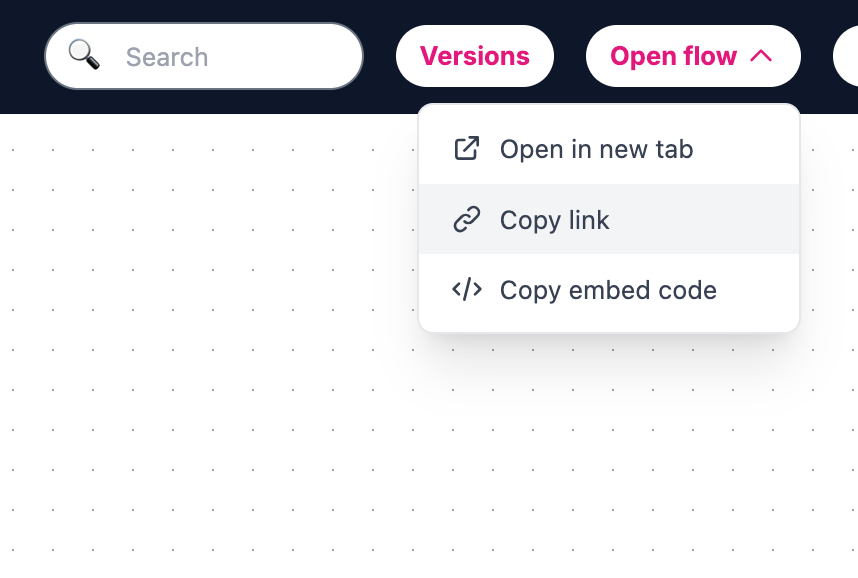
- Open the Open flow dropdown.
- Click Copy link.
3. Distribute across channels
- Email: newsletters, lifecycle flows, service emails.
- SMS / Messaging: campaign sends, reminders, re-engagement.
- Social Media: posts, stories, profile links, CTA buttons.
- Paid Ads: use as destination URL.
- Post-purchase flows: feedback, referral, upsell, promotions.
4. Tracking links
- Add campaign query parameters to the copied link.
- Use consistent naming conventions across channels.
For paid ads on that landing URL, send conversion events from the conversation: Track conversions for Meta, Google Ads, and LinkedIn · Integrations.
How can I integrate SMOC flows into my iOS or Android app? Link
You can integrate a SMOC flow into your iOS or Android app by loading the flow URL in a native web view.
1. Prerequisites
- Build and publish your flow in SMOC Studio.
- Have access to your app codebase.
2. Get the flow link
- Open your flow in SMOC Studio.
- Click Publish (or republish after updates).
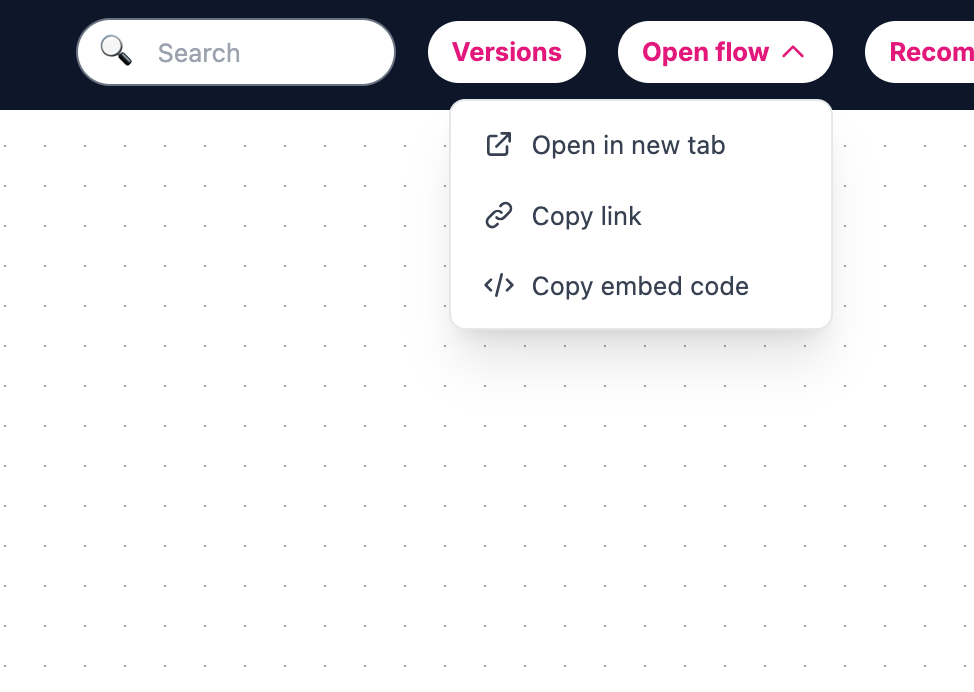
- Open the Open flow dropdown.
- Click Copy link.
3. Integrate in your app
- iOS: use WKWebView (not UIWebView).
- Android: use WebView.
- Load the copied flow link in the web view and keep JavaScript enabled.
4. Note
- If your team needs embed markup for web contexts, use Open flow → Copy embed code.
How can I integrate SMOC flows into my website? Link
You can integrate SMOC flows into your website either by embedding with iframe code or by linking directly to the flow URL.
1. Prerequisites
- Create and configure your flow in SMOC Studio.
- Have access to your website/CMS where you can add custom HTML.
2. Get the embed code (current Studio flow)
- Open your flow in SMOC Studio.
- Click Publish (or republish after updates).
- Open the Open flow dropdown.
- Click Copy embed code.
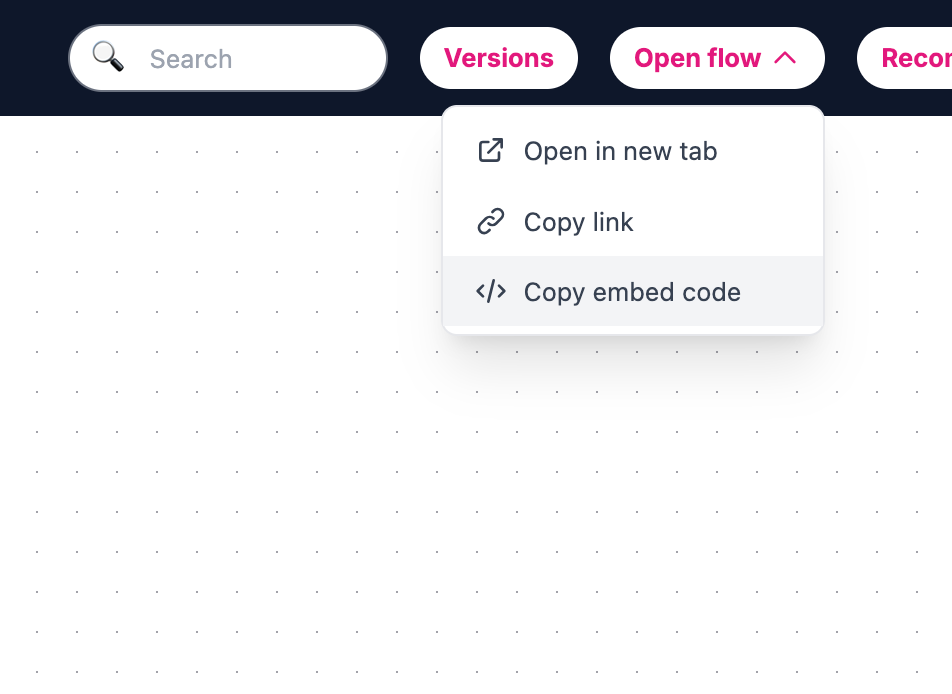
(If you want a direct URL instead, use Open flow -> Copy link.)
3. Embed on your website
- Open your website editor and go to the section where the flow should appear.
- Paste the copied iframe code into a custom HTML/code block.
- Save and publish your website changes.
4. Iframe display optimization (recommended)
- In Studio, go to Settings -> Embed.
- Enable Iframe Mode when the flow is used inside an iframe.
- Republish the flow after changing this setting.
5. Optional URL parameter
- iframe_mode=true can be added to the flow URL to hide the regular header for embedded contexts.
How can I integrate SMOC flows into my digital sales channels? Link
SMOC.AI offers seamless integration into various digital channels, including web pages, newsletters, email, apps, digital ads, social media (SoMe), and QR codes, allowing you to enhance every part of your customer journey. Setting up an integration is quick and can be done in just minutes.
There are two primary integration methods:
SMOC Landing Pages:
- This is the fastest option, ideal for channels like newsletters, email, digital ads, SoMe, and QR codes.
- A SMOC landing page can be set live in minutes, making it perfect for campaigns and quick deployment.
iFrame Integration:
- Use an iframe to embed the flow directly into your web page or app.
- This approach is also suitable for use cases covered by landing pages and allows for a more seamless integration into your website/app.
Visit smoc.ai/eguides to access step by step guides and "how-to" resources for SMOC integrations, including iframe setups for web pages and apps.
Paid ads (Meta engagement, Google Performance Max, LinkedIn conversion ads): conversion tracking guide · Integrations.
What data integration options does SMOC offer? Link
SMOC supports three ways to move contact and outcome data into your stack. All of them authenticate with an integration token from SMOC Console → Settings → Integrations:
Zapier (no-code):
- Generate a key under Integrations → Zapier. Automate handoffs to 2,000+ apps with the New Contact trigger — ideal for CRM, spreadsheet, or messaging updates without writing code.
REST API (custom):
- Generate a key under Integrations → API. Programmatic access for sync jobs, data warehouses, messaging workflows, and bespoke pipelines — every request is scoped to your company tenant.
MCP (AI-native):
- Generate a key under Integrations → MCP. Let MCP-capable clients such as Claude, Cursor, and VS Code use your SMOC contacts, lists, tags, CPCS status, Studio catalog, assets, analytics, inbox, and conversations in plain language — customer keys stay company-scoped and read-only by default.
See the overview at smoc.ai/integrations and step-by-step eGuides at smoc.ai/eguides.
How do I connect SMOC to other apps using Zapier? Link
Use the SMOC Zapier app to fire automations whenever SMOC creates or updates a contact:
- Generate an integration key under Settings → Integrations → Zapier in SMOC Console.
- Create a Zap and choose SMOC as the trigger app. Select New Contact as the trigger event.
- When Zapier prompts for authentication, paste your SMOC integration key — no email or password sign-in.
- Test the trigger against existing contacts in your SMOC account, then map the fields SMOC delivers into your destination app.
Access to the SMOC Zapier app is invitation-based. The current invite link and setup steps are in the Zapier eGuide.
How do I authenticate the SMOC Zapier integration? Link
SMOC Zapier uses an integration token from Console — not email/password sign-in:
- In SMOC Console, go to Settings → Integrations → Zapier and generate an integration key.
- When Zapier prompts for authentication, paste the key as the token. Keys are company-scoped to your tenant.
- Generating a new key does not revoke keys already in use, so existing Zaps keep working while you rotate credentials. You can optionally name a key and set an expiry. Revoke unused keys from the issued-keys list on Settings → Integrations → Zapier.
For a walkthrough with screenshots, see the Zapier connection guide.
How do I retrieve contacts and interaction data with the SMOC REST API? Link
The REST API uses the same integration-token pattern as MCP and Zapier:
- Generate a key under Settings → Integrations → API in SMOC Console.
- Send the key in the token header on GET /api/company/mongocontact to list contacts and lead/customer counts.
- All responses are scoped to your company; you never see another tenant's data.
- Build periodic sync jobs, push outcomes into internal pipelines, or connect through an integration partner for a managed handoff.
- For one-off exports, use manual CSV download from the contacts section in Console.
Step-by-step setup and typical retrieval workflows are in the REST API eGuide.
What is the SMOC REST API and how do I connect it? Link
The SMOC REST API is a company-scoped HTTP API on https://v2.api.smoc.ai. Customer keys are read-only by default; write-enabled keys may call limited writes including inbox send. Generate a key in Console under Settings → Integrations → API. Use POST /api/v2/{toolName} for domain tools, or GET /api/company/mongocontact for the Zapier/compat contacts contract.
Setup summary:
- Copy the key immediately — it is shown only once. You can optionally name it and set an expiry. Issued keys are listed on the same page so you can revoke unused ones.
- Call GET https://v2.api.smoc.ai/api/company/mongocontact with the token header (not Authorization: Bearer).
- Optional query parameters: limit (1–500, default 100) and sortByField (createdAt, updatedAt, or lastConversationDate).
Step-by-step setup is in the REST API eGuide.
What functions does the SMOC REST API provide? Link
GET /api/company/mongocontact remains the Zapier/compat contacts endpoint. REST v2 adds POST /api/v2/{toolName} for the same company-scoped tools as MCP. Customer keys are read-only by default; writes including inbox send are opt-in.
GET /api/company/mongocontact returns:
- A page of contact records (name, email, phone, status, visits, UTMs, survey answers, and related fields when collected).
- Aggregate leadsCount and customerCount for the whole company.
Customer keys are read-only by default. Write-enabled keys can create/update contacts, tags, lists, company profile, add CPCS URLs, triage inbox, and send text replies. They cannot delete, publish, toggle live, or start LinkedIn outreach campaigns. GET /api/company/mongocontact stays for Zapier.
See the REST API eGuide, the REST v2 API reference for every call, and the Public Contacts API reference for mongocontact fields.
How do I get an integration token for SMOC data integrations? Link
Every SMOC data integration path starts in Console → Settings → Integrations:
- Zapier: Settings → Integrations → Zapier — paste this key when Zapier prompts for a token.
- MCP: Settings → Integrations → MCP — generate a key and paste it in your Claude, Cursor, or VS Code MCP config.
- REST API: Settings → Integrations → API — use this key on API requests.
Copy each key immediately when generated — it is shown only once. You can optionally name a key and set an expiry (7, 30, or 90 days, or no expiry). Keys are company-scoped; generating a new key does not revoke keys already in use. Issued keys are listed on the same Integrations page — revoke unused keys there.
Setup walkthroughs for each path are in the eGuides at smoc.ai/eguides — see the Zapier, customer data (REST API), and MCP guides.
What is SMOC MCP and how do I connect it to Claude, Cursor, or VS Code? Link
SMOC MCP (Model Context Protocol) exposes your company's SMOC data to AI clients over https://v2.api.smoc.ai/mcp. Access is confined to your tenant. Keys are read-only by default; writes including inbox send are opt-in.
Supported clients include:
- Claude Desktop — typically via mcp-remote and a local bridge (see the eGuide for HTTP config).
- Claude Code, Cursor, VS Code, Windsurf, and other MCP-capable editors.
Setup summary:
- Generate a key under Settings → Integrations → MCP in SMOC Console. You can optionally name it and set an expiry. Copy it immediately — it is shown only once. Issued keys are listed on that page so you can revoke them later.
- Add the MCP server URL and key to your client's MCP configuration following that client's format.
- Clients discover available tools via mcp_capabilities and skills_search, or you can ask in plain language.
Full setup steps are in the MCP connection eGuide.
Guide: Connecting SMOC with MCP.
What data can AI clients access through SMOC MCP? Link
Through MCP, AI clients can read company-scoped SMOC data — never another tenant's records. Typical capabilities include:
- Search and inspect contacts, stats, and filter options.
- Read company profiles, assets, extraction results, and templates.
- Explore flowcharts, recommendations, and flow structure.
- Pull flow KPIs, time-series metrics, and dimension breakdowns.
- List and read LinkedIn inbox threads, including unanswered and unread filters.
- Read inbox message history for a thread.
- List and inspect message-flow conversations, run status, and milestones.
Customer MCP keys are read-only by default. Write-enabled keys can change contacts, tags, lists, and send text inbox replies. They cannot publish flows or start LinkedIn outreach campaigns.
For tool-level detail and configuration examples, see the MCP eGuide and smoc.ai/integrations.
All questions
Every answer is available on its own page for search engines, AI tools, and direct linking. Machine-readable catalog: /help/faq-catalog.json.
Getting started
Sales Launch
-
Where can I see what’s new in SMOC?
The monthly release log lists major product work for 2026 — Sales Launch, credits, MCP, LinkedIn message flows, Inbox, prospecting, and Studio Recommendations — with links to the matching blogs, guides, and FAQs. Open the . Read full answer · On this page
-
Sales Launch is Console onboarding that generates your first website agent, LinkedIn flow, and first prospect list from a scan of your site. You review, approve, and Connect LinkedIn to send. It replaces a blank-canvas sequencer start with guided review, Credits, and Go live. Wal … Read full answer · On this page
-
What is the difference between a website agent and a LinkedIn agent?
A website agent qualifies inbound visitors on web or landing pages, captures interest, and hands off leads. A LinkedIn agent runs outbound message flows—profile views, connects, DMs—with human-in-the-loop Inbox for replies. See also: . Read full answer · On this page
-
How do I go from scan to live agent?
Typical path: Sales Launch builds the agent → Review in Studio (Website Studio / LinkedIn Studio) → mark reviewed → ensure Credits → Connect LinkedIn if needed → Go live. Going live publishes the website agent after review. If Commercial Profile is still generic, add product and … Read full answer · On this page
-
Do I need Credits before go-live?
Yes. Sales Launch includes a Credits ready step. New accounts start on a 14-day Starter trial with 99 credits. A Free web agent always remains for low-traffic sites on a small monthly allotment. LinkedIn connect and monthly LinkedIn account costs also draw Credits. Top up or upgr … Read full answer · On this page
Company assets
-
What are Company assets in Console?
Company in Console holds the Commercial Profile and Brand Assets Sales Launch and Studio use when drafting agents. Crawl and refresh them from Company → Crawl sites. Settings → Company assets is the same extracted context for review. Keep this current when your site or offers cha … Read full answer · On this page
-
How do I crawl a company website?
Open Company → Crawl sites. The company URL is included by default. Add about, product, pricing, and commercial pages, then Crawl site(s). When the run finishes, use Update Profile and data from latest crawl if results are not applied yet. Review Commercial Profile and Brand Asse … Read full answer · On this page
-
Why is the Commercial Profile thin after a crawl?
Console follows one hop from each seed URL and reads about 10 pages. A homepage that is mostly news, campaigns, or a JavaScript-heavy hero fills that budget instead of product, pricing, about, or audience pages. Brand Assets can still look complete because logos and style often s … Read full answer · On this page
-
Which pages should I add as crawl sites?
Keep the company URL, then add standing-offer pages: about, products or services, pricing, who you sell to, and how to buy. Skip news, blogs, and one-off campaigns—they crowd out the pages agents need. A shop or app on another domain can be added the same way. Examples: B2B softw … Read full answer · On this page
SMOC Studio
Styling
-
Customize the core look and feel of messages and buttons: Typography: choose the global font family. Button colors: background, text, hover background, and hover text. Button animations: select a default animation style. Glow colors: set primary/secondary/accent glow colors when … Read full answer · On this page
Settings
-
How can I change the URL of a SMOC Flow landing page?
A SMOC flow URL is structured like: https://go2.smoc.ai/<company_key>/<flow_key>/<variant_key> You can change parts of it as follows: Open the flow in SMOC Studio. Go to Settings -> Name. Update: Flow Key (this is the flow_key) Variant Key (this is the variant_key) Click Save. co … Read full answer · On this page
-
How to Set and Change the Settings for a Specific Flow?
To set and change settings for a specific flow, open the flow in SMOC Studio, then click Settings. Current settings are organized by sections (not “General / View Alternatives / Rewards” anymore). Set: Flow Key Variant Key This controls the flow URL path. Click Save name after ch … Read full answer · On this page
-
How do I add Meta, Google Ads, and LinkedIn conversion tags in Head Tags?
Paste pixel snippets and JavaScript callbacks in Settings → Head Tags. Then add a Custom HTML (HTML Script) element on the conversation node with an empty image whose onerror calls that function, for example report_conversion_interaction(). Guide: . Also: · . Read full answer · On this page
-
Why do conversion callbacks use an empty image with onerror?
Pixels and callback functions belong in Settings → Head Tags so they load with the page. Conversation steps are injected HTML. An empty <img src=""> fails to load, so onerror runs report_conversion_interaction() (or qualified / lead_captured) when that Custom HTML node is shown — … Read full answer · On this page
Flow Best Practices
-
What are good benchmark values for SMOC KPIs?
Benchmarks for SMOC metrics such as interaction rates, lead rates, completion rates, and click rates depend on the distribution channel and the flow’s purpose. Below is a summary of typical benchmarks: Quizzes typically see higher interaction rates as they require less user commi … Read full answer · On this page
Configurator
-
How do I understand the Studio layout, modes, and core navigation?
When you open a flow, Studio is typically split into these core areas: : flow actions like Open flow, Publish, Versions, and utility actions. : the visual flow map where nodes and connections live. : opens when you select/edit a node, where you configure content and elements. : w … Read full answer · On this page
-
How do I add, connect, reorder, and delete nodes in SMOC Studio?
You can add nodes in two common ways: - Click the + under an available output handle to add the next step in that path. - Click the + above a node to insert a node before it. Then in Add new Flow element, choose the node type (Text, Survey Question, Form, Promo, etc.). To connect … Read full answer · On this page
-
How can I create and configure different flow elements in SMOC?
The Flow Editor in SMOC Studio is where you create and configure your flow elements. Click the + on a path/handle, choose a node type, then edit that node in the right-side editor panel. Add a Text node for regular messages. Write your content directly in the editor. Use rich tex … Read full answer · On this page
-
How can I add different paths and buttons in the SMOC Studio?
You can add buttons directly inside a node (for example in a Survey Question node), or create a Link Message node for URL redirects. Open or create the node you want to edit. Click Add element in the editor panel. Choose button if you want selectable answer buttons. Enter the but … Read full answer · On this page
-
What is the difference between Compose and the AI routing node?
Compose (the Setup tab) is where operators generate or regenerate a flow with AI—goal, audience, tone, and languages. It helps you draft the graph before you edit it on the canvas. The AI node on the canvas is different: it is a multi-armed bandit that learns which path performs … Read full answer · On this page
-
What is the difference between a web flow and a message flow in Studio?
A web flow runs in-page (chat or cards) on your site, ads, or a SMOC landing page (for example go2.smoc.ai). Studio tabs are Compose, Design, Style, and Settings. A message flow runs async LinkedIn outreach (profile view, connect, DM/InMail, waits, suggested replies). Studio tabs … Read full answer · On this page
-
Which Studio tabs should I use when editing an agent?
Web agents: Compose → Design → Style → Settings. Message (LinkedIn) agents: Compose → Design → Targeting. Design is the canvas. Analysis view on Design shows heatmaps and path performance. Settings/Targeting covers publish options, schedule, sender accounts, and enrollment exclus … Read full answer · On this page
Analysis
-
What is Analysis view in Studio?
On the Design tab, toggle Analysis view to see a heatmap of node visits and completion rates, with edge visit counts on connections. Edges default to traffic weighting—color and thickness reflect visit ratio versus the source node. Use the date-range calendar to reload the heatma … Read full answer · On this page
Versions & variants
-
How do versions and variants work in Studio?
The Versions control lists Published and All snapshots so you can restore a historical flowchart by date. In-flow exploration uses the AI / multi-armed-bandit node to try and reinforce paths. Recommendations can Apply as variant to insert an alternate branch; web flows can also b … Read full answer · On this page
Recommendations
-
How do Studio Recommendations work?
Open Recommendations from the Studio top bar (sparkles). The badge is the pending count. Review each item, then Apply, Apply all, Apply as variant, or Reject with an optional comment. Applied and rejected items leave the pending list and show in History at the bottom of the panel … Read full answer · On this page
-
How do I generate recommendations in Studio?
Open the sparkles Recommendations panel. If the queue is empty, click Generate. You can generate again anytime from that panel; a new job starts even if older recommendations already exist. The sparkles button animates while the job runs, and the panel shows live progress until r … Read full answer · On this page
-
What do recommendations cover on LinkedIn message flows?
Message-flow recommendations focus on LinkedIn copy and A/B tests: connection notes, DMs, follow-ups, InMail, suggested replies, and bandit-arm variants. Web-only suggestions (forms, locale maps, thank-you pages) are skipped because prospects see LinkedIn, not a branded widget. W … Read full answer · On this page
Content & languages
-
How do I add translations to a flow?
Open the Translation panel to see languages (✓ marks the current language). Choose Translate from, add a language, and run fill-missing or overwrite translation. Retranslate can overwrite existing copy after confirm. You can also translate individual messages in the node editor. … Read full answer · On this page
-
How do SMOC Expressions work in decision elements?
Decision edges use SMOC Expressions that score numeric outcomes with + − * / and parentheses. The highest positive score wins; ties pick randomly. If no edge scores positive, the flow can stall—add a default like 0.5. Variables use ${name=arg} form (for example ${answer=34}) and … Read full answer · On this page
-
How do I add dynamic content to messages?
Message text uses ICU-style templates such as {country_name} or {var, select, A {…} other {…}}. The same variable catalog as Expressions is available, written without the ${…=} wrapper. Survey selects should reference answer ids. Nest select statements when you need layered perso … Read full answer · On this page
Message flow settings
-
How do I configure LinkedIn message-flow targeting and schedule?
In a message flow, open Targeting settings. Set the flow Active, assign at least one LinkedIn account, then choose Autotarget segments/portfolio or Prospect lists plus manual tags. Schedule the enrollment window in the flow timezone: days of week plus start/end hours (defaults ar … Read full answer · On this page
-
What happens when I uncheck a LinkedIn sender and publish?
Contacts enrolled on that sender who have not had a first send yet are reassigned to another sender on this flow. Enrollment stays in place. Adding a sender does not move existing enrollments. You must Publish for the change to take effect. Contacts that already had an outbound s … Read full answer · On this page
Publishing
-
Why can’t I publish a flowchart?
When publish fails, Console/Studio shows Cannot publish flowchart with the blocking problems—often missing settings, invalid nodes/edges, or message-flow targeting gaps. Typical message-flow blockers: no LinkedIn account, no prospect list/tag or ready Autotarget portfolio, no wee … Read full answer · On this page
Pricing
Pricing
-
A credit is the unit you spend on outcomes across the funnel—interactions, smart clicks, and smart identified leads. On Free list pricing, an interaction costs 0.3 cr, a smart click 1 cr, and a smart identified lead 10 cr. Each plan includes a monthly credit allotment and applies … Read full answer · On this page
-
How many credits does each plan include?
Free includes 19 credits, Starter includes 99 credits, Growth includes 499 credits, and Professional includes 999 credits per month. Enterprise plans are custom-sized. Read full answer · On this page
-
No. Static sequencers are flowcharts you import lists into and operate. SMOC is a self-learning sales agent: we generate the prospect list and the flow from your website. Reinforcement learning improves from live conversations. You review, approve, and Connect LinkedIn — then it … Read full answer · On this page
-
What happens after the 14-day Starter trial?
You start on Starter—99 credits, no credit card—so you can go live and see real outcomes. If you subscribe, you keep Starter or a higher plan and pay for pipeline. A Free web agent always remains for low-traffic sites (19 credits a month). Subscribe when volume grows. Read full answer · On this page
-
What happens if I run out of credits?
You can top up credits any time during the month—there is no interruption to your flows. Credits can be topped up during the month if your balance runs low—no interruptions to flows or campaigns. Topped-up credits roll over month to month and are saved for future use. Upgrading t … Read full answer · On this page
-
Do you offer discounts for annual subscriptions?
Yes. Annual plans are 20% cheaper than monthly billing across every paid tier. The discount is reflected when you switch the billing toggle above. Read full answer · On this page
-
How do per-campaign and LinkedIn costs work?
Each active ad campaign and connected LinkedIn account draws credits monthly at a rate that decreases as you move up tiers—from 20 cr per campaign on Free down to 10 cr on Professional, and from 35 cr per LinkedIn account on Free down to 17.5 cr on Professional. Read full answer · On this page
-
What does prospect enrichment cost?
Public registry search + LinkedIn matching bills 1 credit per 100 newly enriched prospects on Free, then 0.8 / 0.6 / 0.5 on Starter / Growth / Professional (Custom on Enterprise). Cache-fresh re-imports of people you already enriched in this company do not bill again. Landing nam … Read full answer · On this page
-
Yes. Upgrade or downgrade any time—changes take effect immediately and any cost adjustments are prorated. Enterprise customers can tailor credit bundles and unit pricing directly. Read full answer · On this page
-
What payment methods do you accept?
All major credit cards for self-serve plans, and invoicing in USD, EUR, NOK, SEK, DKK for Professional and Enterprise customers. Read full answer · On this page
Integrations
Channels & embeds
-
What conversation channels does SMOC support natively?
Native conversation runtimes today are web flows (chat/cards on sites and landing pages) and LinkedIn message flows. Those are where the agent actually runs the conversation. Email, WhatsApp, SMS, and similar channels are useful for distribution—links, QR codes, or notifications … Read full answer · On this page
-
How do I embed a web flow on my site?
In Studio, publish the flow, open it, and copy the embed code. Enable Iframe Mode (or iframe_mode=true) when the agent runs inside an iframe. Hosts include go.smoc.ai and go2.smoc.ai. Landing URLs follow https://go2.smoc.ai/<company_key>/<flow_key>/<variant_key>. Pass UTM paramet … Read full answer · On this page
-
How do I pass UTM parameters to outbound Link Message URLs?
Incoming UTMs on the Flow URL are captured for Console analytics. They are not copied onto outbound Link Message or Open Graph URLs unless you turn that on in Studio. Open the Link Message (or Open Graph link), enable Forward UTM & click IDs, and publish. The destination then rec … Read full answer · On this page
-
How do I connect SMOC landing pages to Meta, Google Ads, and LinkedIn ads?
Point the ad at your SMOC Flow URL with UTMs, put pixels in Studio Settings → Head Tags, and fire conversion callbacks from Custom HTML when the visitor reaches interaction, qualified, or lead steps. That is how engagement ads, Performance Max, and LinkedIn conversion ads learn f … Read full answer · On this page
Zapier & CRM
-
How do I connect SMOC to Zapier?
In Console go to Settings → Integrations → Zapier, create an invite, and authenticate with your private API key. A common pattern is the New Contact trigger into your CRM, sheets, or enrichment tools. Guide: . Read full answer · On this page
-
How do leads leave SMOC for my systems of record?
Use Zapier, REST v2, the Public Contacts API, CSV export from Contacts, or MCP. Customer keys are read-only by default; write-enabled keys may call limited writes including inbox send. Choose Zapier or GET /api/company/mongocontact for existing contact syncs; POST /api/v2/{toolNa … Read full answer · On this page
APIs & MCP
-
What is the Public Contacts API?
It is a read-only HTTP API for company contacts: GET https://v2.api.smoc.ai/api/company/mongocontact. Authenticate with the token header (not Bearer). Create keys under Settings → Integrations → API. Limits are typically 1–500 rows per request. Read full answer · On this page
-
How do I use the SMOC REST API?
Generate a key under Settings → Integrations → API. Existing Zapier/compat clients keep GET https://v2.api.smoc.ai/api/company/mongocontact with the token header. New pipelines use POST /api/v2/{toolName} (Bearer or token). Customer keys are read-only by default; write-enabled ke … Read full answer · On this page
-
How do I use SMOC MCP with Claude or Cursor?
Generate a key in Console under Settings → Integrations → MCP. Point your MCP client at https://v2.api.smoc.ai/mcp with Authorization: Bearer <API key>. Customer keys are company-scoped and read-only by default. Write-enabled keys may update contacts, tags, lists, company profile … Read full answer · On this page
SMOC Console
Dashboard
-
What do the Dashboard KPIs mean?
Hero metrics include Flow Sessions, Unique Users, Interactions, Smart Leads, Smart Clicks, and Replies Waiting. Flow Sessions and Unique Users mean different things for web flows vs LinkedIn message flows. each time someone opens or begins the flow experience. distinct people acr … Read full answer · On this page
-
What is Improve Agents on the Dashboard?
Improve Agents is the Dashboard feed of next useful edits. When a flow first reaches 100+ interactions and has no recommendation job yet, you get one Generate card for that agent (versions and variants are collapsed, so you do not see a list of IDs). Generate starts the Studio re … Read full answer · On this page
-
Sales Launch is the Console onboarding card that helps you build your first website agent (and optionally a LinkedIn lead agent). It scans your site, drafts agents from a commercial profile, then walks you through review in Studio, Credits, Connect LinkedIn, and Go live. Walkthro … Read full answer · On this page
Agents & analytics
-
How do Agents analytics tabs work?
The Agents area lists your flows with tabs for Agents, Breakdown, Time series, and Cohorts. Breakdown rolls up LinkedIn outreach across all message flows for the company. Opening a single agent adds Breakdown, Time series, and Cohorts at flow level; message flows also expose Cont … Read full answer · On this page
-
What do Flow Sessions and Unique Users mean for web vs LinkedIn agents?
On an agent Breakdown, Flow Sessions and Unique Users come from the same analytics pipeline for web and LinkedIn—but what starts a session differs. a session starts when someone opens or begins the flow. Unique Users are distinct people in that range. a session starts only after … Read full answer · On this page
-
What are outbound actions and planned actions on message-flow Breakdown?
On Breakdown for a LinkedIn message flow—or on the company Agents Breakdown tab rolled up across all message flows—you see three LinkedIn-specific sections below the hero KPIs. count LinkedIn steps completed in your selected date range: connects, accepts, DMs, InMails, profile vi … Read full answer · On this page
-
How do I read a single agent’s flow statistics?
Open Agents, select an agent, then use the analytics tabs for that flow—KPIs, breakdowns, and session charts differ slightly for web vs LinkedIn message flows. Use date ranges and variant filters when comparing experiments. Flow Sessions and Unique Users are defined differently f … Read full answer · On this page
Contacts & prospects
-
How do Contacts, Smart Leads, and prospect lists relate?
Contacts is the searchable directory of people who interacted with your agents—filter by status, tags, prospect lists, flows, UTMs, device, and dates. Export with streaming CSV when you need offline analysis. Smart Leads highlight high-intent captures. Prospecting is its own Cons … Read full answer · On this page
-
How do I import contacts from a CSV?
Open Prospecting → Import. Choose the CSV mapping tab, upload your file, map columns to SMOC fields, then confirm the import. You can also import LinkedIn profile URLs or a Sales Navigator search URL when building prospect lists for LinkedIn message flows. Walkthrough: . Read full answer · On this page
-
What do the Contacts filters and tags do?
Filters narrow the directory by search (email, name, company), date range, contact type/status, prospect list, tags, country, flow, survey answers, device/OS/browser, and UTM fields. Tags are manual labels you apply from the table or contact card (Manage tags). Use them to segmen … Read full answer · On this page
-
A contact card shows identity (name, email, company), customer status (Lead ↔ Customer), overview fields such as inviter and rewards, visit/UTM history, and reward-flow activity. From the card you can manage tags, update status, and export that contact’s data when you need a snap … Read full answer · On this page
-
How do prospect lists differ from Contacts?
Contacts is the full searchable directory of people who interacted with your agents—leads, customers, and related statuses. Prospect lists are enrollment pools for LinkedIn message flows. You build them under Prospecting (LinkedIn search, public registry search, CSV, or Sales Nav … Read full answer · On this page
-
On Contacts, apply any filters you need, then choose Export. You can stream CSV or JSON for the current filtered set; Console shows how many contacts will be included before you confirm. API alternative: . Read full answer · On this page
Inbox
-
How does Inbox work for LinkedIn replies?
Inbox mirrors LinkedIn threads for message flows. When a flow pauses on Suggested Replies (sender), the composer shows that the flow is waiting until you send a reply. Chips follow the prospect's reply sentiment: positive (or not yet classified) uses the positive list; negative u … Read full answer · On this page
-
What do the Inbox filters mean?
Inbox filters narrow LinkedIn message-flow threads. Common axes include Inbox vs Archived, Sender, Flow/agent, Prospect list, Manual tag, and Lead outcome (positive/negative). Reply state filters cover who replied (replied, not replied, never replied, sender replied), plus Unansw … Read full answer · On this page
-
How do I tag and archive threads?
Open a thread’s menu to Manage tags or Archive conversation. Tags appear as chips on the thread and can be filtered from the Inbox sidebar. Archiving removes the thread from the default Inbox view; switch the Inbox filter to Archived when you need it again. More Inbox tips: . Read full answer · On this page
-
What does pausing a thread do to the flow?
When a message-flow path reaches Suggested Replies (sender), the run pauses for a human. The composer shows that the flow is waiting until you send a reply. Suggestion chips match the classified sentiment of the prospect's reply. Sending a message (optionally from a suggestion) u … Read full answer · On this page
-
How do I take over from the agent mid-conversation?
Inbox does not use a separate “Take over” button. Human handoff is the Suggested Replies pause: open the thread, optionally pick a suggestion that matches the reply sentiment, and send. After you send, the flow resumes from that operator action. Use filters such as Unanswered or … Read full answer · On this page
Team & billing
-
Where do I manage team access and credits?
Invite teammates and switch companies from Console company/team settings. Credits and invoices live under Settings → Billing (Overview, Usage, Statements, Coupons). Sales Launch also surfaces Credits ready and Add credits when you are preparing to go live. Read full answer · On this page
-
What notifications can I turn on, and who receives them?
Under Settings → Notifications (org admins), each user can toggle Daily, Weekly, and Monthly report emails plus Lead notification. New users default to weekly reports and smart-lead notifications until they save preferences. Use the on-page test actions to send sample report or l … Read full answer · On this page
-
Where do lead notification emails go?
Company-level lead notification prefs in Settings → Notifications apply across agent flows (web smart leads and LinkedIn message-flow smart leads) for users who enabled Lead notification. For a specific message flow, you can also set a per-flow notification email in Studio under … Read full answer · On this page
-
How do I invite a teammate and what can each role do?
Go to Settings → Users → Invite user. Enter an email and choose Member or Admin, then Send invitation. Admins manage billing, users, and company settings; Members use Console day-to-day. You can change a member’s role later or remove them (you cannot remove the last admin). Read full answer · On this page
-
Why is my invitation still pending?
Pending invitations appear at the top of Settings → Users until the invitee accepts. From there you can Resend or Revoke the invite. If it stays pending, confirm the email address, ask them to check spam, and resend. Revoke unused invites so roles stay accurate. Read full answer · On this page
-
How do I read the credit usage report?
Open Settings → Billing → Usage. Choose a period preset or custom dates to see package vs extra credits, a daily chart, and Usage by activity. Plan credits are consumed before topped-up/extra credits. Enterprise may track usage differently when allotments are unlimited or custom. … Read full answer · On this page
-
Open Settings → Billing → Coupons. Redeem an assigned coupon from Your coupons, or enter a code under Have a coupon code? Successful coupons grant durable extra credits you can spend like topped-up balance. Admins can redeem on behalf of the company. See also: . Read full answer · On this page
SMOC LinkedIn
Getting started
-
How do I connect a LinkedIn sender account?
From Sales Launch choose Connect LinkedIn, or go to Settings → LinkedIn → Connect account. Console opens a hosted LinkedIn login (not the legacy linkedin.smoc.ai portal). You typically need about 10 Credits available (Enterprise waives the minimum); successful connect grants conn … Read full answer · On this page
-
What steps can a LinkedIn message flow take?
Common Studio nodes include View LinkedIn Profile, Is connection, Connect on LinkedIn, LinkedIn Message, LinkedIn InMail, Follow, Like Recent Post, Withdraw Invite, Wait, and Suggested Replies (sender). Waits can key off connection accepted, replied, timed delays, or operator_act … Read full answer · On this page
Reconnect
-
Why did my LinkedIn sender disconnect?
A sender can disconnect when the LinkedIn login expired, the password changed, or LinkedIn showed a security check. Someone may have clicked Disconnect or removed the account in Settings. If Credits stayed at zero long enough, LinkedIn was taken offline for billing. LinkedIn can … Read full answer · On this page
-
The sender disconnected but the account is still in Settings. Do I republish?
No. Click Reconnect on that row and complete the same LinkedIn login. Campaigns stay published. In-progress conversations resume. You do not need to republish. Read full answer · On this page
-
I deleted the LinkedIn account (the row is gone). What now?
Connect the account again, open Studio Targeting, select that sender, and Publish. We treat it as the same person when the LinkedIn login email matches; if LinkedIn did not give an email, we match a unique profile name in this workspace. New enrolls start. In-progress conversatio … Read full answer · On this page
Targeting & safety
-
How does LinkedIn targeting work?
In Studio Targeting you choose sender accounts, schedules/send windows, and exclude options (for example skip already enrolled or messaged contacts). Sales Launch can generate a targeting portfolio from your company profile; you can also enroll from prospect lists. Read full answer · On this page
-
What is the difference between unchecking a sender on a flow and Disconnect in Console?
Uncheck a LinkedIn account on a message flow in Studio, then Publish. Contacts still waiting for their first send on that sender are reassigned to another sender on this flow. Adding a sender does not move existing enrollments. Disconnect under Console Settings → LinkedIn takes t … Read full answer · On this page
-
What rate limits should I respect?
SMOC recommends conservative daily caps (for example invites and messages in the mid-twenties for safety, with higher hard maximums available in settings). The platform also paces actions across the day. Stay inside LinkedIn’s rules—limits protect sender reputation. Read full answer · On this page
Credits
-
How do LinkedIn accounts affect Credits?
Each connected LinkedIn account draws a monthly Credit cost that decreases on higher plans (see Pricing). Connecting an account can also grant one-time connect fuel. Message-flow outcomes (interactions, smart leads from qualified replies) spend Credits like other billable events. … Read full answer · On this page
Developers
Frontend Guides
-
How can I integrate Google Tag Manager (GTM) with SMOC flows and landing pages?
To integrate Google Tag Manager (GTM) with your SMOC flow (and pages using the same theme settings), follow these steps: Create your flow in SMOC Studio. Set up a GTM container in Google Tag Manager. Have your GTM snippets ready (container ID format: GTM-XXXXXXX). Open your flow … Read full answer · On this page
-
How do I send conversions to Meta, Google Ads, and LinkedIn?
Use Studio Head Tags for pixels and callback functions, then fire those functions from a Custom HTML (HTML Script) element when the visitor reaches a conversation step. In Studio go to Settings → Head Tags and paste the Meta Pixel, Google Ads gtag (including the gtag.js loader), … Read full answer · On this page
-
How do I track Meta engagement ads on a SMOC landing page?
Paste the Meta Pixel in Studio Settings → Head Tags (PageView on load). Fire ViewContent when the visitor starts the conversation, then Lead when contact is captured. Point the ad at the SMOC Flow URL with UTMs. Engagement campaigns should optimize on ViewContent, not a raw landi … Read full answer · On this page
-
How do I send conversions to Google Ads and Performance Max?
Create one Google Ads conversion action per funnel step, paste gtag (including the gtag.js loader) in Head Tags, and call gtag('event', 'conversion', { send_to: 'AW-…/LABEL' }) from the matching Custom HTML node. Performance Max needs those actions to bid — typically Lead as prim … Read full answer · On this page
-
How do I set up LinkedIn conversion ads with a SMOC flow?
Load the LinkedIn Insight Tag in Head Tags and fire window.lintrk('track', { conversion_id }) from Custom HTML on interaction, qualified, and lead nodes. Create website conversions in Campaign Manager and use them on conversion or conversation ad objectives. Point the ad at the S … Read full answer · On this page
-
How can I use SMOC landing pages for campaigns across multiple channels?
SMOC landing pages can be distributed across email, SMS, messaging apps, social, and paid ads. Append UTMs to the Flow URL for Console attribution. To pass those same parameters on to a shop or partner site, enable Forward UTM & click IDs on the Link Message. Create and configure … Read full answer · On this page
-
How can I integrate SMOC flows into my iOS or Android app?
You can integrate a SMOC flow into your iOS or Android app by loading the flow URL in a native web view. Build and publish your flow in SMOC Studio. Have access to your app codebase. Open your flow in SMOC Studio. Click Publish (or republish after updates). Open the Open flow dro … Read full answer · On this page
-
How can I integrate SMOC flows into my website?
You can integrate SMOC flows into your website either by embedding with iframe code or by linking directly to the flow URL. Create and configure your flow in SMOC Studio. Have access to your website/CMS where you can add custom HTML. Open your flow in SMOC Studio. Click Publish ( … Read full answer · On this page
Integration Guides
-
How can I integrate SMOC flows into my digital sales channels?
SMOC.AI offers seamless integration into various digital channels, including web pages, newsletters, email, apps, digital ads, social media (SoMe), and QR codes, allowing you to enhance every part of your customer journey. Setting up an integration is quick and can be done in jus … Read full answer · On this page
Data Integrations
-
What data integration options does SMOC offer?
SMOC supports three ways to move contact and outcome data into your stack. All of them authenticate with an integration token from SMOC Console → Settings → Integrations: Generate a key under Integrations → Zapier. Automate handoffs to 2,000+ apps with the New Contact trigger — i … Read full answer · On this page
-
How do I connect SMOC to other apps using Zapier?
Use the SMOC Zapier app to fire automations whenever SMOC creates or updates a contact: Generate an integration key under Settings → Integrations → Zapier in SMOC Console. Create a Zap and choose SMOC as the trigger app. Select New Contact as the trigger event. When Zapier prompt … Read full answer · On this page
-
How do I authenticate the SMOC Zapier integration?
SMOC Zapier uses an integration token from Console — not email/password sign-in: In SMOC Console, go to Settings → Integrations → Zapier and generate an integration key. When Zapier prompts for authentication, paste the key as the token. Keys are company-scoped to your tenant. Ge … Read full answer · On this page
-
How do I retrieve contacts and interaction data with the SMOC REST API?
The REST API uses the same integration-token pattern as MCP and Zapier: Generate a key under Settings → Integrations → API in SMOC Console. Send the key in the token header on GET /api/company/mongocontact to list contacts and lead/customer counts. All responses are scoped to you … Read full answer · On this page
-
What is the SMOC REST API and how do I connect it?
The SMOC REST API is a company-scoped HTTP API on https://v2.api.smoc.ai. Customer keys are read-only by default; write-enabled keys may call limited writes including inbox send. Generate a key in Console under Settings → Integrations → API. Use POST /api/v2/{toolName} for domain … Read full answer · On this page
-
What functions does the SMOC REST API provide?
GET /api/company/mongocontact remains the Zapier/compat contacts endpoint. REST v2 adds POST /api/v2/{toolName} for the same company-scoped tools as MCP. Customer keys are read-only by default; writes including inbox send are opt-in. GET /api/company/mongocontact returns: A page … Read full answer · On this page
-
How do I get an integration token for SMOC data integrations?
Every SMOC data integration path starts in Console → Settings → Integrations: Zapier: Settings → Integrations → Zapier — paste this key when Zapier prompts for a token. MCP: Settings → Integrations → MCP — generate a key and paste it in your Claude, Cursor, or VS Code MCP config. … Read full answer · On this page
-
What is SMOC MCP and how do I connect it to Claude, Cursor, or VS Code?
SMOC MCP (Model Context Protocol) exposes your company's SMOC data to AI clients over . Access is confined to your tenant. Keys are read-only by default; writes including inbox send are opt-in. Supported clients include: Claude Desktop — typically via mcp-remote and a local bridg … Read full answer · On this page
-
What data can AI clients access through SMOC MCP?
Through MCP, AI clients can read company-scoped SMOC data — never another tenant's records. Typical capabilities include: Search and inspect contacts, stats, and filter options. Read company profiles, assets, extraction results, and templates. Explore flowcharts, recommendations, … Read full answer · On this page