01
AI reads the company
Every agent
AI crawls the site and writes the offer, the audience, the voice, and the brand. Website chat, card flows, and LinkedIn start from that.
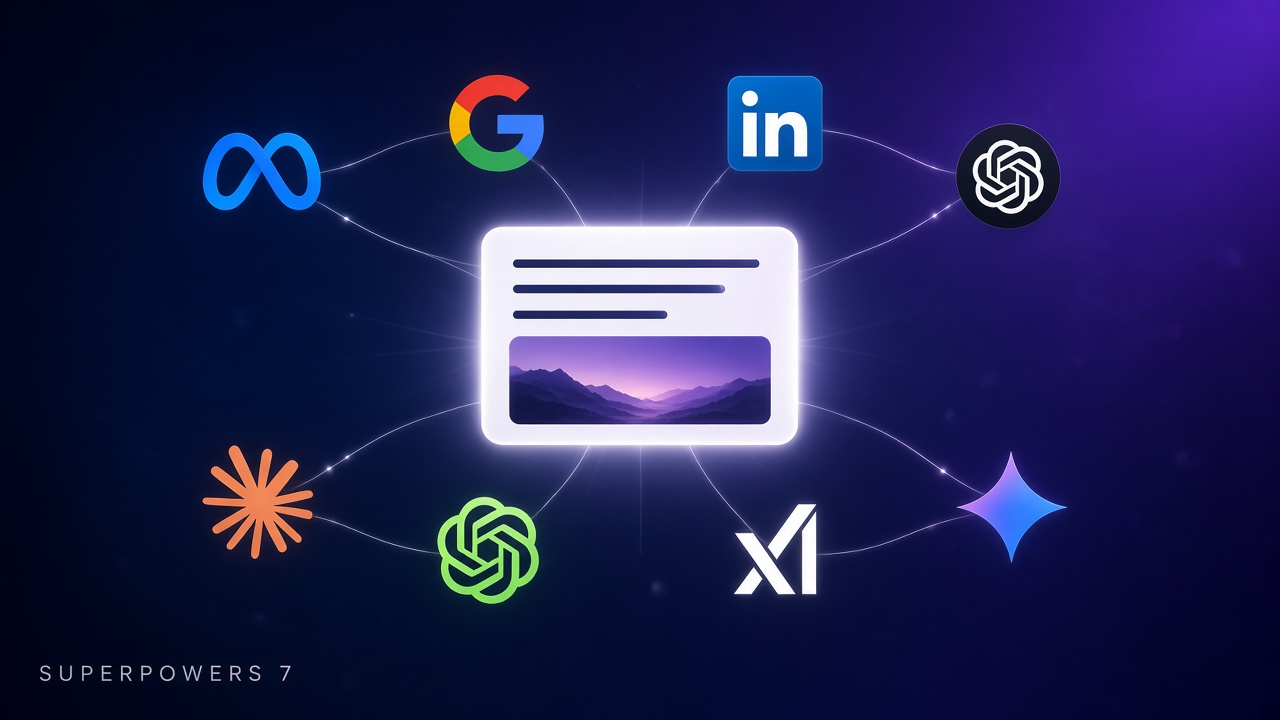
Targeting writes one campaign brief for a web flow and opens the chat you already use, with that brief filled in. You review the instruction and send it. The chat drafts a paused ad. You turn it on.
This is for web flows. Message flows do not get an ad brief.
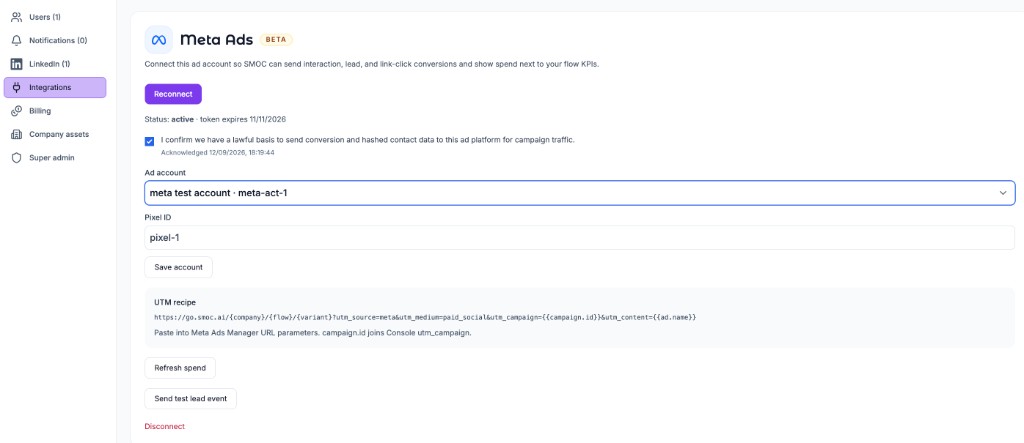
Connect the ad account first if you want conversions, spend, and the Live mark. That connection lives in Console, not in the chat. See Connect Meta, Google, LinkedIn, and ChatGPT Ads.
The brief is created when you generate the flow with Targeting / Campaign brief checked. The label in the generator is “Campaign brief for Meta, Google, LinkedIn, and ChatGPT.” You can regenerate the flow later with that box still on.
| Mark | Means |
|---|---|
| Check on Meta, Google, LinkedIn, or ChatGPT Ads | That account’s connection status is active. |
| Live on an ad network | The account is connected, and a campaign attributed to this flow had impressions, spend, or clicks in the last 30 days. |
| Check on Organic | The share title and the share description are both filled in, and neither is leftover generation-prompt text. An image is not required. |
If the account is not bound, the page says ads setup is not available. Connect it under Console → Settings → Integrations.
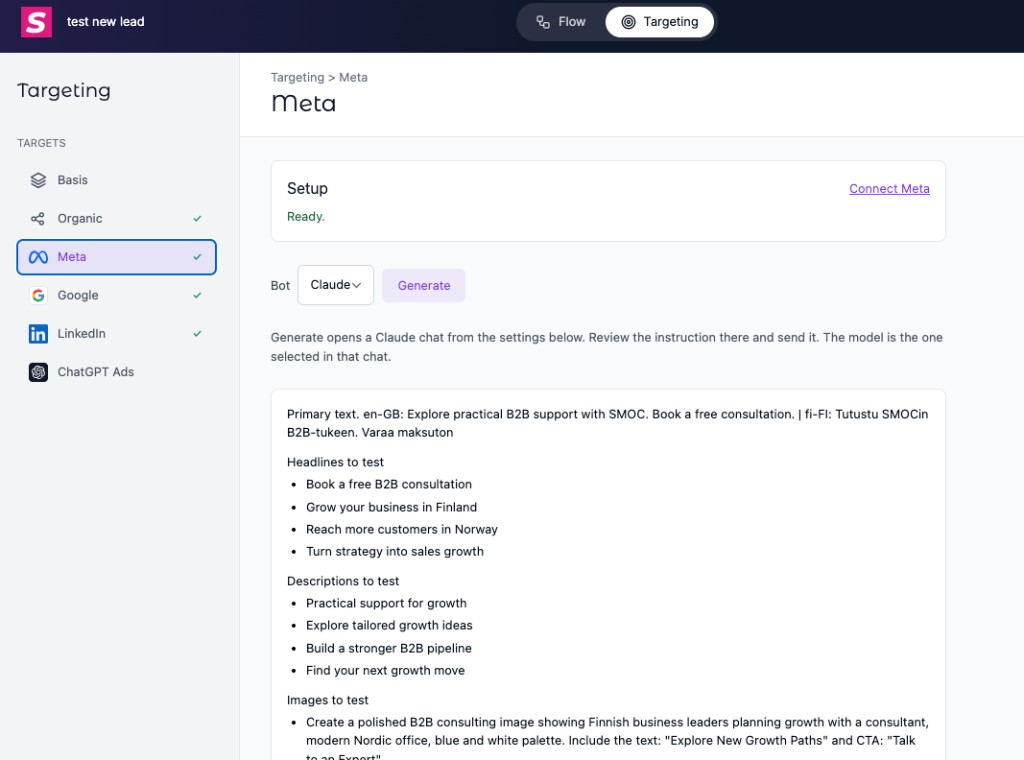
Basis is the company image library. Select the images the brief may use. Generate includes those keys in the instruction. If none are selected, the instruction says an image is still needed.
Organic is the share card for the flow link: title and description.
On Meta, Google, LinkedIn, and ChatGPT Ads the order is the same:
Pick ChatGPT, Claude, Grok, or Gemini. Studio stores that choice on your user, so the next flow opens the same chat.
The line under the button says Generate opens that chat from the settings below. Review the instruction there and send it. The model is the one selected in that chat.
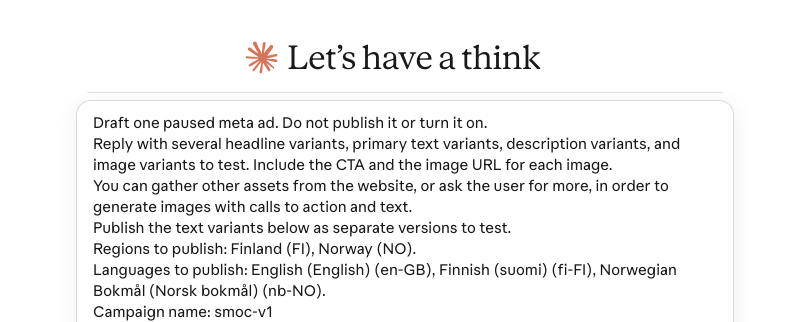
Claude shows its own caution line above a prompt that arrived from a link. That line is normal. It is Claude checking the link, not a problem in the brief. ChatGPT opens the same instruction without that banner. Either way, you read it and send it.
The instruction tells the chat to draft one paused ad and not to publish it or turn it on. It also says to put the text variants in as separate versions to test, and to gather more assets from the website or ask you for them when it needs images with a call to action and text.
Google and ChatGPT have no ads connection inside the chat. The instruction tells it to use the browser, signed into Google Ads or ChatGPT ads, to create the paused ad, and still not to turn it on.
smoc- plus the flow’s template key, and kept.A blank chat is fast only after someone has typed the offer, the landing page, the limits, the countries, and the images. Studio has already done that. Generate opens ChatGPT, Claude, Grok, or Gemini with the brief filled in, so the first answer is the model's writing time, not a briefing.
Update is the feedback loop. Once ads on that network send people to this flow, Update opens the same chat with those ads and the recent results. The chat recommends the next variants from what delivered, not from a new blank prompt. You apply the ones you want. The destination stays the Flow URL, so the next round of clicks and leads still joins the same campaign.
The passes are:
Update is shown only when that network already has at least one ad sending people to this flow.
It opens the same chat. The instruction lists each connected ad and asks for one recommendation per ad: what to change, new variants to test, and why the current results support the change. It still says not to publish or turn the ads on. Google and ChatGPT are told to apply each change in the browser and leave the ads off.
There is no Update button when no ad is connected.
Where AI runs
Website chat, card flows, and LinkedIn share one system. AI does each job below. The line under the title says where that job runs.
Every agent
AI crawls the site and writes the offer, the audience, the voice, and the brand. Website chat, card flows, and LinkedIn start from that.
Dashboard · Lead Strategy
Set your lead goal. AI simulates thousands of channel mixes, ranks them by efficiency, and shows the most cost-effective plan. Your data and constraints shape the math.
Every agent · theme on web · list on LinkedIn
AI writes the flow. Theme runs on website chat and cards. Translation runs on every agent. AI finds the prospect list on LinkedIn.
Path on every flow · web and LinkedIn split
Reinforcement learning on the flow path runs on every agent. Recommendations run on web. Right timing and reply reading run on LinkedIn.
Every agent
AI proposes a variant, uses your review on the next draft, and starts from an example that already works. You apply the change.
Continue learning with these related guides
Get product updates and perspective on proactive AI agents, multichannel orchestration, and conversion—without the noise.
 Weekly signal on proactive AI sales
Enter your email below to get started with SMOC.AI