Using Studio Recommendations: generate, apply, reject, and history
Using Studio Recommendations
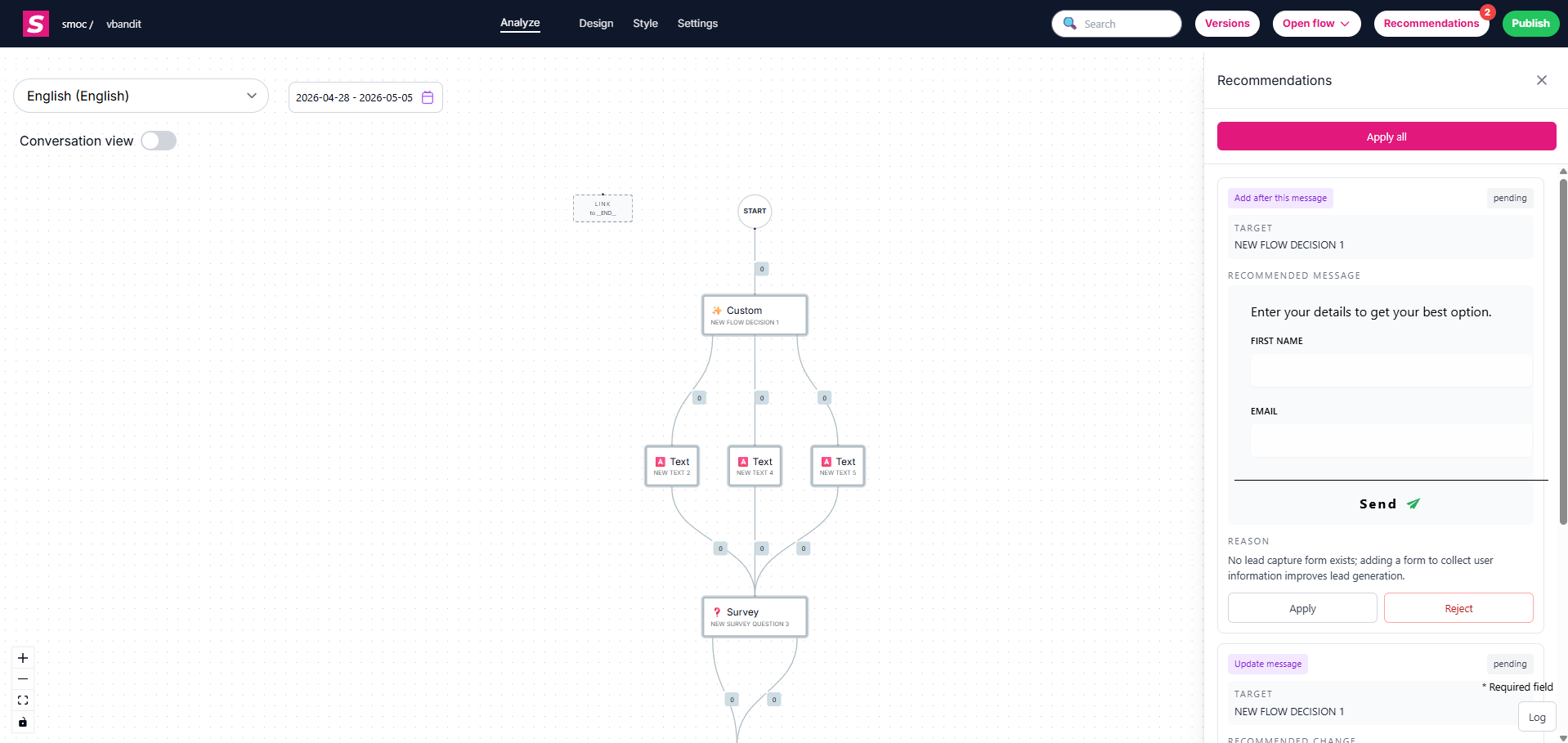
Studio Recommendations suggest concrete changes to an existing flow: copy, structure, and A/B variants. You generate a job, review the queue, apply what you want onto the canvas, and publish when you are ready.
This is different from Compose, which builds a new flow from a brief. Recommendations improve the last saved flowchart — unsaved canvas edits are not included until you save.

Open the panel
- Open the flow in Studio (web or LinkedIn message flow).
- In the top bar, click the sparkles Recommendations button.
- The badge is the pending count (items you have not applied or rejected yet).
The sparkles icon animates while a job is running. The panel shows live status (the same progress pattern as generation and translation) until results arrive.
Generate recommendations
If the panel is empty, click Generate. You can generate again anytime from that panel — each run uses force, so a new job starts even if older recommendations already exist.
You can also start a job from Console Dashboard → Improve Agents when a flow first reaches 100+ interactions. After that job finishes, Improve Agents shows Open Studio instead of Generate. See Improving agents from the Console dashboard.
Generation always uses the last saved version of the flow, not unsaved canvas edits. Save first if you want the job to see your latest copy.
What gets recommended
Web flows — copy, structure, locales, forms, thank-you / survey patterns, and A/B-style variants where they help conversion.
LinkedIn message flows — connection notes, DMs, follow-ups, InMail, and suggested-reply copy, plus A/B (bandit arm) variants. Web-only heuristics (forms, locale maps, thank-you pages) are skipped because the conversation happens in LinkedIn.
Each card targets a specific message. Hover or click a recommendation to focus that node on the canvas before you apply.
Actions
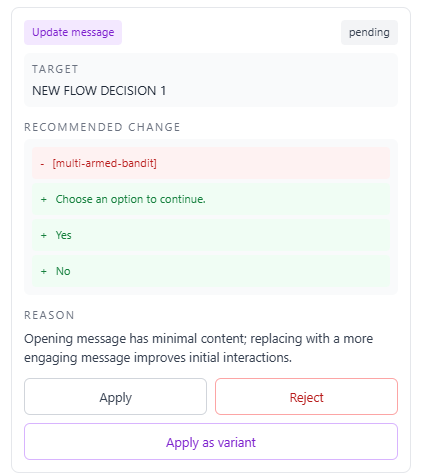
- Apply — accept this item and update the flow. It leaves the pending list (the header badge drops) and appears under History as Applied.
- Apply all — apply every remaining pending item. Use this only after you have scanned the queue.
- Apply as variant — add the suggestion as a variant instead of replacing the current copy. Best for A/B tests.
- Reject — drop the item from the pending list (optional comment). It appears under History as Rejected. You cannot re-apply from History; generate again if you want a fresh set.
History
The History section at the bottom of the panel lists Applied and Rejected items in a compact view. It is an audit trail, not a second queue — there is no re-apply from History.
Recommended review order
- Open Recommendations and wait if a job is still running.
- Scan pending items; click each card to inspect the node.
- Apply high-confidence changes one by one.
- Use Apply as variant for promising but uncertain copy.
- Reject anything off-brief.
- Use Apply all only on the leftovers you have already reviewed.
- Walk the canvas, then publish when you are satisfied.
Troubleshooting
“No recommendations available”
Nothing is pending. Click Generate, or start a job from Dashboard Improve Agents after the flow has 100+ interactions. Keep the panel open while the job runs.
Wrong node highlighted
Click the card again. Confirm the message before applying.
Apply fails or looks partial
Apply remaining items one by one. Reject a malformed card, then generate again if needed.
Job ignored unsaved edits
Save the flow, then Generate again.
Related
Related Guides
Continue learning with these related guides
Stay close to the shift in AI sales
Get product updates and perspective on proactive AI agents, multichannel orchestration, and conversion—without the noise.
 Weekly signal on proactive AI sales