01
AI reads the company
Every agent
AI crawls the site and writes the offer, the audience, the voice, and the brand. Website chat, card flows, and LinkedIn start from that.
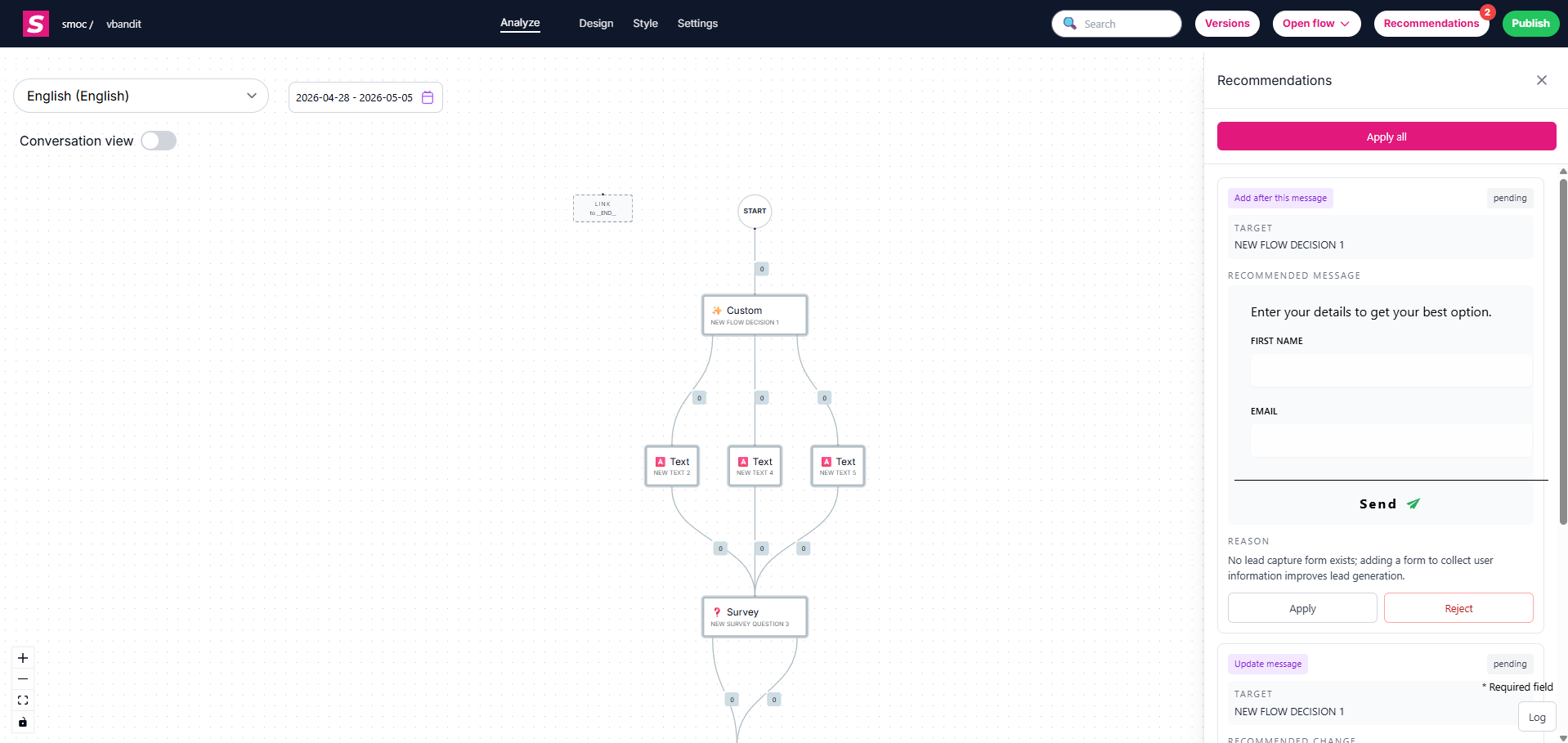
Studio Recommendations suggest concrete changes to an existing flow. Flow suggestions cover copy, structure, and A/B variants. Targeting suggestions are a separate list: an audience update on a web flow, or a LinkedIn segment change on a message flow. You review each list, apply what you want, and publish when you are ready.
This is different from Compose, which builds a new flow from a brief. Recommendations improve the last saved flowchart — unsaved canvas edits are not included until you save.

The sparkles icon animates while a job is running. The panel shows live status until results arrive. The panel title is AI improvement. The button inside it is Recommend improvements with AI.
On Flow, flow suggestions are open. Targeting suggestions start collapsed behind Targeting suggestions · N, unless they were created while flow suggestions were already open — those stay open at the top. On Targeting, targeting suggestions are open, and flow suggestions sit behind Flow · N.
Click Recommend improvements with AI. You can run it again from that panel.
If flow suggestions are already open, those stay as they are. The panel says so. Targeting suggestions are a different list, so that run still creates them. They open at the top of the panel, above the flow cards. Review, apply, or reject the open flow suggestions before asking for a new flow set.
Recent applies and rejection comments are used the next time you ask for improvements. A rejection can include a short comment.
You can also start a job from Console Dashboard → Improve Agents when a flow first reaches 100+ interactions. After that job finishes, Improve Agents shows Open Studio instead of Generate. See Improving agents from the Console dashboard.
Generation always uses the last saved version of the flow, not unsaved canvas edits. Save first if you want the job to see your latest copy.
Flow suggestions
Each flow card targets a specific message. Hover or click it to focus that node on the canvas before you apply.
Targeting suggestions
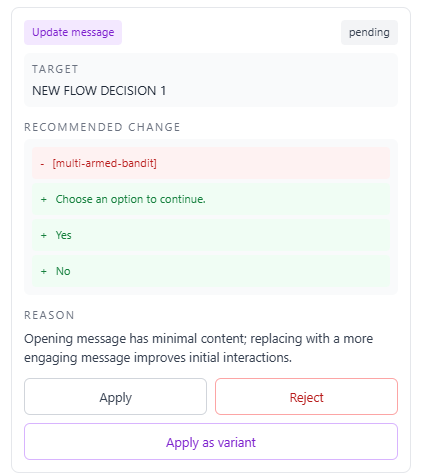
History at the bottom is an audit trail of Applied and Rejected items. It is closed until you expand a section. Sections are grouped by date. A day with more than 10 decisions is split, for example 5 Nov 2026 · 1–10 and 5 Nov 2026 · 11–20. Decisions without a date sit under Earlier. There is no re-apply from History.
The panel says flow suggestions stay as they are
Open flow suggestions were not replaced. Targeting suggestions from that run are at the top of the panel. Apply or reject the flow cards before asking for a new flow set.
No targeting suggestions
On Flow, look for Targeting suggestions · N. Expand it. On Targeting, the cards are the open list. A run with nothing useful to change can still come back empty.
“No improvements yet”
Nothing is pending. Click Recommend improvements with AI, or start a job from Dashboard Improve Agents after the flow has 100+ interactions. Keep the panel open while the job runs.
Wrong node highlighted
Click the flow card again. Confirm the message before applying. Targeting cards do not move a canvas node.
Apply fails or looks partial
Apply the remaining flow items one by one. Reject a malformed card, then generate again if needed.
Job ignored unsaved edits
Save the flow, then run Recommend improvements with AI again.
Where AI runs
Website chat, card flows, and LinkedIn share one system. AI does each job below. The line under the title says where that job runs.
Every agent
AI crawls the site and writes the offer, the audience, the voice, and the brand. Website chat, card flows, and LinkedIn start from that.
Dashboard · Lead Strategy
Set your lead goal. AI simulates thousands of channel mixes, ranks them by efficiency, and shows the most cost-effective plan. Your data and constraints shape the math.
Every agent · theme on web · list on LinkedIn
AI writes the flow. Theme runs on website chat and cards. Translation runs on every agent. AI finds the prospect list on LinkedIn.
Path on every flow · web and LinkedIn split
Reinforcement learning on the flow path runs on every agent. Recommendations run on web. Right timing and reply reading run on LinkedIn.
Every agent
AI proposes a variant, uses your review on the next draft, and starts from an example that already works. You apply the change.
Continue learning with these related guides
Get product updates and perspective on proactive AI agents, multichannel orchestration, and conversion—without the noise.
 Weekly signal on proactive AI sales
 Enter your email below to get started with SMOC.AI