How can I create and configure different flow elements in SMOC?
Category: Configurator
The Flow Editor in SMOC Studio is where you create and configure your flow elements. Click the + on a path/handle, choose a node type, then edit that node in the right-side editor panel.
Core Flow Elements
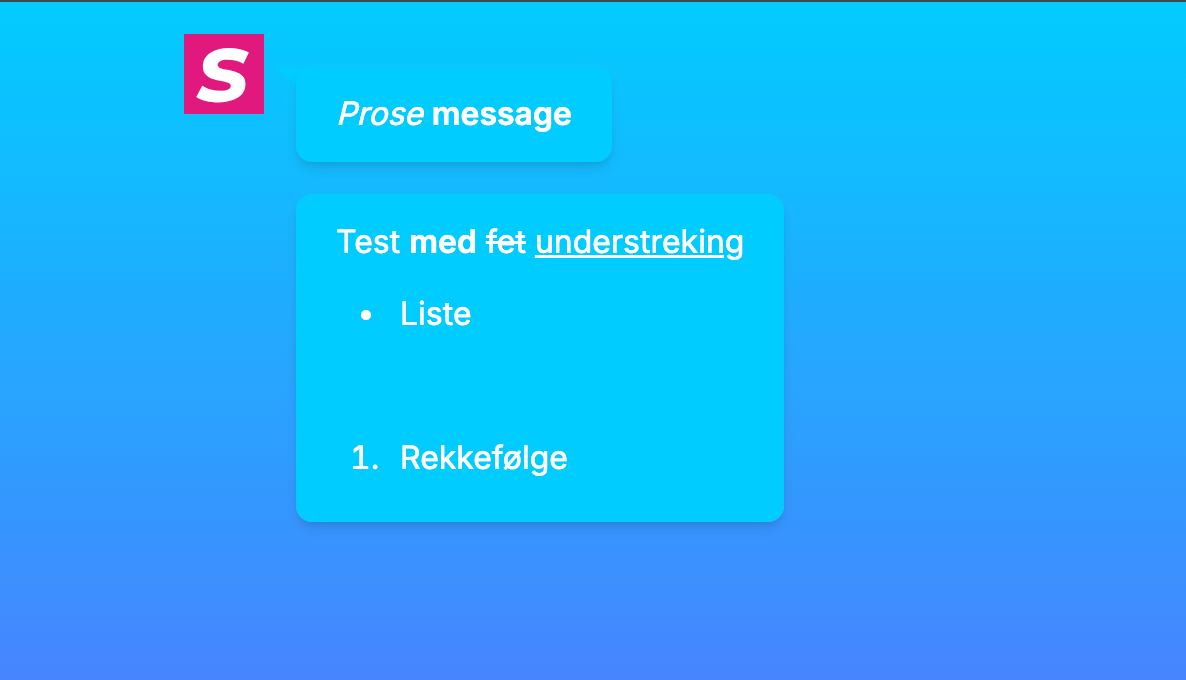
1. Text
Add a Text node for regular messages.
- Write your content directly in the editor.
- Use rich text formatting (for example bold and styled text).
- Save/close to keep it in the flow.
2. Image
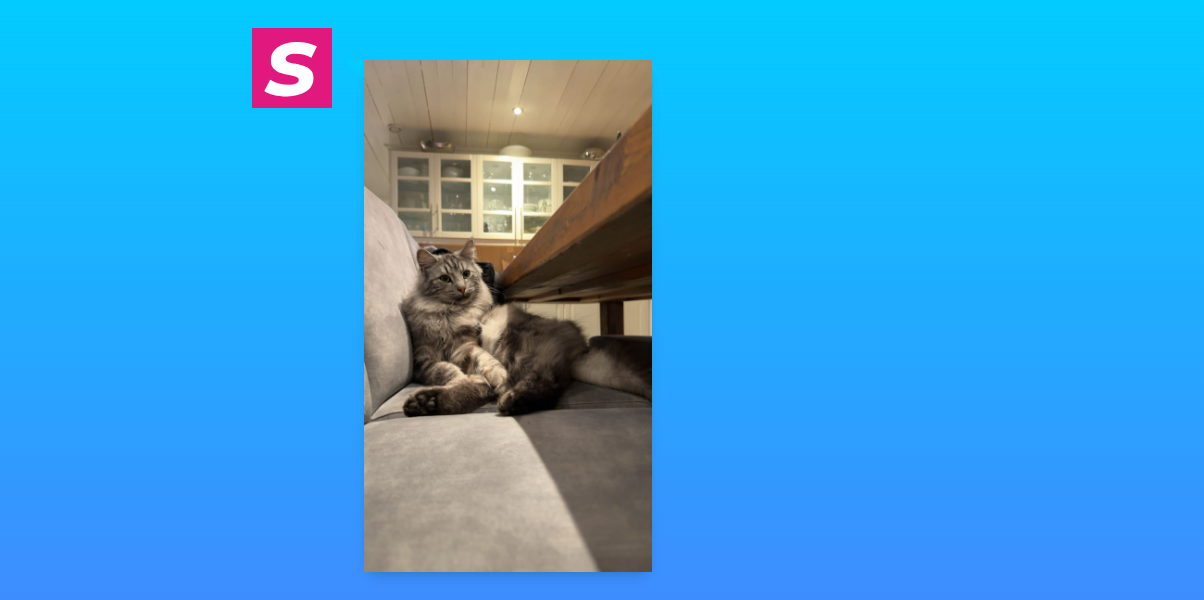
Add an Image node to show a picture.
- Paste an image URL, or upload an image from your device.
- Preview and update the image in the editor panel.
3. Survey Question
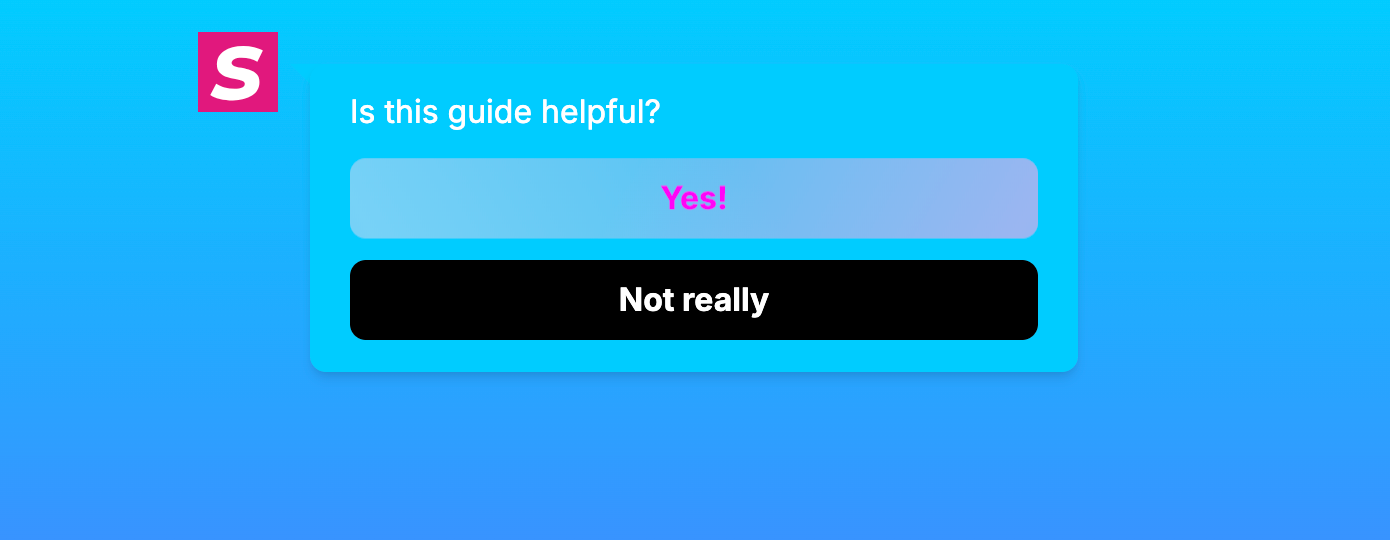
Add a Survey Question node to collect responses.
- Add the question text.
- Add answer buttons (each button becomes a selectable answer).
- Reorder, edit, remove, or restore answers in the element editor.
- Configure survey answer layout (for example stacked/packed).
4. Promo
Add a Promo node, then choose a promo type.
Available promo types include:
- Visit Promo
- Visit & Action Promo
- Display Campaign
- Video Visit Promo
- Video Visit & Action Promo
- Video Display Campaign
- Referral Promo
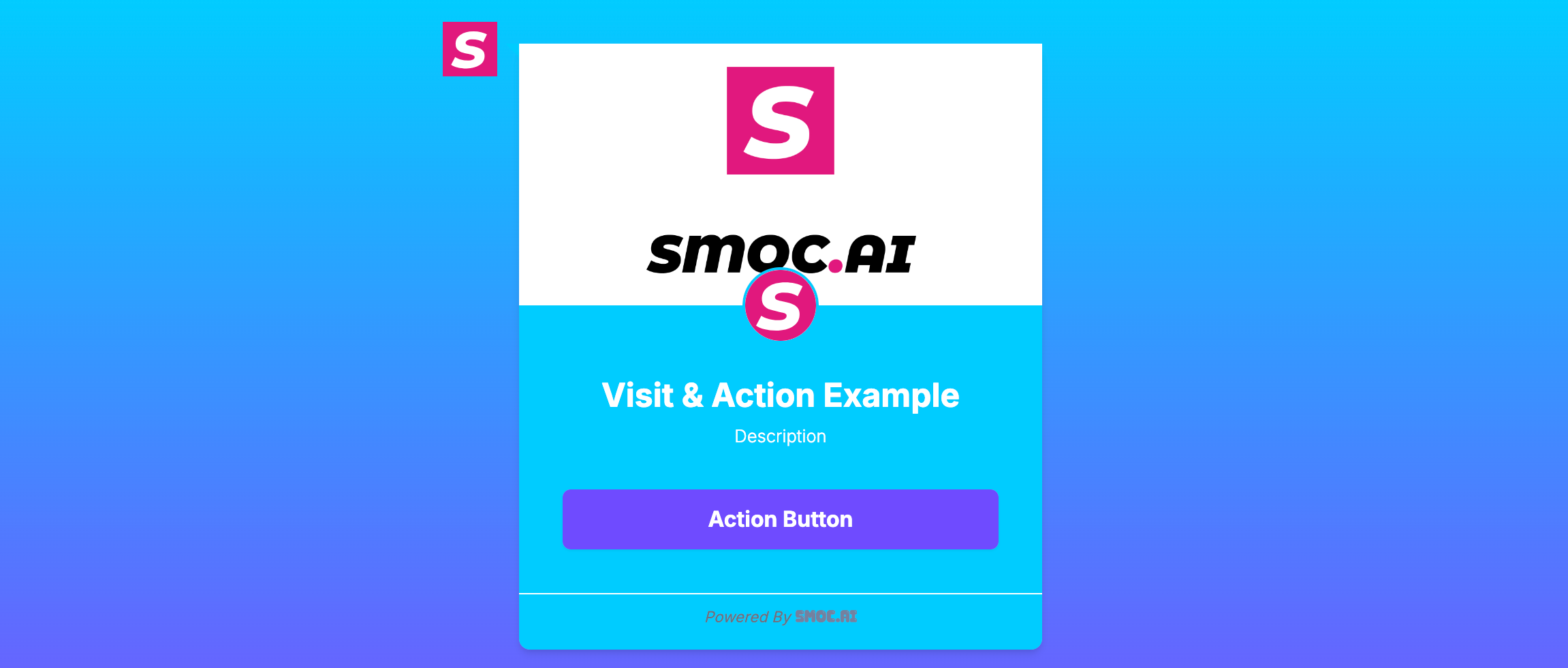
Example of Visit & Action Promo
5. Link Message
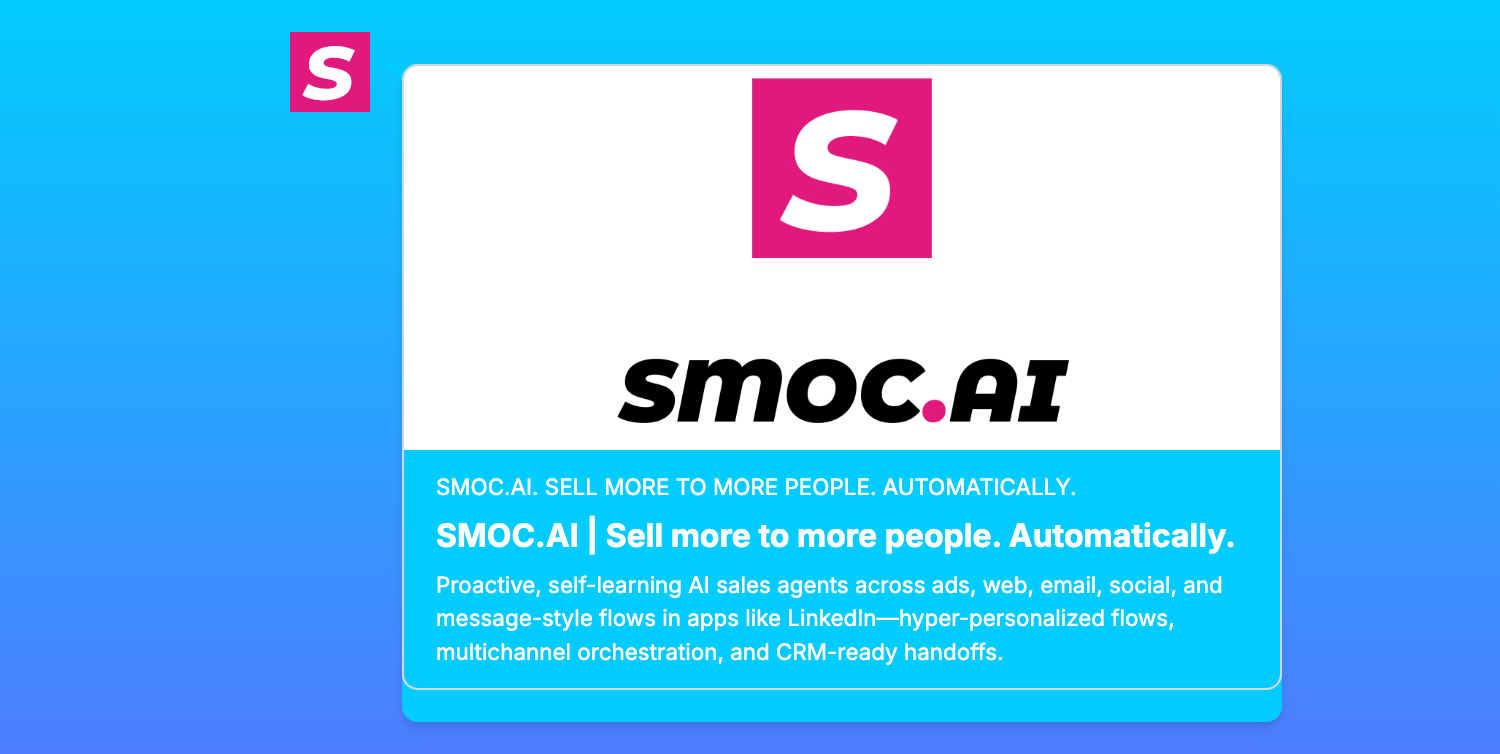
Add a Link Message node to send users to a URL.
- Set Link text (what users see).
- Set Link URL (destination).
- Optionally enable Open Graph for preview-card style links.
- Optionally enable Forward UTM & click IDs to append incoming campaign parameters (utm_* plus gclid, fbclid, and other ad click IDs) to the destination URL.

6. User Form
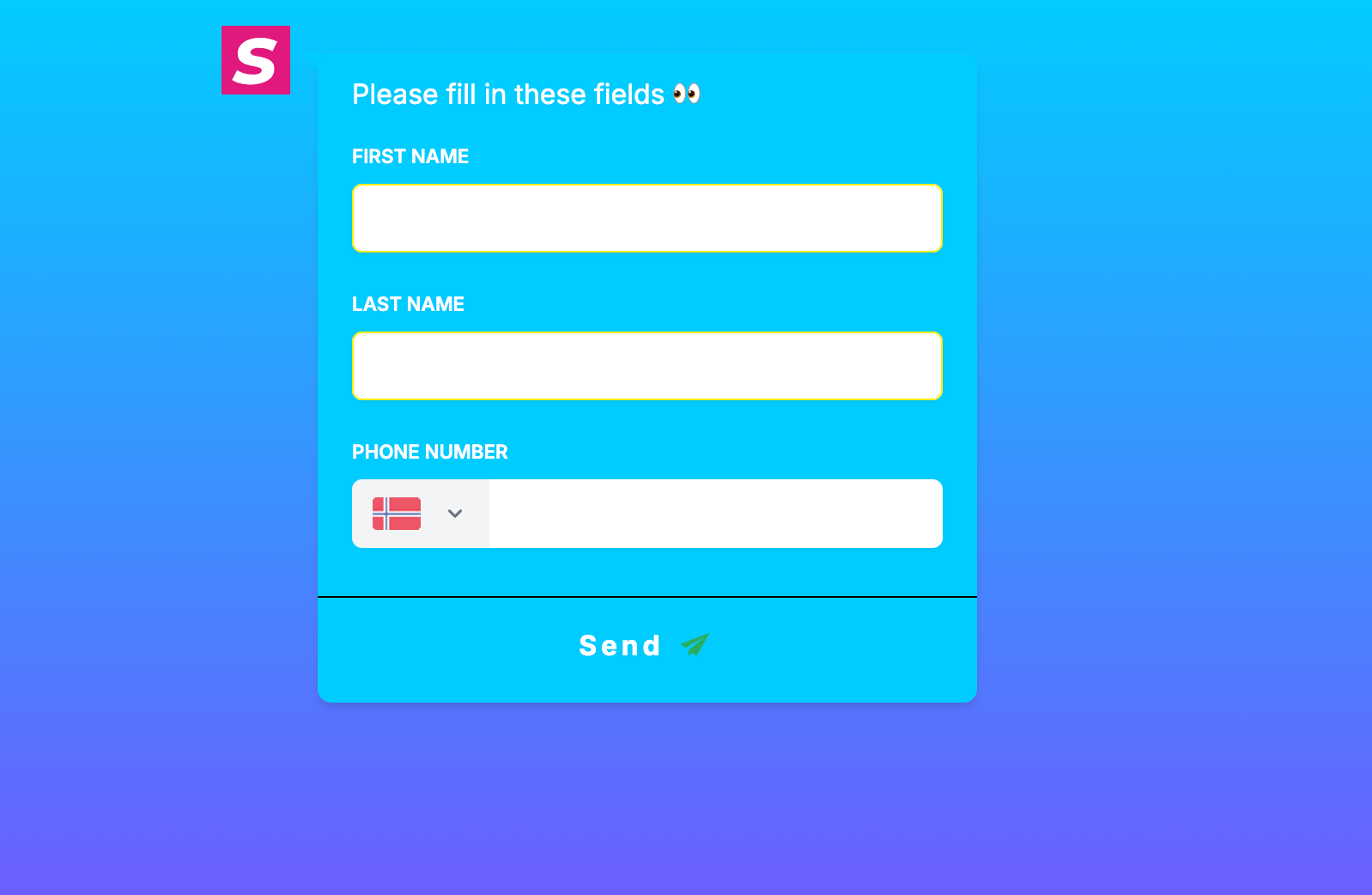
Add a User Form node to collect lead/contact data.
- Add fields such as first name, last name, email, phone, and more.
- Reorder and adjust form fields in the editor.
7. HTML Script
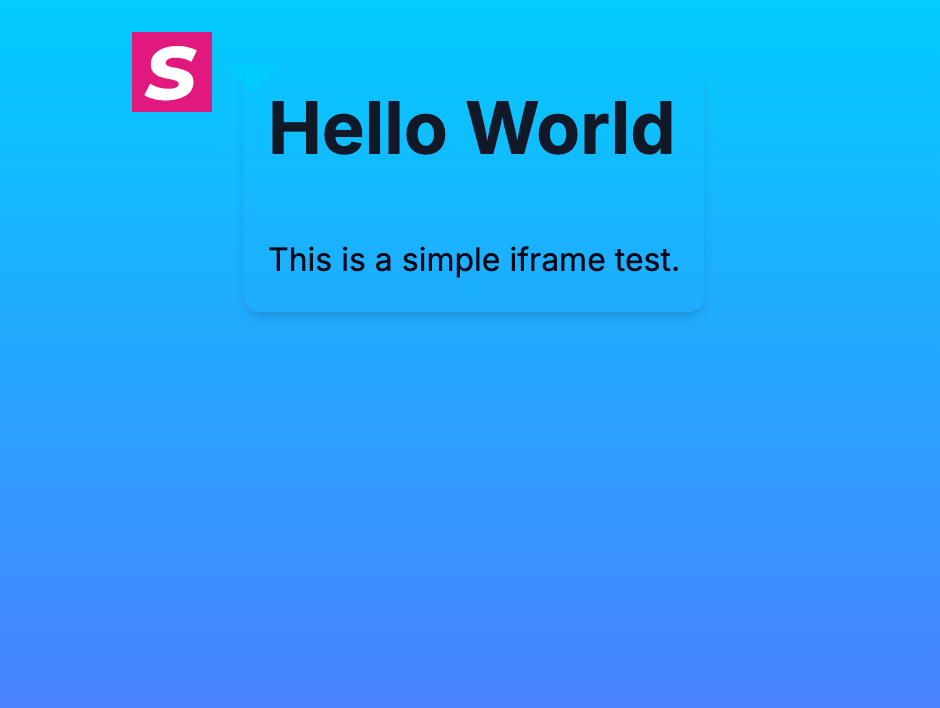
Add an HTML Script node (previously called iFrame).
- Paste your HTML/embed/script content in the node editor.
- Use this for embedded external widgets/content.
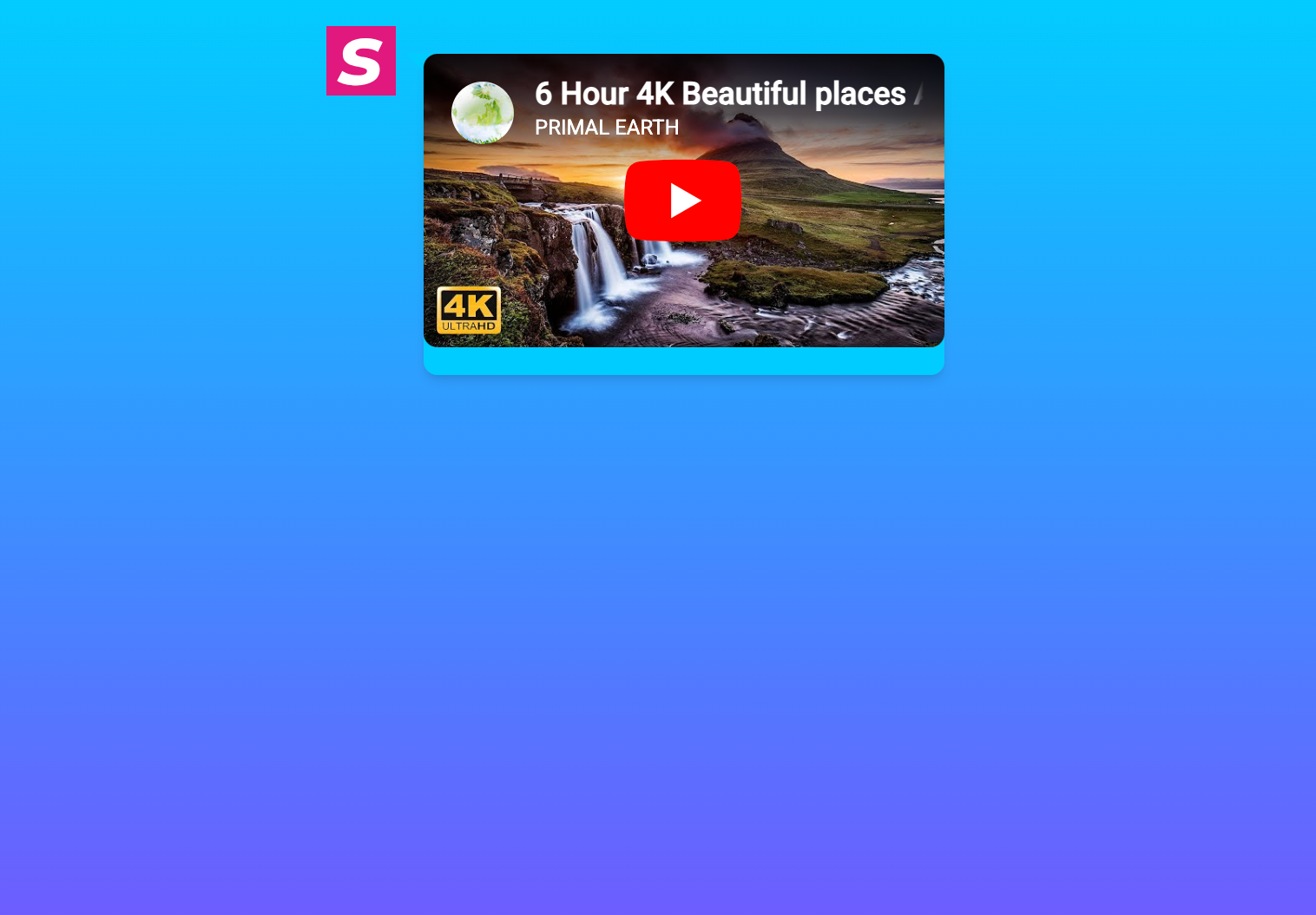
8. Video
Add a Video node for video content.
- Paste a supported video URL.
- Configure accompanying text/elements if needed.
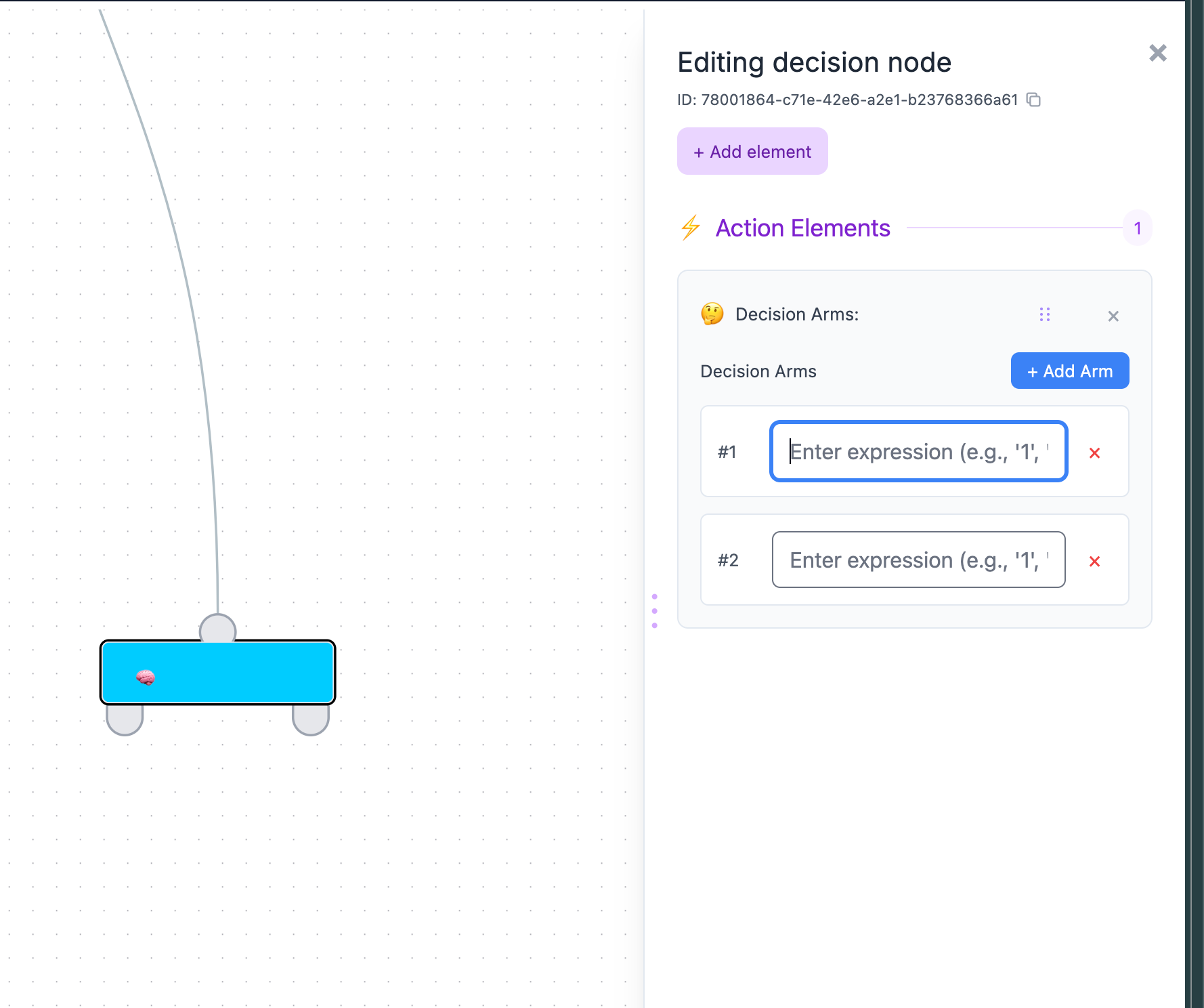
9. Flow Decision
Add a Flow Decision node for expression-based branching.
- Create one or more decision arms.
- Define expressions per arm to control routing.
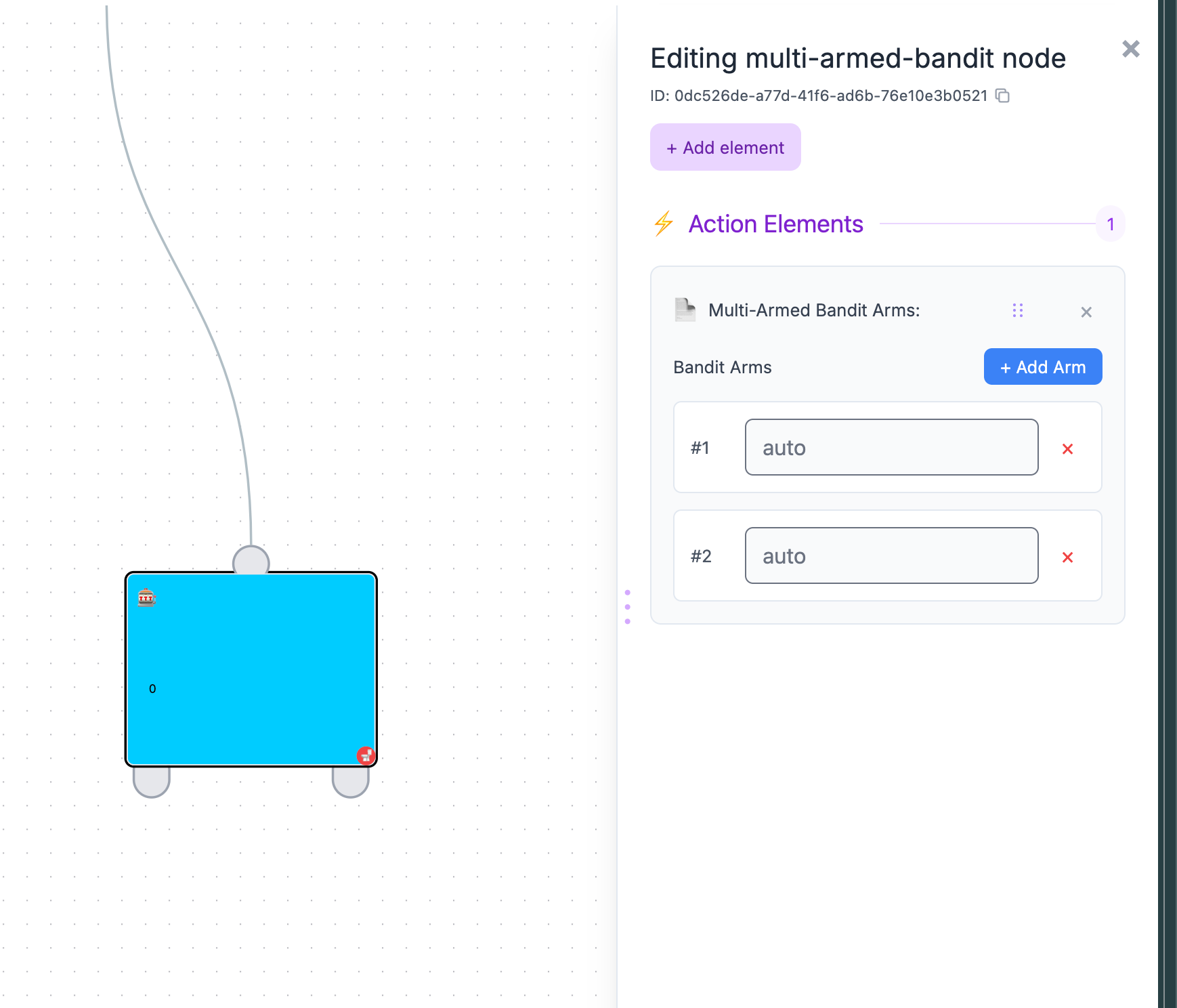
10. AI
Add an AI node (multi-armed bandit) to distribute traffic across paths automatically.
- Add arms/paths.
- Connect each arm to downstream nodes.
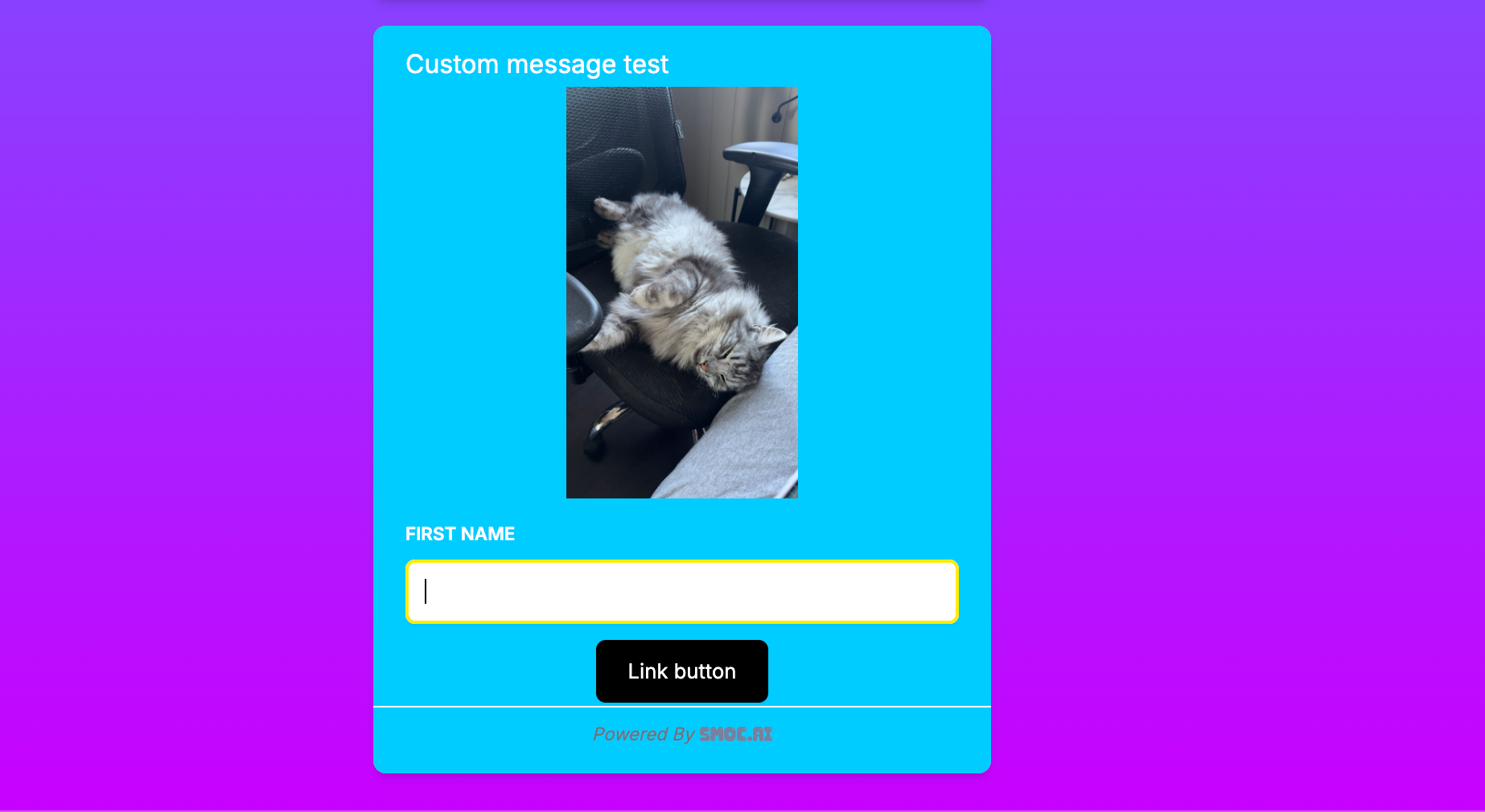
11. Custom Message (Beta)
Add a Custom Message node when you need more flexible element combinations.
- Combine multiple element types in one node.
- Configure each element from the same editor panel.