01
AI reads the company
Every agent
AI crawls the site and writes the offer, the audience, the voice, and the brand. Website chat, card flows, and LinkedIn start from that.
Simple guide showing how to connect SMOC to AI clients and development tools using MCP (Model Context Protocol). Once connected, tools like Claude Desktop, Claude Code, Cursor, or VS Code can read your SMOC data directly — contacts, companies, company assets, flowcharts, flow analytics, LinkedIn inbox threads, and message-flow conversations — scoped to your company. HTTP callers should use the REST v2 API reference.
The SMOC MCP integration authenticates with a private API key. Generate one in the SMOC console:
Your key is tied to your company. Every request made with it is automatically scoped to your data — you'll only ever see contacts, companies, analytics, inbox threads, and conversations that belong to you. Generating a new key does not revoke existing keys. Issued keys are listed on the same page — revoke unused keys there.
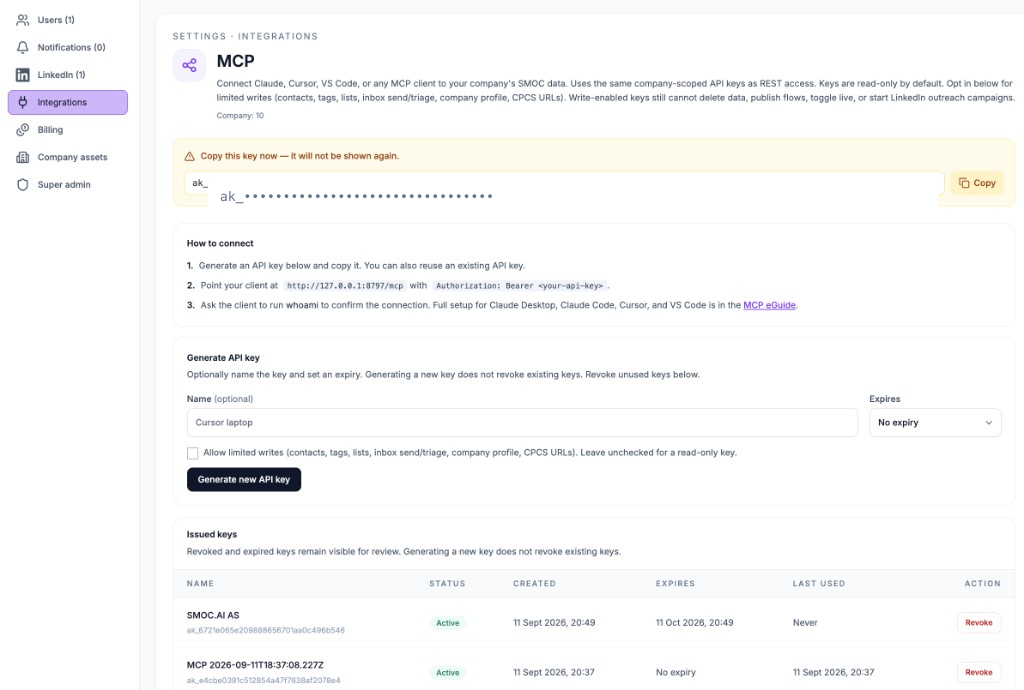
The API and Zapier pages use the same name, expiry, copy-once banner, and issued-keys list.
After connecting, the following tools become available (exact availability depends on your account's permissions and the server's configured bindings). Keys are read-only by default. Check Allow limited writes when minting a key to enable the writes listed below.
whoami — current role, company scope, and permissionsmcp_capabilities — visible tools, skills, and anything currently unavailableskills_search — find a recipe from a short task phraseskills_get — exact inputs and an example for one skillcompanies_get — company profile (title, key, URL, languages, settings)company_assets_get — products, positioning, website links, and filescompany_asset_extraction_results_list — extraction result summariescompany_asset_extraction_results_get — one extraction result, optionally with extracted datacompany_asset_extraction_templates_list — templates, tags, and freshnessSuper-user keys can also call companies_list to browse every company before selecting a companyId.
contacts_search — search with filters, sort, and paginationcontacts_get — one sanitized contact by idcontacts_get_stats — counts and engagement summarycontacts_get_filter_options — valid filter values (location, flow, device, and similar)contact_tags_list — contact tagsprospect_lists_list / prospect_lists_get — prospect listsinbox_threads_list — LinkedIn (and other) inbox threads, with unread / unanswered / sender / flow filtersinbox_threads_get — one thread; set includeMessages: true to include recent messagesinbox_messages_list — message history for a thread, including merged peer threadsconversations_list — message-flow runs (enrollment, status, current node)conversations_get — one conversation run, including milestonesInbox tools require the inbox:read permission. They can read message bodies. Write-enabled keys may also archive, mark unread/handled, and send a text-only reply with inbox_threads_send (requires threadId, body, and idempotencyKey). They cannot attach files, edit flow graphs, publish flows, or start LinkedIn outreach campaigns. Super-user keys can save Mongo flow and theme drafts (flowcharts_save, flowcharts_create, themes_save, and related calls), including web/message and chat/card types. Those writes do not publish.
flowcharts_list — static flowcharts for the companyflowcharts_get — one flowchart summary or full graphflowchart_recommendations_list — recommendation documents for a flowchartflowcharts_versions_list, themes_get, studio_generation_categories_list, targeting portfolios, and generation/translation job readsflowcharts_save, flowcharts_restore_version, flowcharts_create (flowType web or message, webFormat chat or card), flowcharts_duplicate, themes_save. These write Mongo drafts and do not publish.cpcs_overview, URLs, crawls, extractions, templates, scheduleanalytics_flow_list_flows — flows ranked by trafficanalytics_flow_kpis — totals, conversion, previous-period deltasanalytics_flow_timeseries — daily or monthly trendsanalytics_flow_dimension_metrics — breakdowns by device, country, language, UTM, or day of weekanalytics_flow_filter_values — valid analytics filter valuesCustomer keys are always limited to your own company. Super-user keys can pass companyId on scoped tools.
Add SMOC as a custom connector. This works on claude.ai and in the Claude desktop app. You can sign in with your SMOC account, or connect with an API key.
Quick start
MCP endpoint: https://api.smoc.ai/mcp
whoami.Sign-in is only for company admins. It can read that company's data. Members and other roles are denied. It does not enable the limited writes you opt into when minting an API key. If you admin more than one company, use an API key for the company you want.
On Team and Enterprise, an Owner adds the connector under Organization settings → Connectors → + Add → Custom. Members then turn it on from Customize.
authorization and set the value to Bearer YOUR_SMOC_API_KEY — include the word Bearer and the space. Mark the header Required, then add the connector.Use a key when you want one company, an expiry, or limited writes. Request headers are rolling out. If + Add has no Request headers section, use Claude Code or the desktop config file below.
ChatGPT adds SMOC as an app. The create screen uses sign-in and has no field for an API key. Sign in with a company admin account.
Quick start
MCP endpoint: https://api.smoc.ai/mcp
whoami.Sign-in is only for company admins. It can read that company's data. Members are denied. API keys are for Claude, Cursor, and VS Code. ChatGPT needs a Plus, Pro, Business, Enterprise, or Edu plan for custom apps.
Use this when the connector dialog cannot take an API key. SMOC then connects through a small local bridge (mcp-remote).
claude_desktop_config.json.mcpServers:{
"mcpServers": {
"smoc": {
"command": "npx",
"args": [
"-y",
"mcp-remote",
"https://api.smoc.ai/mcp",
"--header",
"Authorization: Bearer YOUR_SMOC_API_KEY"
]
}
}
}
YOUR_SMOC_API_KEY with the key you generated.SMOC will now appear in your tools list. Requires Node.js installed (for npx).
Claude Code can talk to the SMOC endpoint directly with an authentication header — no bridge needed.
claude mcp add --transport http smoc https://api.smoc.ai/mcp \
  --header "Authorization: Bearer YOUR_SMOC_API_KEY"
On Claude Code 2.1.1 and newer you can also add it as JSON:
claude mcp add-json smoc \
  '{"type":"http","url":"https://api.smoc.ai/mcp","headers":{"Authorization":"Bearer YOUR_SMOC_API_KEY"}}'
Verify it connected by running /mcp inside a Claude Code session — SMOC should show as connected with its tools listed.
Most MCP-capable editors use a JSON config file (often mcp.json). Add an HTTP server entry pointing at the SMOC endpoint with your key in the Authorization header:
{
  "mcpServers": {
    "smoc": {
      "type": "http",
      "url": "https://api.smoc.ai/mcp",
      "headers": {
        "Authorization": "Bearer YOUR_SMOC_API_KEY"
      }
    }
  }
}
Refer to your editor's MCP documentation for the exact file location. After saving, restart or reload the editor.
GET https://api.smoc.ai/mcp/health.whoami tool — it returns who you're connected as and your company scope. This is the quickest way to confirm the key works.The AI doesn't need to know SMOC's tool names in advance. The intended flow is:
mcp_capabilities — lists the available tools, your role, and your scope.skills_search — describe the task in a short phrase to find the right tool.skills_get — returns the exact inputs and an example for the chosen tool.In practice you can just ask in plain language (e.g. "search my SMOC contacts in Oslo" or "show unanswered LinkedIn inbox threads") and the client picks the right tool.
inbox:read on the key. New keys from Settings → Integrations → MCP include it; older keys need a rotation.mcp_capabilities and check unavailableTools — it names the exact missing permission your key needs.Authorization: Bearer <key>.mcp-remote config above. Make sure Node.js is installed, the config JSON is valid, and you fully restarted Claude Desktop after editing the config.POST /api/v2/{toolName} callWhere AI runs
Website chat, card flows, and LinkedIn share one system. AI does each job below. The line under the title says where that job runs.
Every agent
AI crawls the site and writes the offer, the audience, the voice, and the brand. Website chat, card flows, and LinkedIn start from that.
Dashboard · Lead Strategy
Set your lead goal. AI simulates thousands of channel mixes, ranks them by efficiency, and shows the most cost-effective plan. Your data and constraints shape the math.
Every agent · theme on web · list on LinkedIn
AI writes the flow. Theme runs on website chat and cards. Translation runs on every agent. AI finds the prospect list on LinkedIn.
Path on every flow · web and LinkedIn split
Reinforcement learning on the flow path runs on every agent. Recommendations run on web. Right timing and reply reading run on LinkedIn.
Every agent
AI proposes a variant, uses your review on the next draft, and starts from an example that already works. You apply the change.
Continue learning with these related guides
Get product updates and perspective on proactive AI agents, multichannel orchestration, and conversion—without the noise.
 Weekly signal on proactive AI sales
 Enter your email below to get started with SMOC.AI