Getting the Most Out of Your Contact List Use contact filters and statistics to explore your customer base.

Section 1: Statistics

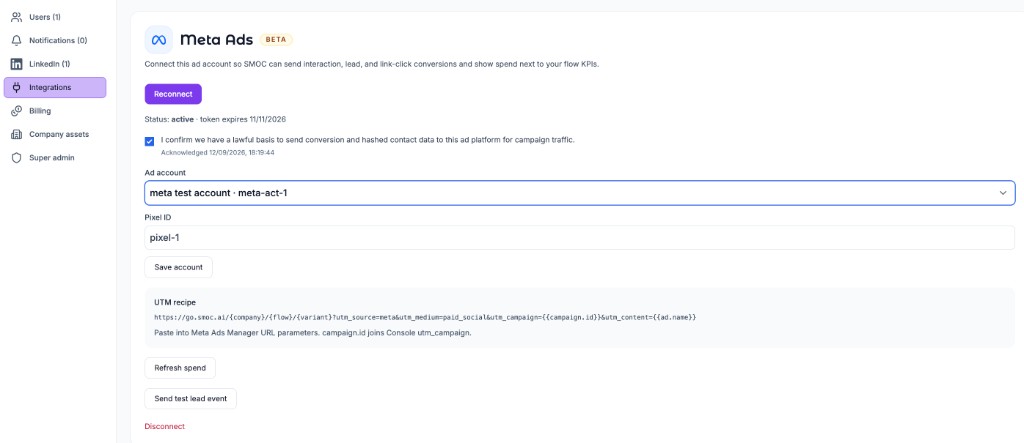
- Total amount of users: How many users do you have on your list. This includes leads and customers, both registered through SMOC and imported.
- Leads: How many people have left their information. This could be sign-ups, attendees to a competition, people that have responded to a survey etc.
- Customers: How many have signed up as a customer, been imported as a customer, or been converted to a customer.
- Lost: Leads or customers you have moved to "lost" or signed up as lost. Typically used in a Win-back flow.
- None: Leads or customers you have moved to "none" or signed up as lost.
- Converted customers: Leads that you have changed the status on from lead to customer.
Section 2: Filters

- Search for a contact: If you know the name or email of a contact, this is where you can search for it.
- Select timeframe: Filter based on when the contact interacted with one of your flows last time or got imported. Set your timeframe, or choose between the predefined filters on the left side.

- Flow: Choose which flow you want to show contacts from.
- Surveys: In flows where you have surveys, you can choose to show only contacts who have responded to a specific survey question(s), as well as what their response was.

- Preferred reward: If the flow was rewarded, you can filter based on what reward you are sending out. This is very useful if you send out rewards directly from the SMOC system or have a flow where the end user could choose what type of reward they wanted.

- Reward Balance: You can filter based on who you already have sent out a reward to, and who has a positive balance.
Note! When a customers respond to a flow that is rewarded, you need to convert the customer from lead to customer, to get a positive balance. You can only send out a reward based on the customers having a positive balance.

- More filters:
- Imported status: Here you have the opportunity to filter based on if the customer/lead is imported and what status they have been imported as.
- Promos presented: Here you can filter based on what promo the customer/lead has redeemed. This could click a link, see a video, refer a friend, or sign up.
- Promos redeemed:
- Consent options:


- Import: If you want to import a list of your existing contacts. This is useful when generating unique referral links or when sending out a survey with a unique link.

NOTE! To import the list you need a CSV file with only three columns. They also need the text "firstname", "lastname", and "email", written exactly like that and in that order. All small letters.

- Export: You can either choose contacts to export or if you only click "Export" without choosing anyone, you'll export the whole list.
- Create Contact: If you manually want to add a contact. Fill in the information you need and what status the contact should have.

- Delete selection: First you choose the contacts you want to delete by clicking the box next to their name/email, then click here to delete the selected contacts.
- Generate referral links: If you want to create a list with unique links. You then get the list sent directly to your email, with the information of your choosing.
- Choose flow: Choose the flow you want to generate links to.
- Choose which type of link: You can choose to get the referral links, which is useful if you want to send out just the referral link that the contact can share with their friends, or the flow link, which takes the contact to a flow first, and then they can get the link from there. This is useful if you want to give them some information, but don't want them to register before start sharing the link. Another use case would be if you send a survey, and their answers are connected to the contact, without telling them to register their information. If you choose both, you get both links.
- Choose which contacts: You can either pre-choose the contacts you want to create the links for or choose all.

Where AI runs
AI does the work. You review it.
Website chat, card flows, and LinkedIn share one system. AI does each job below.
The line under the title says where that job runs.
01
AI reads the company
Every agent
AI crawls the site and writes the offer, the audience, the voice, and the brand. Website chat, card flows, and LinkedIn start from that.
02
AI plans your growth
Dashboard · Lead Strategy
Set your lead goal. AI simulates thousands of channel mixes, ranks them by efficiency, and shows the most cost-effective plan. Your data and constraints shape the math.
03
AI drafts the agent
Every agent · theme on web · list on LinkedIn
AI writes the flow. Theme runs on website chat and cards. Translation runs on every agent. AI finds the prospect list on LinkedIn.
04
AI runs the conversation
Path on every flow · web and LinkedIn split
Reinforcement learning on the flow path runs on every agent. Recommendations run on web. Right timing and reply reading run on LinkedIn.
05
AI gets better
Every agent
AI proposes a variant, uses your review on the next draft, and starts from an example that already works. You apply the change.
 Weekly signal on proactive AI sales