Connecting SMOC to Other Apps Using Zapier

Simple guide showing how you can connect data from SMOC to other apps, such as your favorite CRM or eCommerce system. New and changed customer objects are exchanged automatically.
1. Get the Zapier integration
If you don't have a Zapier account, you'll need to create one first in order to use this integration.
Access to the SMOC Zapier integration is currently invitation-based. Use this invite link to get access: https://zapier.com/developer/public-invite/143310/1b341a0e890980718b2d5048e0a37e54/
Once you have access, you can start creating your zap.
2. Generate your SMOC API key
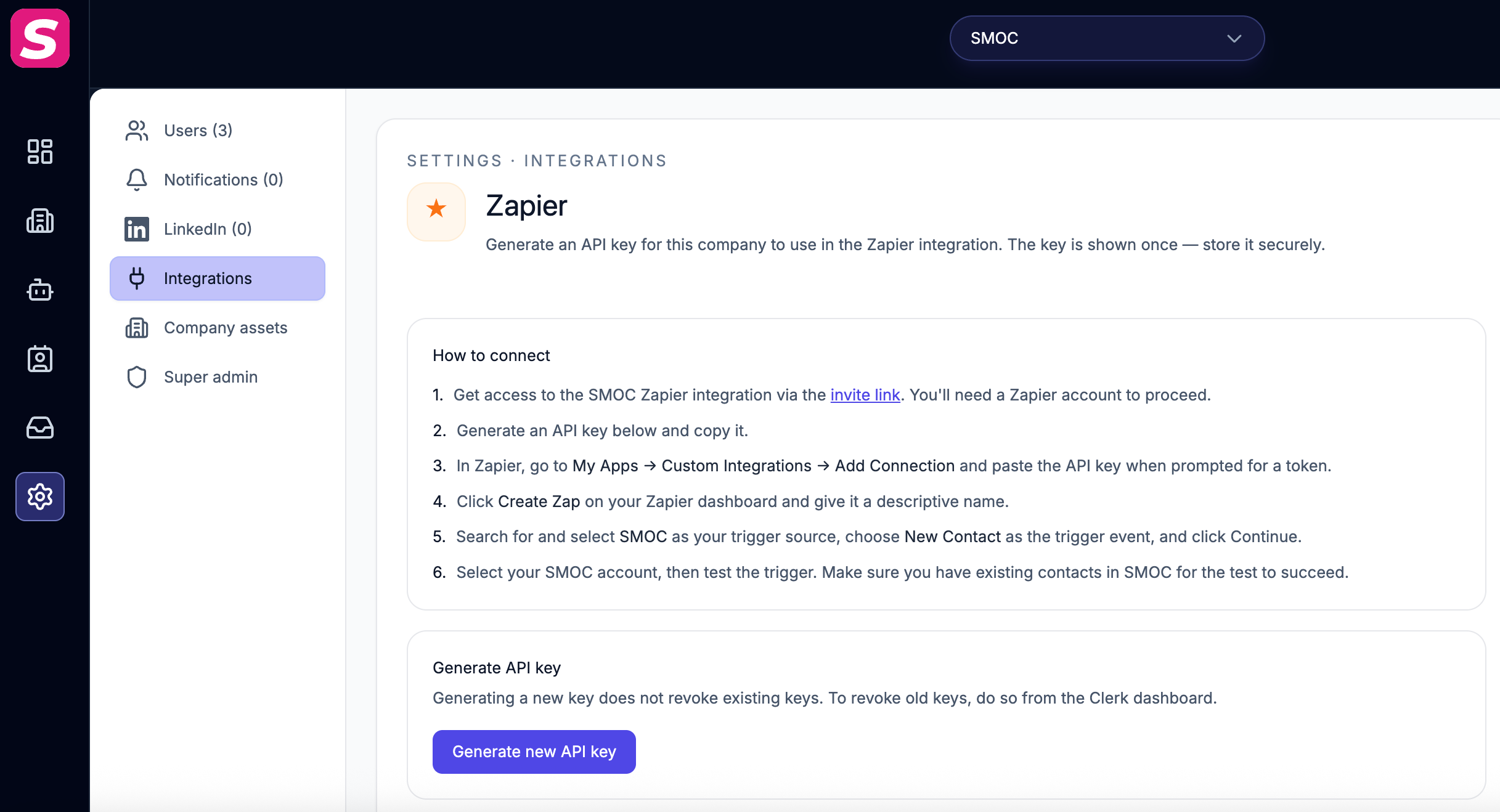
The SMOC integration authenticates with a private API key — there's no email/password sign-in. Before connecting in Zapier, generate a key in the SMOC console:
Go to Settings → Integrations → Zapier.
Optionally name the key and set an expiry, then click Generate new API key.
Copy the key immediately. It's shown only once, so store it somewhere secure. Issued keys are listed on the same page so you can revoke unused ones later.
The key is tied to your company. Generating a new key does not revoke existing keys. Revoke unused keys from the issued-keys list on the same page.
3. Add your SMOC account to Zapier
To pull in the data that belongs to you, connect SMOC using the API key you just generated:
In Zapier, go to My Apps → Custom Integrations → Add Connection.
When prompted for a token, paste your SMOC API key.
That's it — no email or password required.
4. Create a Zap
From your Zapier dashboard, click Create Zap in the top left to start.
Give it a descriptive name that explains what the zap does, for example: "Create a new contact in HubSpot on new contact from SMOC."
5. Choose app & event
- To use SMOC as a trigger, search for SMOC and select the newest version.
- With SMOC selected as the trigger source, choose New Contact as the trigger event, then click Continue.
New Contact keys on id. An imported prospect that later becomes a smart lead (on or after 11 September 2026) appears once with a {contactId}__sl id so the existing Zap can fire. Map CRM records with contactId — that value stays the Mongo id. This applies to every company. Prefer HubSpot Create or Update Contact on email if the prospect may already exist. This id rewrite is temporary until a dedicated New Smart Lead trigger exists.
6. Choose account
Select the SMOC account you connected earlier. If you skipped that step, you can connect a new account here by pasting your API key.
7. Test the trigger
Zapier will test the trigger to confirm the right account is selected and everything is set up correctly. Click Test trigger and wait for the result.
If it works, great — continue on to add the Action the zap will take when triggered. If it fails, double-check that you connected the correct account and that you have at least a few existing contacts in your SMOC account, so Zapier has something to fetch.
8. What data does SMOC deliver?
Before you decide what to do with the data from SMOC, it helps to understand what's available, so you can make a more informed decision about how to map it into your destination app.
See also
For the full HTTP call list, see the REST v2 API reference.
Related Guides
Continue learning with these related guides
Stay close to the shift in AI sales
Get product updates and perspective on proactive AI agents, multichannel orchestration, and conversion—without the noise.
 Weekly signal on proactive AI sales