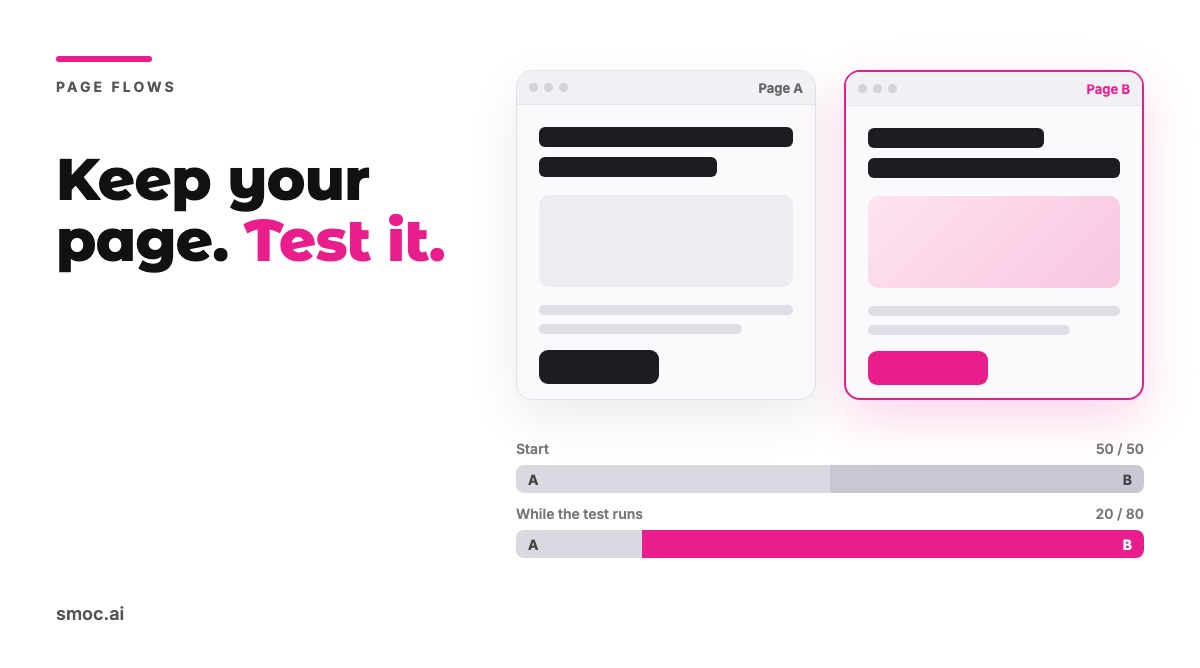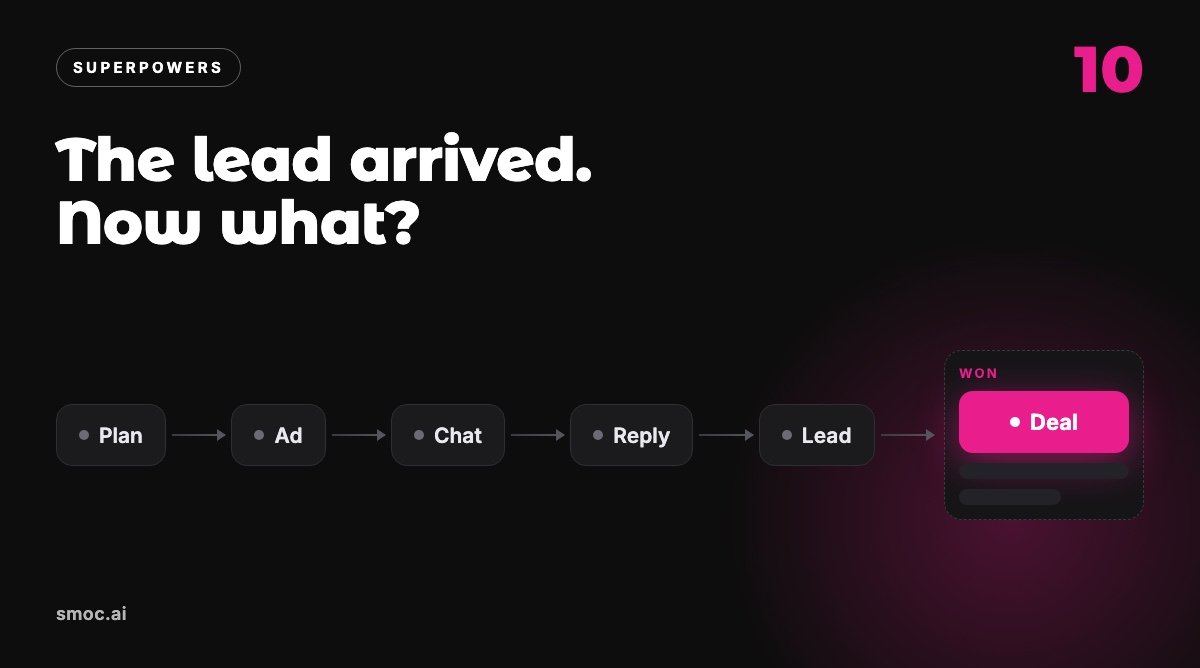
Eight short recordings now sit with the guides. Each one is Console or Studio, the clicks in order, captions in your language, and the steps under the video.
Start with Sales Launch. Review the agent and go live. Connect LinkedIn. Check Credits. Then the weekly set: a prospect list, Inbox, the dashboard, and the embed on your site.
Watch them together under How-to videos.
When Console changes, the same scripts are recorded again. The captions and the steps stay tied to those clicks.
Click Dashboard in the sidebar.
Steps
- Click Dashboard in the sidebar.
Sales Launch is the card on the Dashboard. It is the path from a new company to the first agent.
- Look for the Sales Launch card on the Dashboard.
- Scroll to Lead strategy — that is the company read after the scan.
The scan uses your homepage and writes a commercial profile. The card stays on screen while that runs.
- Open Agents.
The heading changes when the website agent is generated. Nothing is public until you review it and go live.
- Click Edit in Studio on the website card flow.
Open Agents.
Steps
- Open Agents.
The website agent opens in Studio. Check the copy and the paths before anything is public.
- Click Edit in Studio on the website card flow.
- Review the flow in Studio. Mark reviewed if that control is there.
Mark reviewed tells Sales Launch you have looked at the flow. Style is for the website agent.
- Find Publish in the Studio header — that is Go live. Do not press it yet.
Go live publishes the website agent and gives you a hosted link in the same session.
Open Settings.
Steps
- Open Settings.
Connect the sender account here. The recording stops before the LinkedIn grant. The agent does not send on its own.
- Open LinkedIn in the settings menu.
- Click Connect account. Stop before LinkedIn sign-in.
Sales Launch can generate the LinkedIn flow and the first targeting list once the sender is connected.
- Cancel the connect dialog so we can open Studio next.
A LinkedIn flow that is not published does not send. Daily invite and message caps still apply.
- Open Agents.
- Open the LinkedIn message flow in Studio.
- Find Publish — outreach does not send until this flow is published.
Open Settings.
Steps
- Open Settings.
Credits pay for outcomes and for add-ons such as a LinkedIn account. The balance is on this page.
- Open Billing and read the Credits on the plan.
- Back on the Dashboard, Credits ready shows before Go live.
If the balance is short, Add credits from the Sales Launch card or from Billing. Top-ups roll over.
- Scroll to the Sales Launch card when it is on the page.
- Open Settings again.
Budget for the connect step and for the monthly account before a campaign starts sending.
- Open LinkedIn — connect and the monthly account also use Credits.
Open Prospecting.
Steps
- Open Prospecting.
Prospecting is where lists are created. Contacts is the people you already have.
- Click Import prospects.
Pick one start card. Public registry search is available for Norway. Other countries are on the way.
- Choose LinkedIn URLs as one import type.
A message flow enrolls people on the lists you select in Studio. Publish the flow before it sends.
- Or choose CSV mapping — then save the list for a published agent.
Open Inbox.
Steps
- Open Inbox.
Replies from LinkedIn land here. The flow waits until a person sends the answer.
- Choose the thread that is waiting.
- Click a suggested reply when one is there.
Click the draft and the text lands in the composer, with names filled in. Suggestion chips stay until a learned draft exists.
- Edit if you want, then use Send — this recording stops before sending.
You send every reply. An edit teaches the next similar draft. If the card says no reply is needed, mark the thread done.
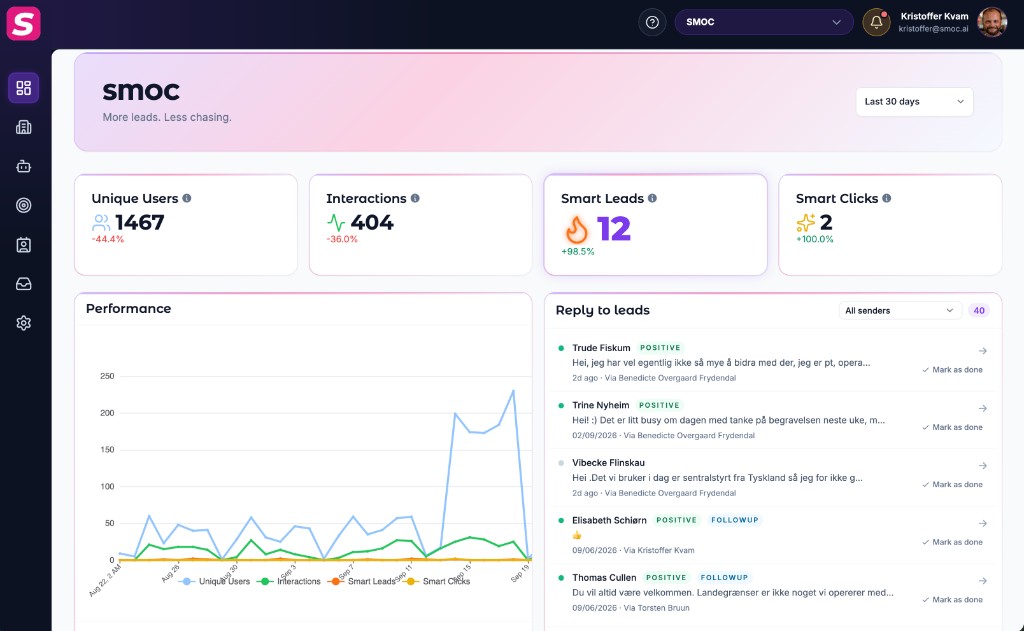
Open the Dashboard for KPIs and next steps.
Steps
- Open the Dashboard for KPIs and next steps.
The Dashboard is the home view: what the agents did, and what to do next.
- Read interactions, leads, and replies on the Dashboard.
Use the figures to see which agent is working. Open an agent when you want the detail.
- Use Improve when that control is on the Dashboard.
Improve Agents can draft the next change once there is enough traffic. You choose what to apply.
- Scroll to Lead strategy for the next change after real conversations.
Open Agents.
Steps
- Open Agents.
Embed settings hold the hosted link and the iframe snippet. Publish the flow first.
- Open the website card flow in Studio.
- Click Settings in Studio.
- Open Embed — copy the Flow URL or the embed code.
The Flow URL is the hosted page. The embed code is the iframe you paste on your site.
- Turn on iframe mode when the agent runs inside a frame.
Iframe mode fits the conversation to a frame on your site. Add UTMs on the Flow URL when a campaign should be attributed.