How can I add different paths and buttons in the SMOC Studio?
Category: Configurator
You can add buttons directly inside a node (for example in a Survey Question node), or create a Link Message node for URL redirects.
- Open or create the node you want to edit.
- Click Add element in the editor panel.
- Choose button if you want selectable answer buttons.
- Enter the button label in the Survey answer / button text field.
If you want to send users to a URL:
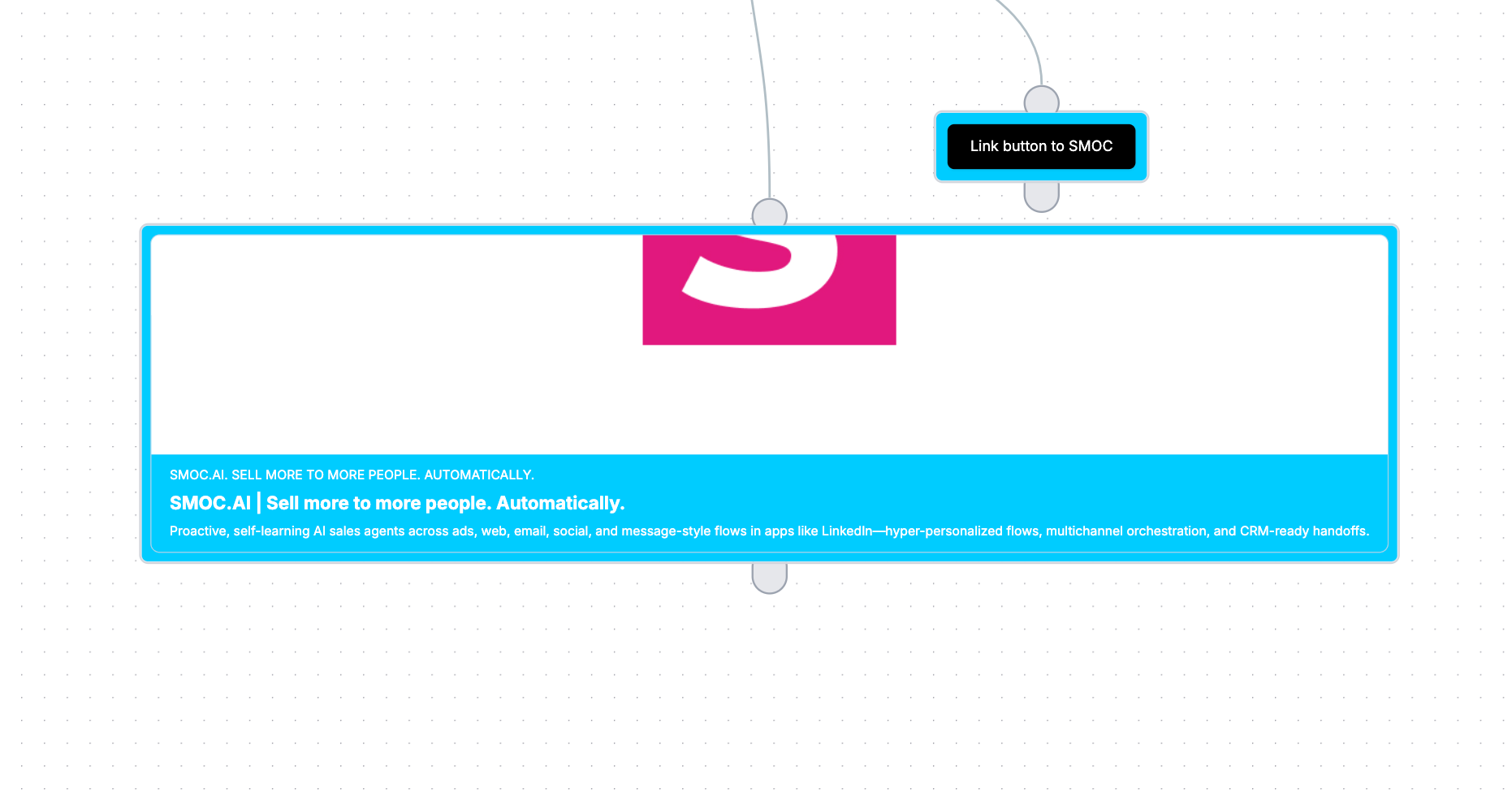
- Create a Link Message node.
- Fill in Link URL.
- Set the visible label in Link text.
- (Optional) enable Open Graph if you want a preview card instead of a simple link.
- (Optional) enable Forward UTM & click IDs to pass incoming UTMs and ad click IDs onto the destination URL.
Structuring Different Paths
Paths let you build straight flows, branches, and loops based on user interaction.
Single Direction Paths
A single direction path keeps the flow consistent regardless of user input.
- Use one outgoing connection from the node to the next node.
Decision Tree Paths
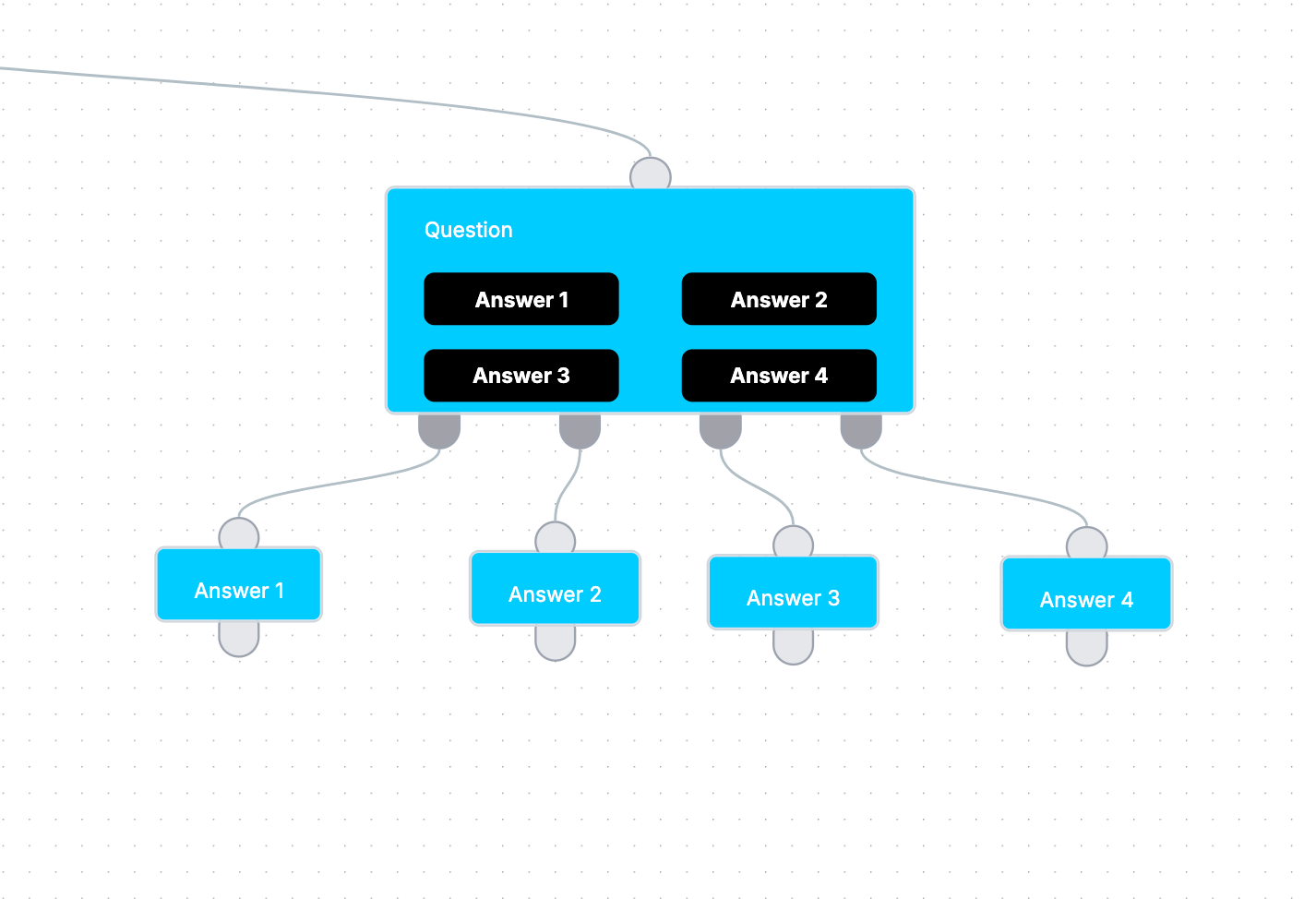
A decision tree branches based on selected answers.
- Create a Survey Question node with multiple answer buttons.
- In the canvas, use the outgoing handles at the bottom of the node (one per answer).
- Click the + under a specific handle to create and connect the next node for that answer.
- Repeat for each answer to build separate branches.