01
AI reads the company
Every agent
AI crawls the site and writes the offer, the audience, the voice, and the brand. Website chat, card flows, and LinkedIn start from that.
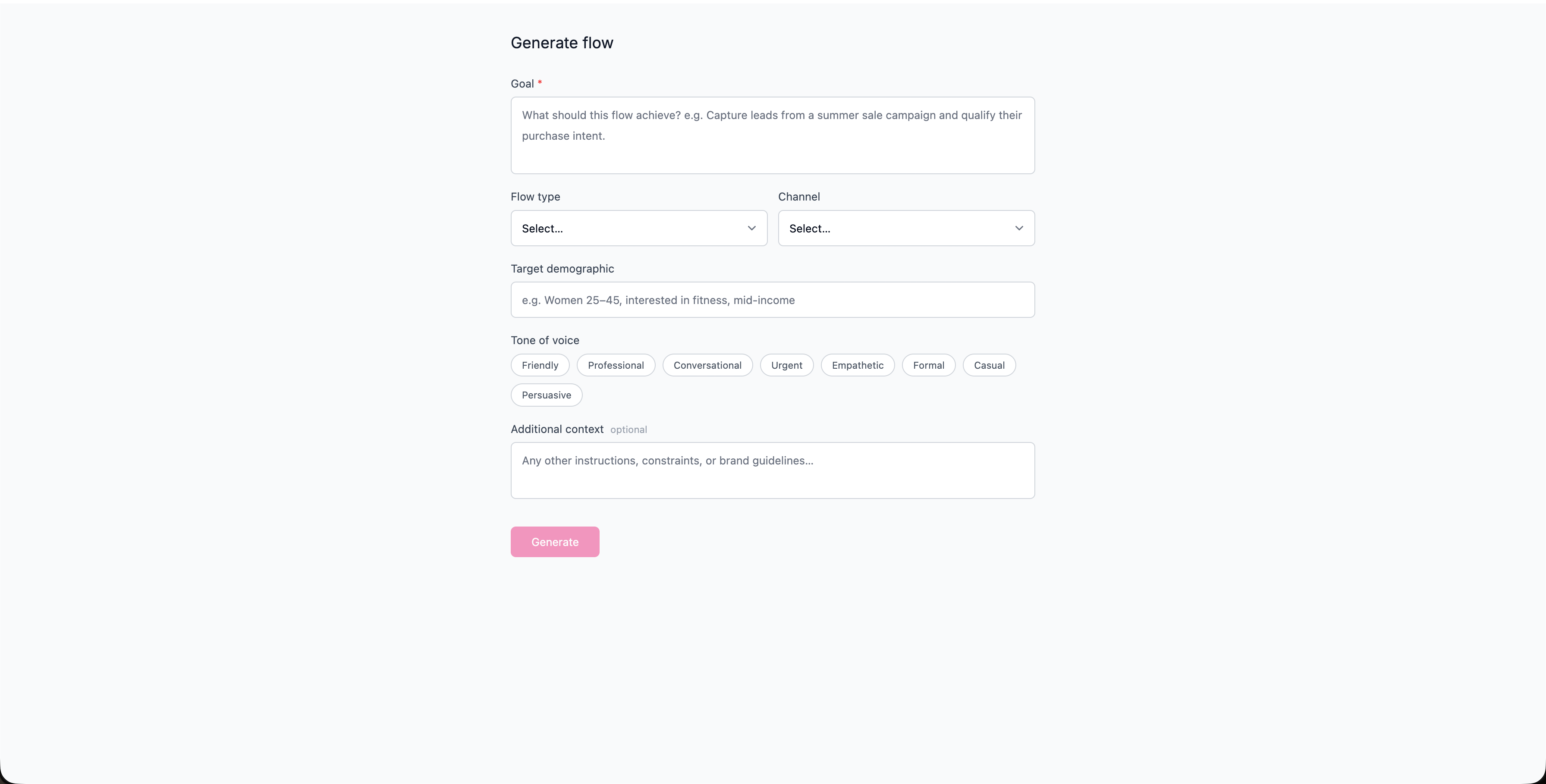
SMOC Studio can build a complete, ready-to-edit flow for you from a short brief. Instead of starting from a blank canvas, you describe your goal and a few details, and SMOC generates the full flowchart; messages, questions, branches, and lead capture, which you can then refine.
This guide explains where to find the generator, what each field does, and how to get the best results. In Console, Create agent offers Chat, Card, or Message before you open Studio.
Use it when you want to:
If you already have a working flow and only want targeted improvements, use Studio Recommendations instead — generate from the sparkles panel (or from Dashboard Improve Agents after 100+ interactions). Recommendations optimize an existing saved flow; AI Compose builds the structure.
Tip: The generator builds into the flow you currently have open, in your current language. Use it on a new/empty flow when you want a fresh build.
Fill in the brief. Only Goal is required; the rest are optional but improve the result.
Goal (required)
The single most important field. Describe what the flow should achieve in plain language.
The Generate button stays disabled until you've entered a goal.
Flow type
Pick the template pattern that best matches your use case:
Channel
Where the flow will run, so the AI can match length, tone, and formatting:
Target demographic
Describe who the flow is for, e.g. "Women 25–45, interested in fitness, mid-income." This shapes language and the questions asked.
Tone of voice
Select one or more tone chips: Friendly, Professional, Conversational, Urgent, Empathetic, Formal, Casual, Persuasive. You can combine several (e.g. Friendly + Persuasive).
Additional context (optional)
Free-text for anything else: brand guidelines, constraints, offer details, must-include questions, things to avoid, etc.
Tip: Anything you don't specify is filled in with sensible defaults based on your goal and flow type — so a strong Goal plus Flow type already gets you a long way.
Click Generate. While it runs:
If something goes wrong, you'll see Generation failed with a short reason and a Try again option. Common causes are a temporary service hiccup or a connection drop; retrying usually resolves it.
When it's done, the panel shows Generation complete.
Treat the output as a strong first draft: read it through, adjust copy to your voice, tighten questions, and check that each branch leads somewhere sensible.
When you're happy, Publish the flow as usual to take it live.
Where AI runs
Website chat, card flows, and LinkedIn share one system. AI does each job below. The line under the title says where that job runs.
Every agent
AI crawls the site and writes the offer, the audience, the voice, and the brand. Website chat, card flows, and LinkedIn start from that.
Every agent · theme on web · list on LinkedIn
AI writes the flow. Theme runs on website chat and cards. Translation runs on every agent. AI finds the prospect list on LinkedIn.
Path on every flow · web and LinkedIn split
Reinforcement learning on the flow path runs on every agent. Recommendations run on web. Right timing and reply reading run on LinkedIn.
Every agent
AI proposes a variant, uses your review on the next draft, and starts from an example that already works. You apply the change.
Continue learning with these related guides
Get product updates and perspective on proactive AI agents, multichannel orchestration, and conversion—without the noise.
 Weekly signal on proactive AI sales
 Enter your email below to get started with SMOC.AI