How do I style my flow?
Category: Styling
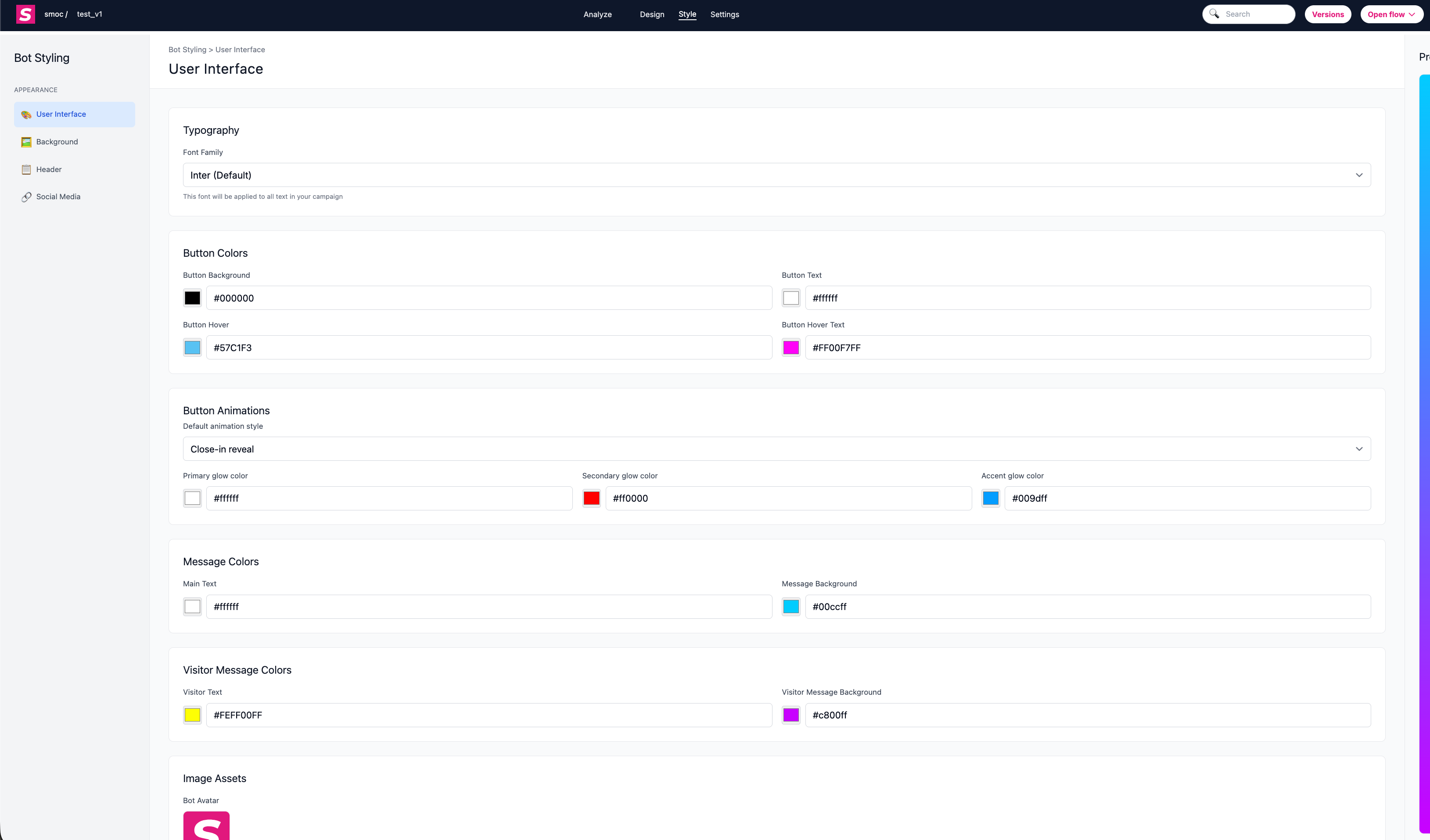
1) User Interface Styling
Customize the core look and feel of messages and buttons:
- Typography: choose the global font family.
- Button colors: background, text, hover background, and hover text.
- Button animations: select a default animation style.
- Glow colors: set primary/secondary/accent glow colors when animated styles are enabled.
- Message colors: bot text and bot message background.
- Visitor message colors: visitor text and visitor message background.
- Image assets: set bot avatar and visitor avatar.
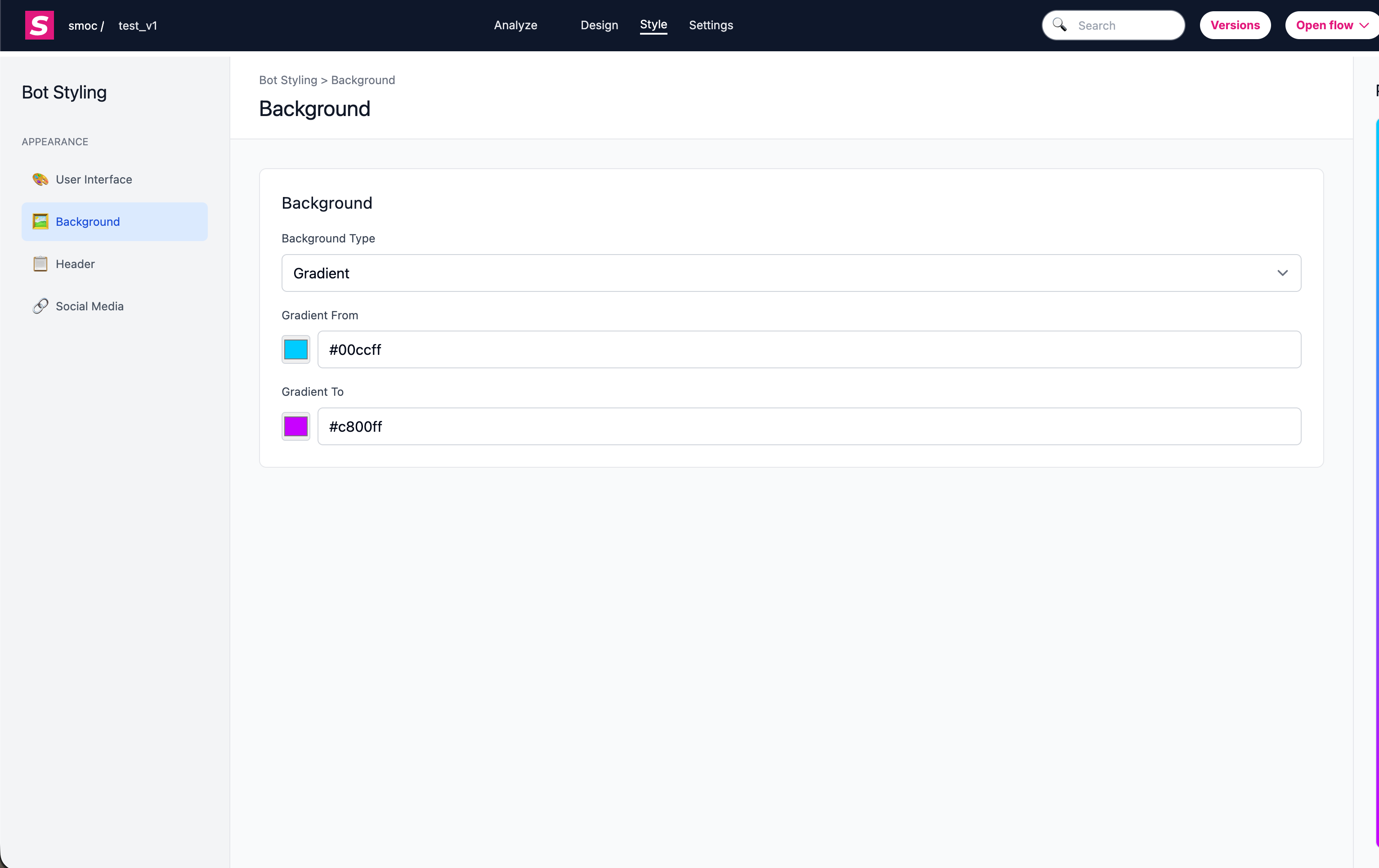
2) Background Styling
Control the page background for the flow:
- Background type: none, image, solid color, or gradient.
- Image background: upload/reset background image and choose fit mode (cover/contain).
- Color background: choose a solid background color.
- Gradient background: configure gradient start and end colors.
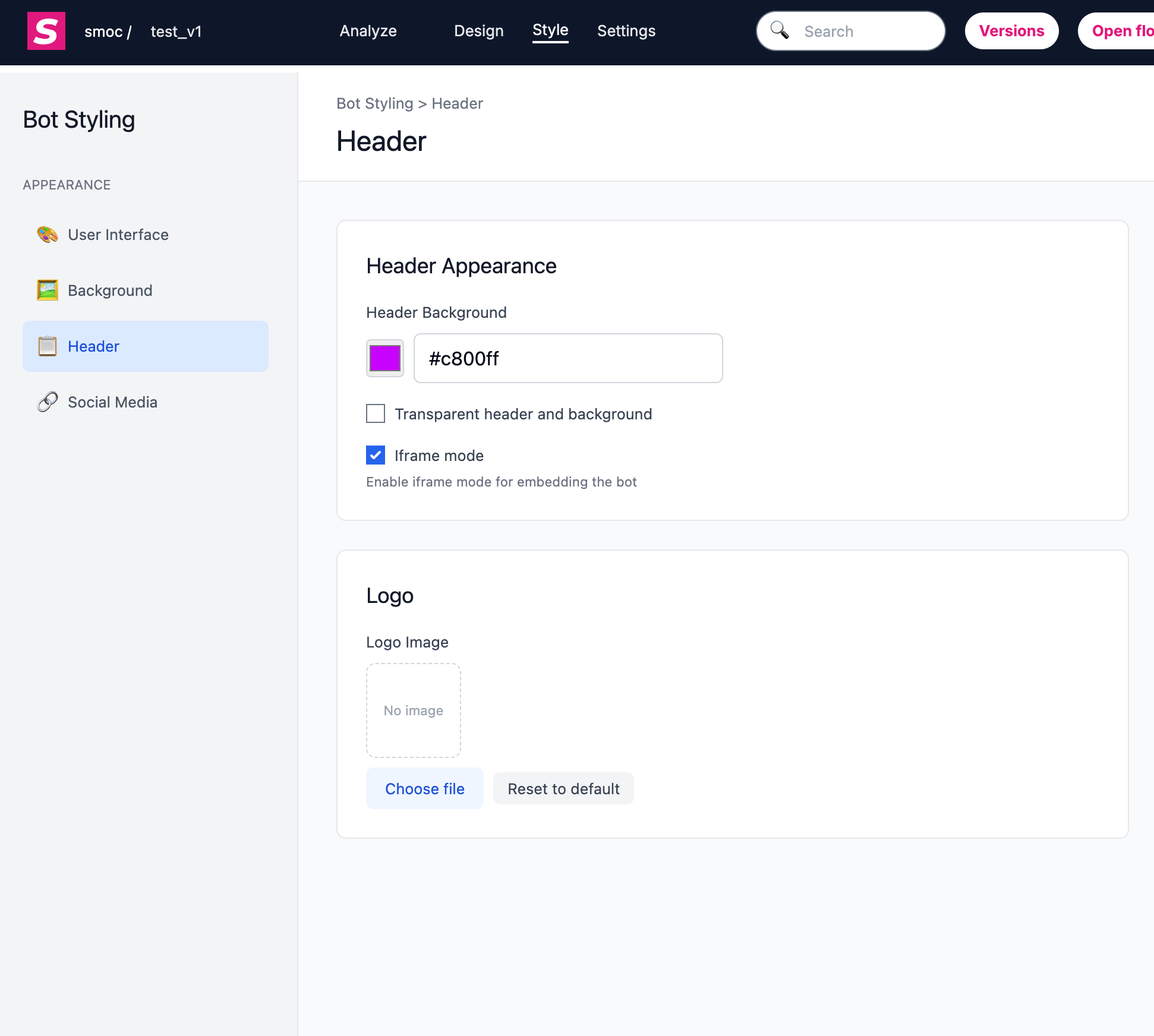
3) Header and Brand Styling
Adjust header and branding presentation:
- Header background color
- Transparent mode (transparent header/background)
- Iframe mode
- Logo image upload/reset
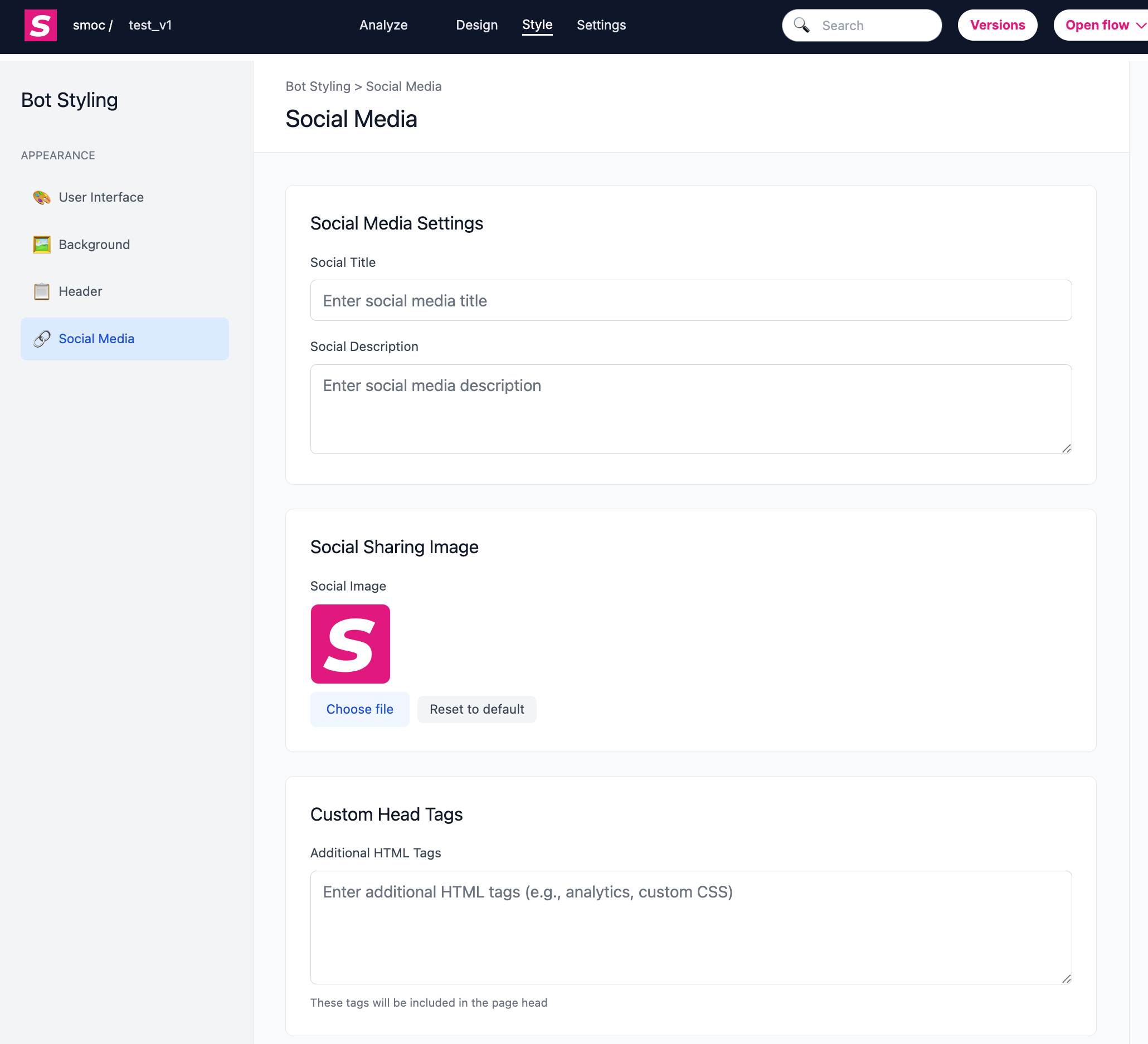
4) Social and Share Styling
Set how the flow appears when shared:
- Social title
- Social description
- Social sharing image
- Custom head tags
5) Extra Presentation Controls
Additional settings that affect experience/presentation:
- Conversation speed (message delay presets)
- Localization defaults (forced language/default country)