How do I understand the Studio layout, modes, and core navigation?
Category: Configurator
SMOC Studio is your workspace for building, editing, and analyzing flows.
This guide helps you quickly understand where everything is and what each area does.
What are the main areas in Studio?
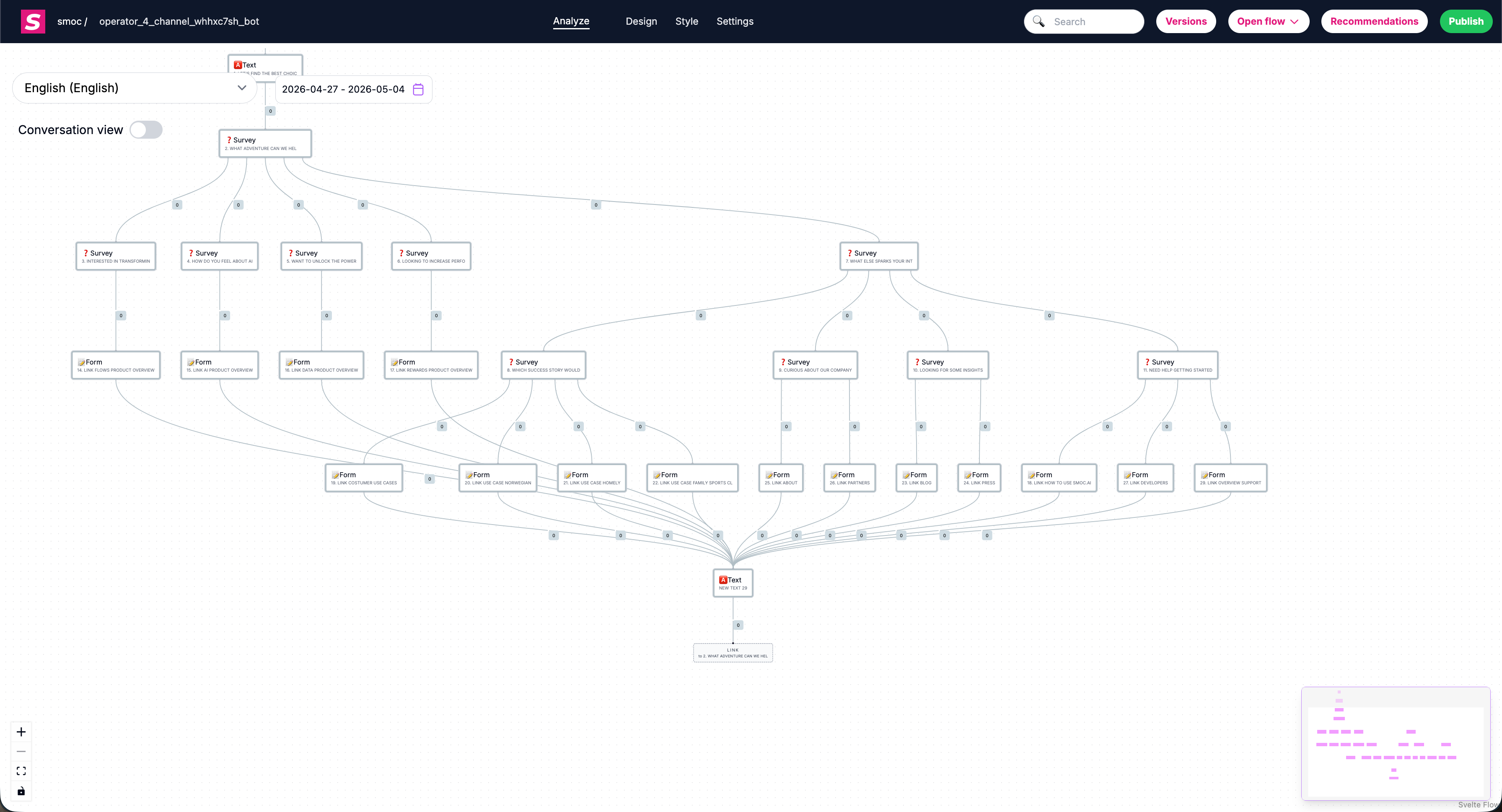
When you open a flow, Studio is typically split into these core areas:
- Top bar: flow actions like Open flow, Publish, Versions, and utility actions.
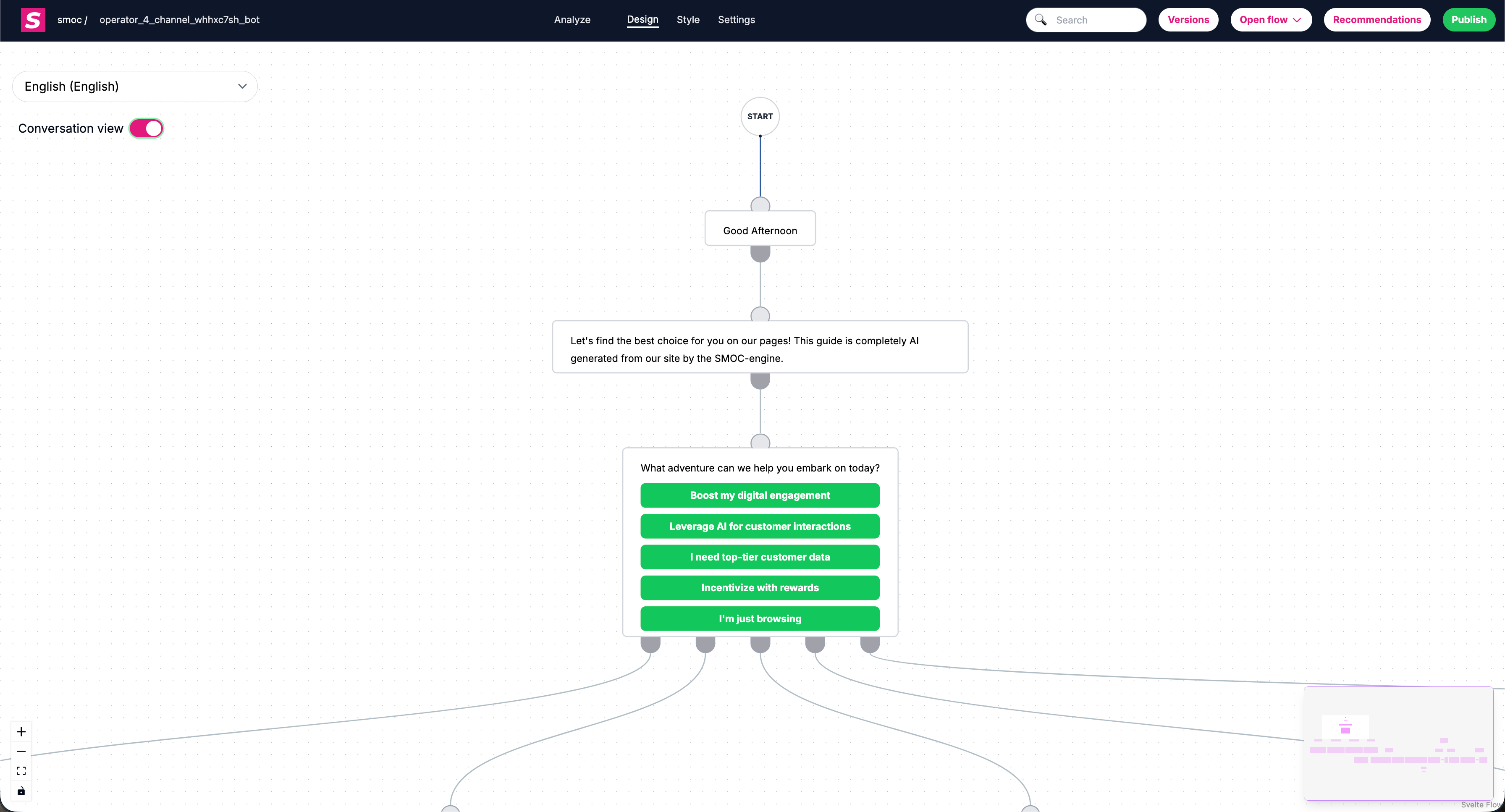
- Canvas: the visual flow map where nodes and connections live.
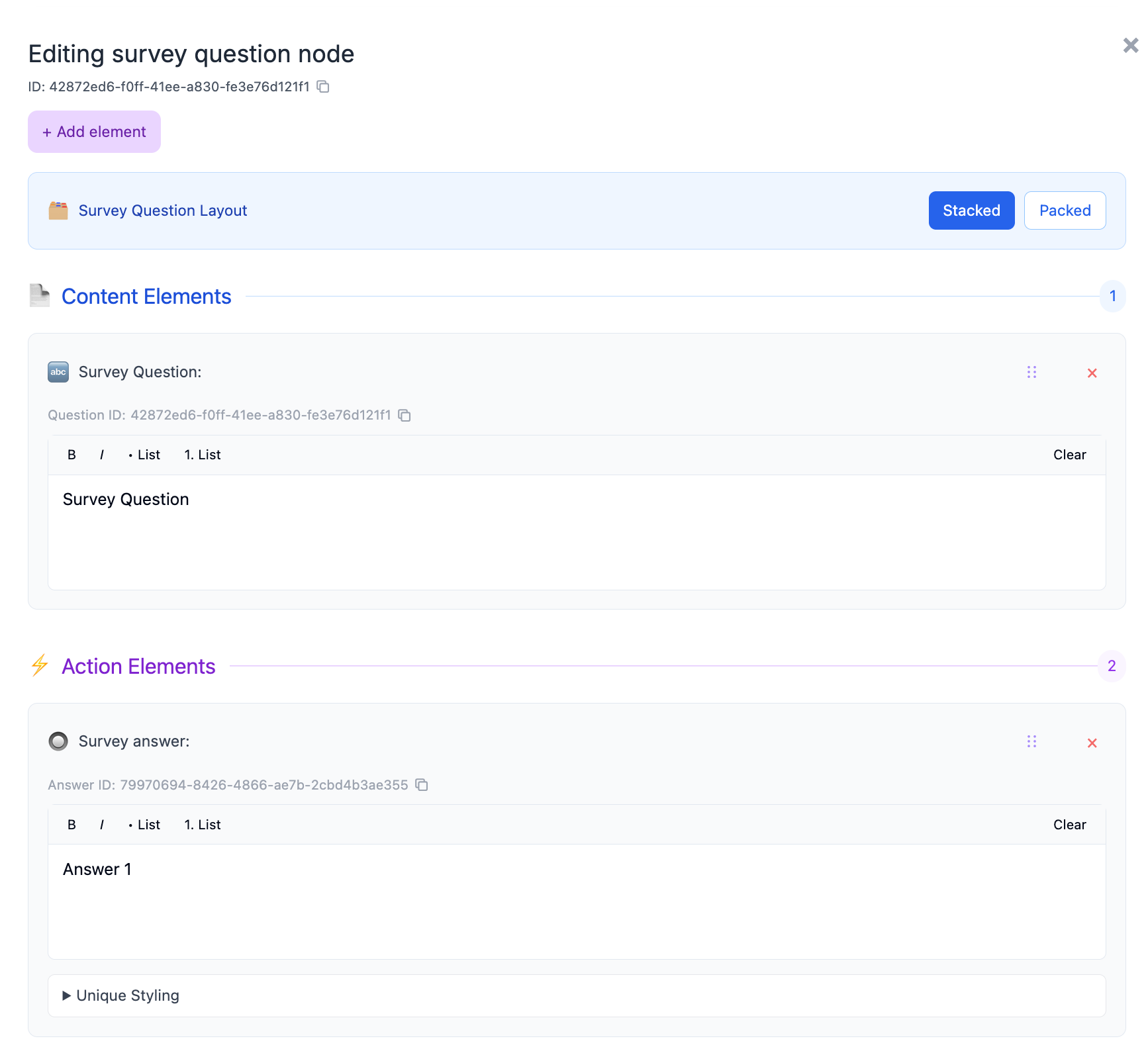
- Node editor panel: opens when you select/edit a node, where you configure content and elements.
- Settings / Styling areas: where you configure flow-level behavior and appearance.
- Mode controls: switch between building and performance analysis views.
What are the core Studio modes?
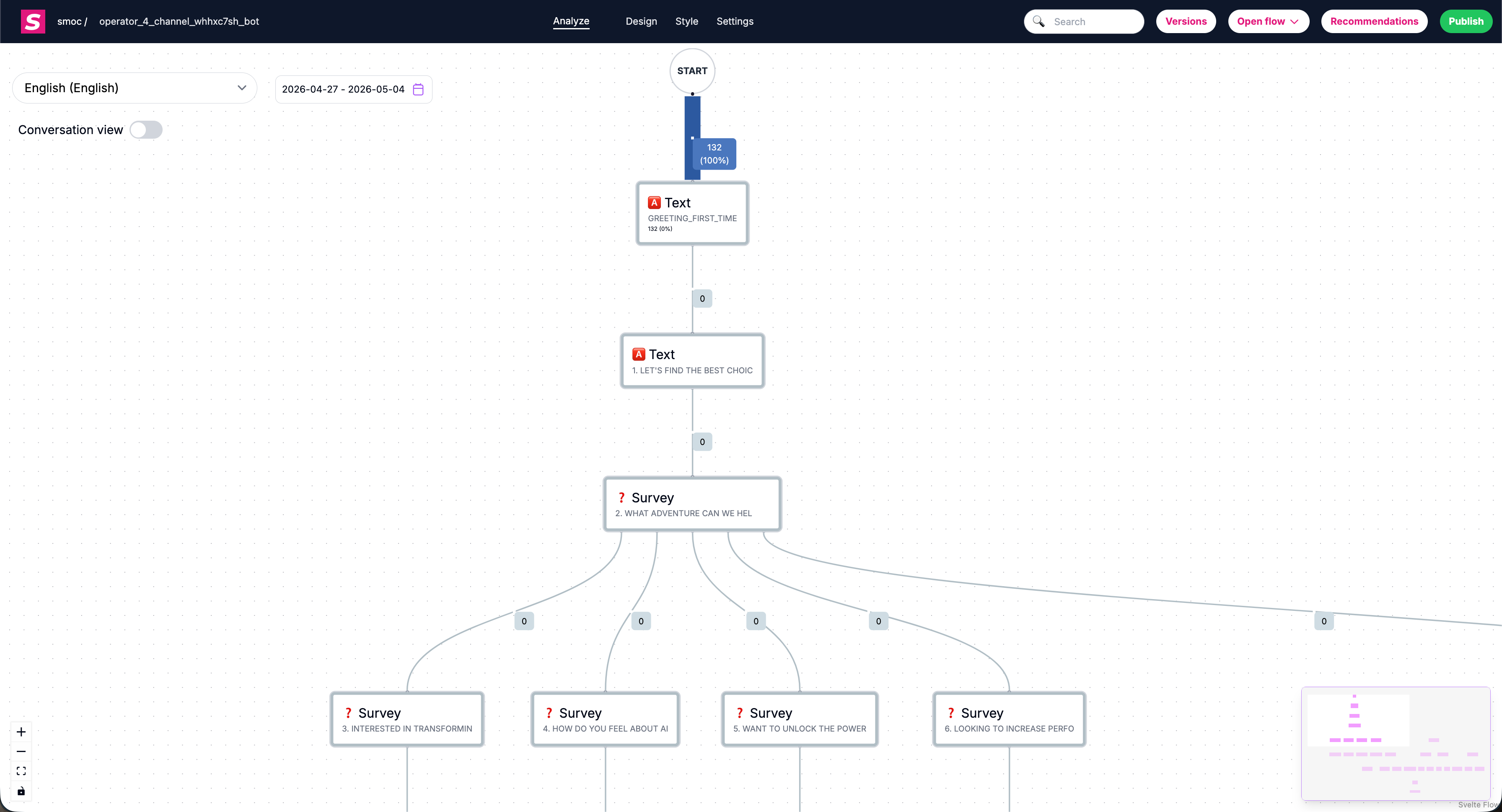
Studio is used in two primary modes:
- Design mode
Use this when building flows: adding nodes, connecting paths, editing content, and configuring behavior.
- Analyze mode
Use this when reviewing performance: node visits, path behavior, completion signals, and optimization opportunities.
How do I move around the flow canvas?
To navigate quickly in larger flows:
- Click and drag empty canvas space to pan.
- Use mouse wheel/trackpad to zoom in/out.
- Click a node to focus/select it.
- Use search to jump to matching nodes fast.
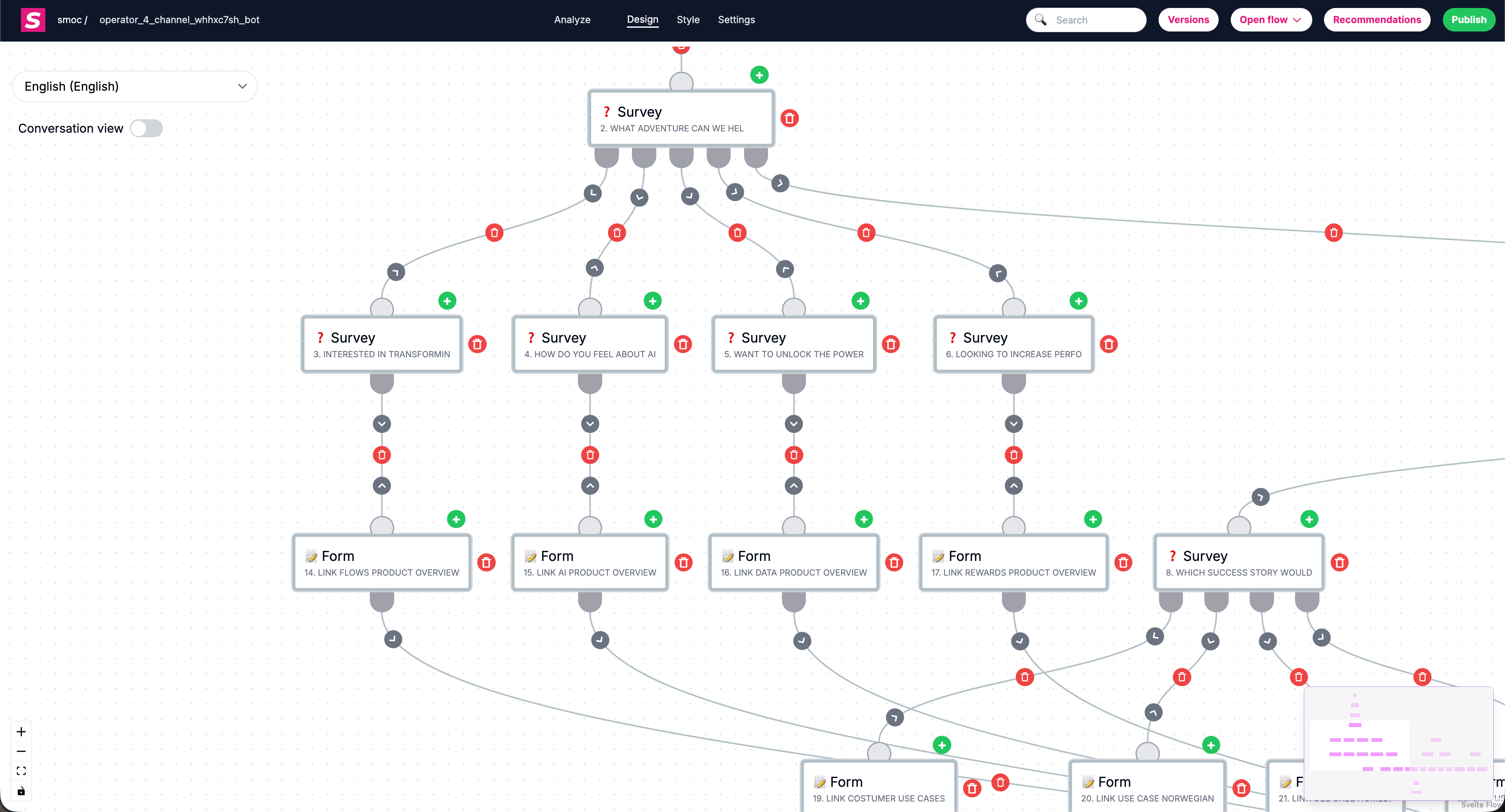
- Use the navigation arrows on edges to jump to previous/next node.
- Enable Always show hover elements in Editor settings to keep navigation arrows visible at all times.
What are nodes, handles, and edges?
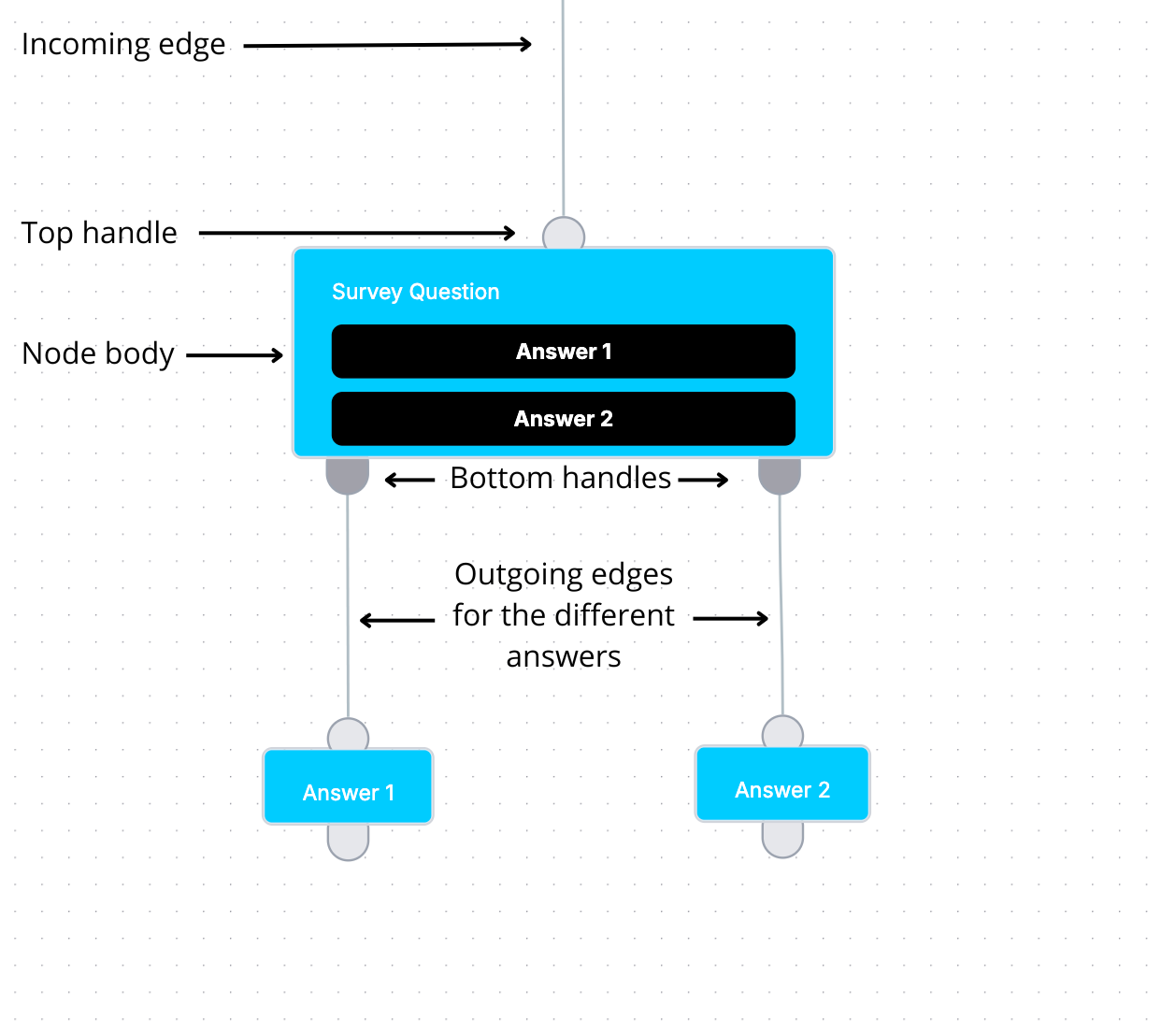
- Node: a flow step (for example Text, Survey Question, Form, Promo, etc.).
- Handle: a connection point on a node (used for outgoing/incoming paths).
- Edge: the line/path connecting one node to another.
In branching nodes, multiple handles represent different outcomes (for example one per survey answer).
Where do I edit flow content vs flow settings?
- Edit node content inside the node editor (text, buttons, form fields, links, etc.).
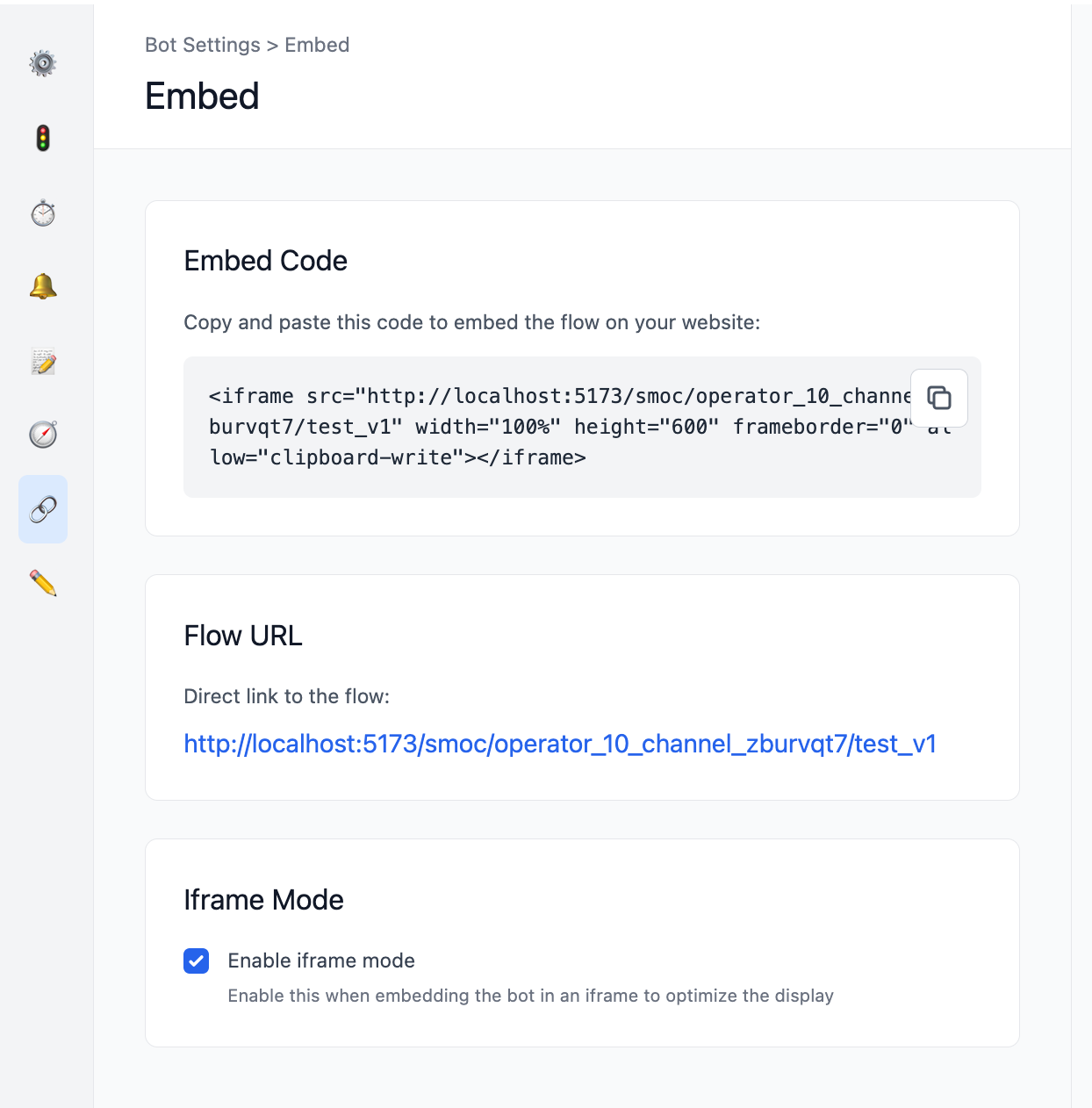
- Edit flow-level settings in Settings (for example localization, conversation speed, notifications, head tags, embed, keys).
This separation helps keep message content and global flow configuration organized.
Quick tips
- Keep node names/content clear so searching is easier later.
- In large flows, zoom out first to understand structure, then zoom into one branch at a time.
- Use Analyze mode regularly to validate real behavior, not just intended behavior.