How to Set and Change the Settings for a Specific Flow?
Category: Settings
To set and change settings for a specific flow, open the flow in SMOC Studio, then click Settings.
Current settings are organized by sections (not “General / View Alternatives / Rewards” anymore).
1) Core Flow Settings
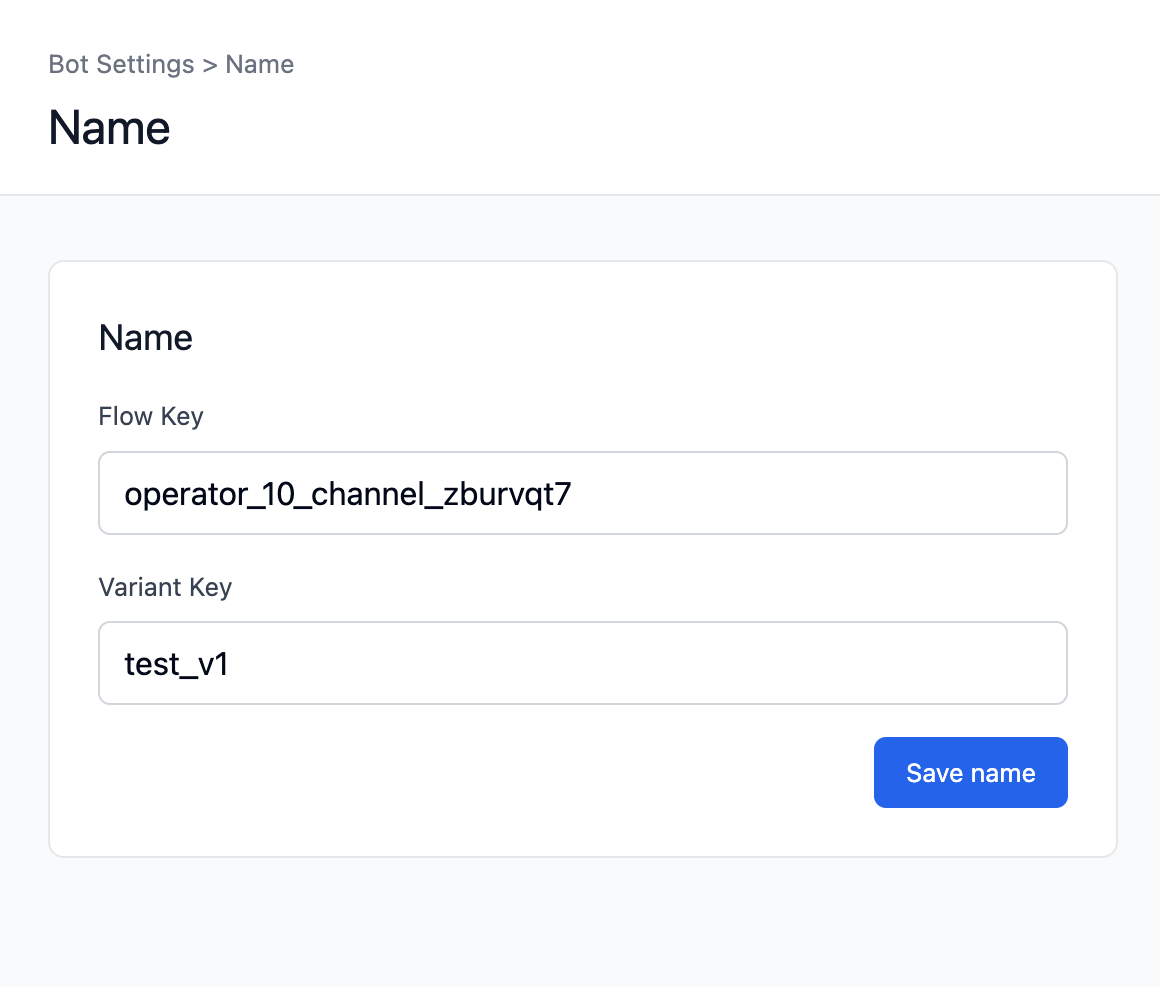
Name
- Set:
- Flow Key
- Variant Key
- This controls the flow URL path.
- Click Save name after changes.
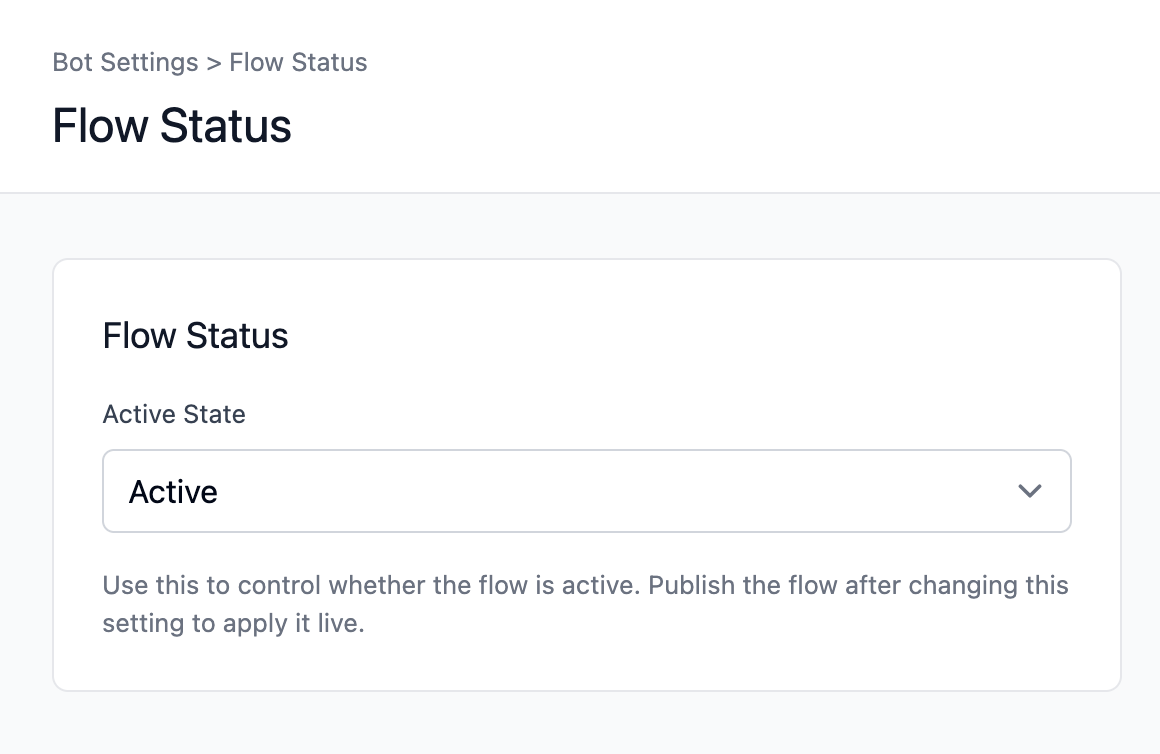
Flow Status
- Set flow as Active or Inactive.
- Publish after changing this so it takes effect live.
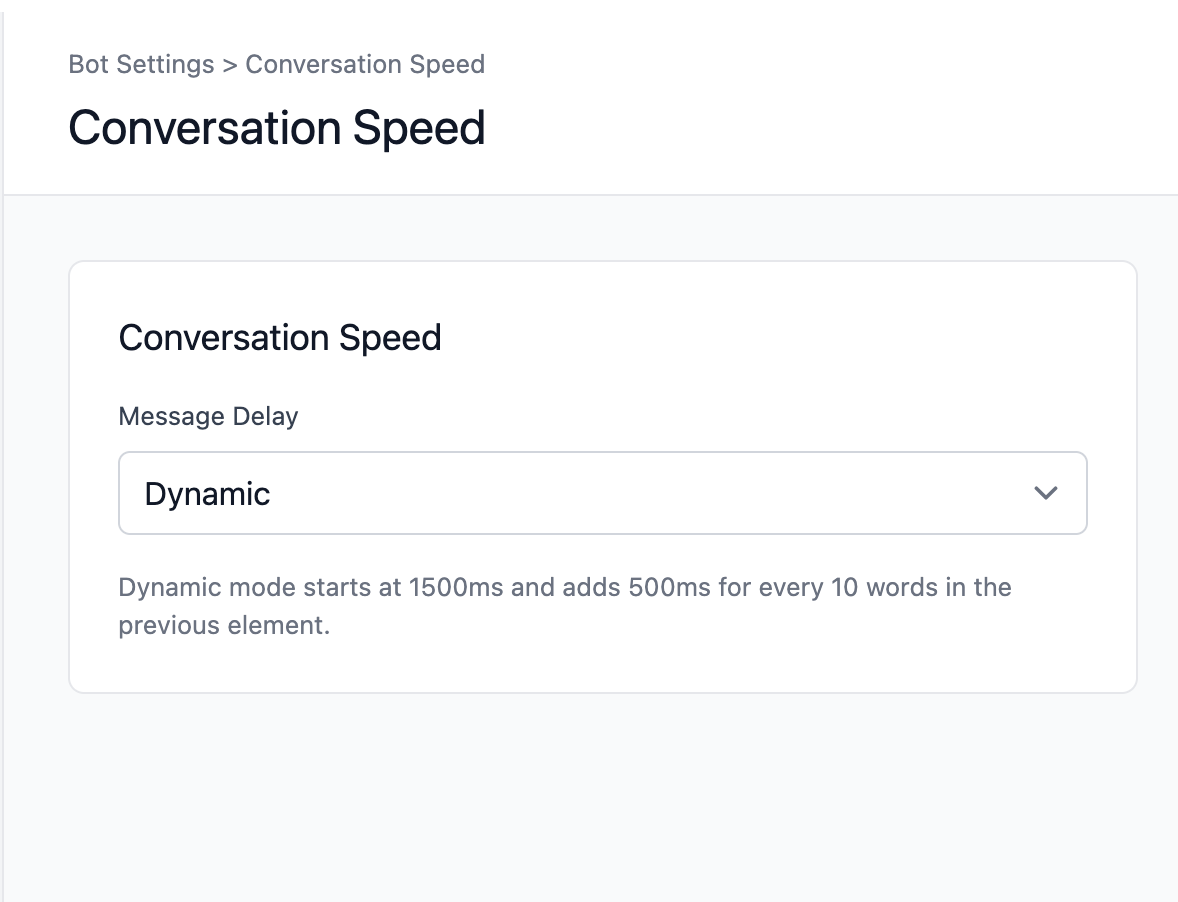
Conversation Speed
- Choose message delay mode:
- Slower
- Normal
- Faster
- Dynamic
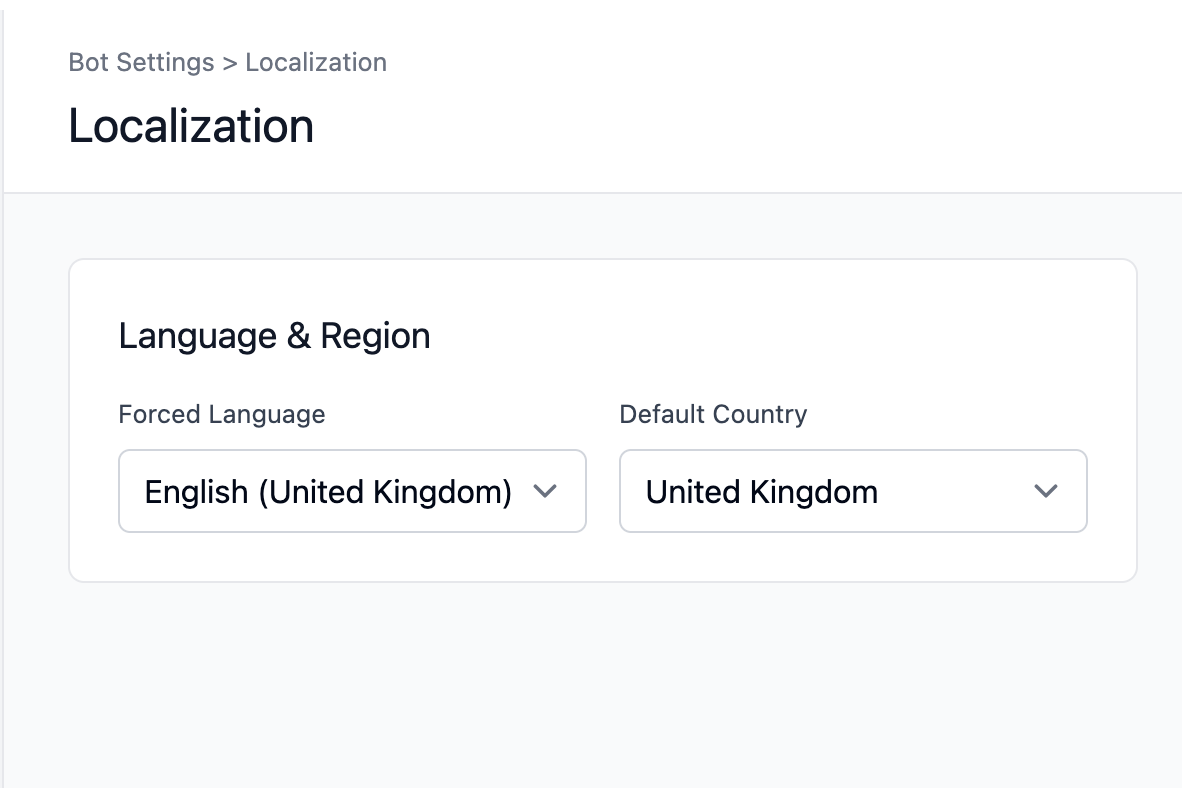
Localization
- Configure:
- Forced Language (optional)
- Default Country (optional)
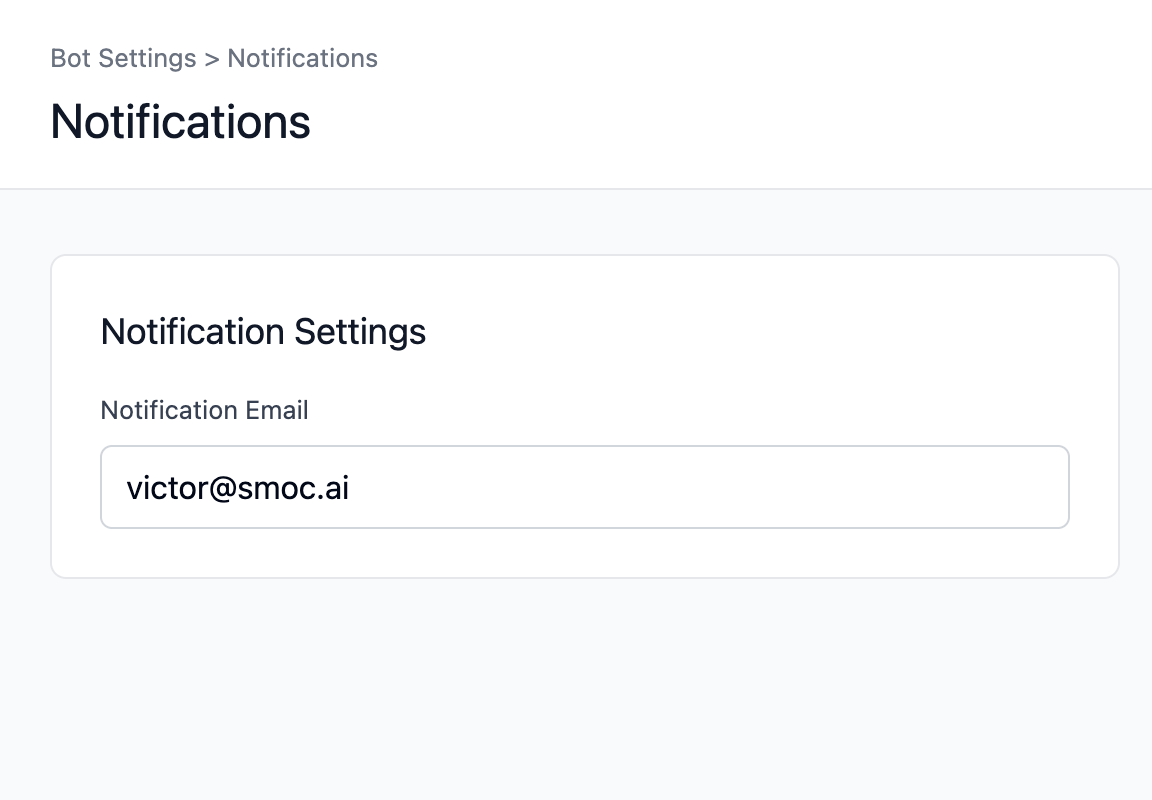
Notifications
- Set Notification Email for flow notifications/leads.
2) Embed and Link Settings
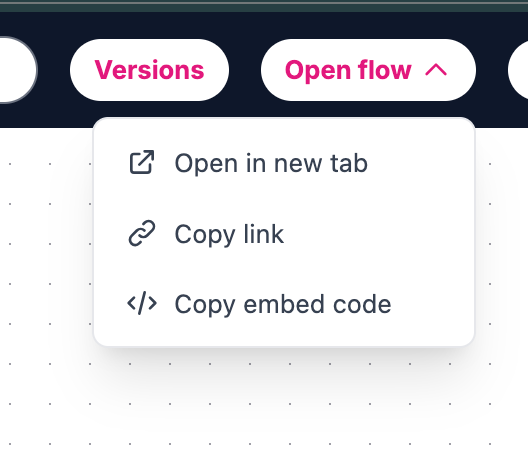
Open flow (top bar dropdown)
- Open in new tab
- Copy link
- Copy embed code
Embed section in Settings
- View Embed Code
- View Flow URL
- Toggle Iframe Mode (recommended when embedded in iframe)
3) Tracking / Scripts
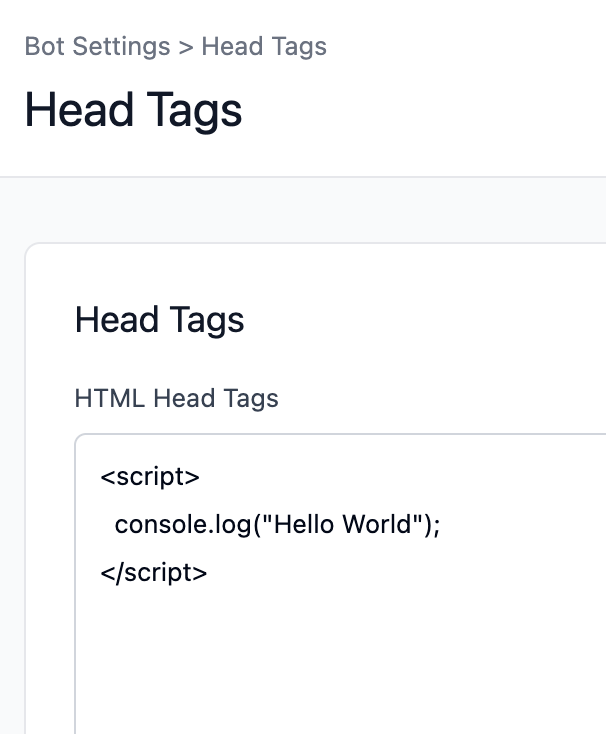
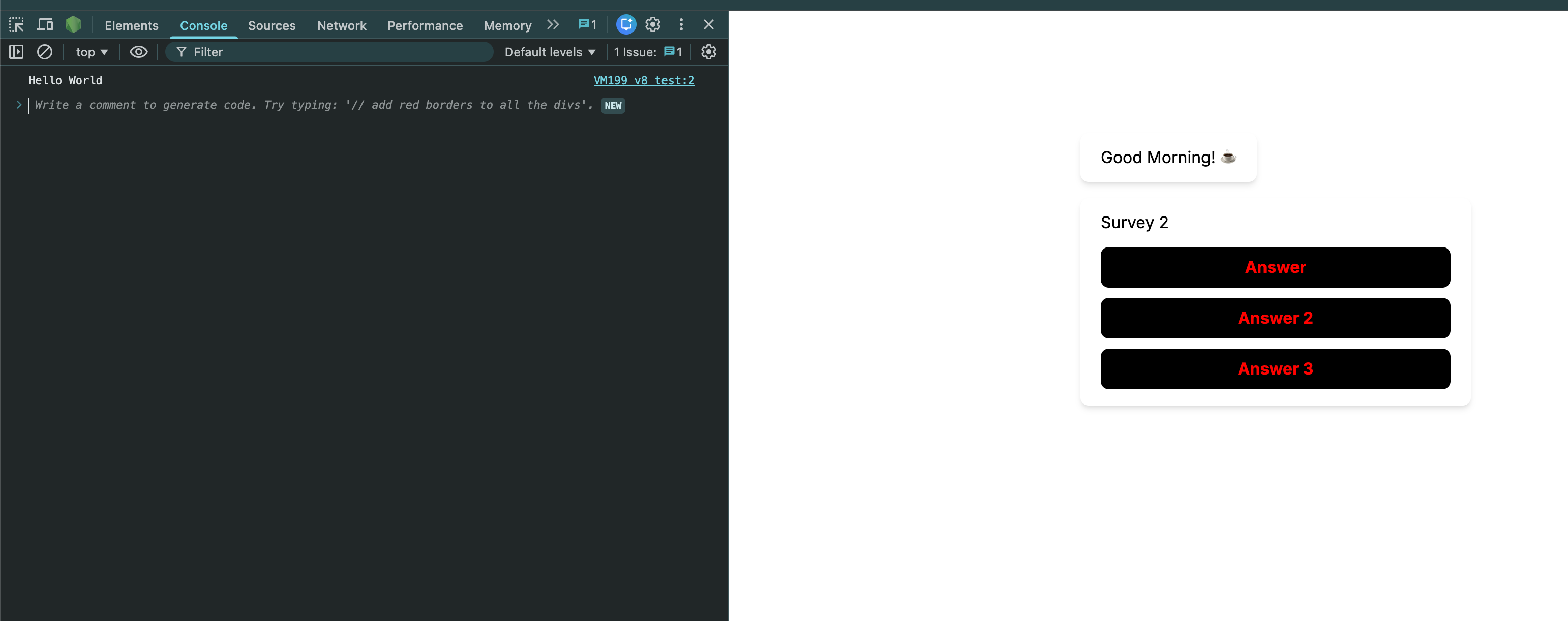
Head Tags
- Add custom head HTML (for example GTM, analytics scripts, meta tags).
- This replaces the old “GTM Code” field approach.
4) Editor Preferences
Editor
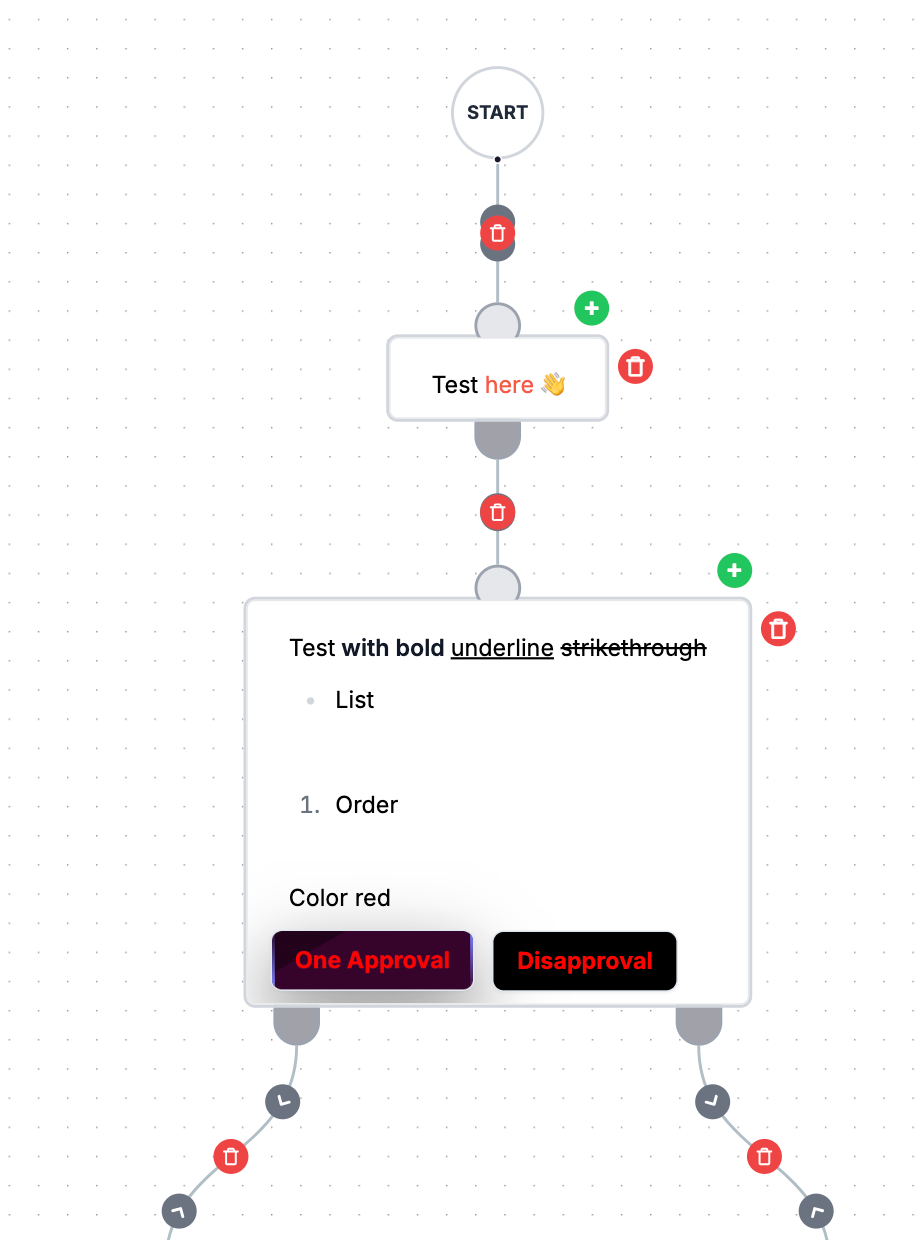
- Toggle Always show hover elements for easier node/edge editing in Studio.
5) Styling
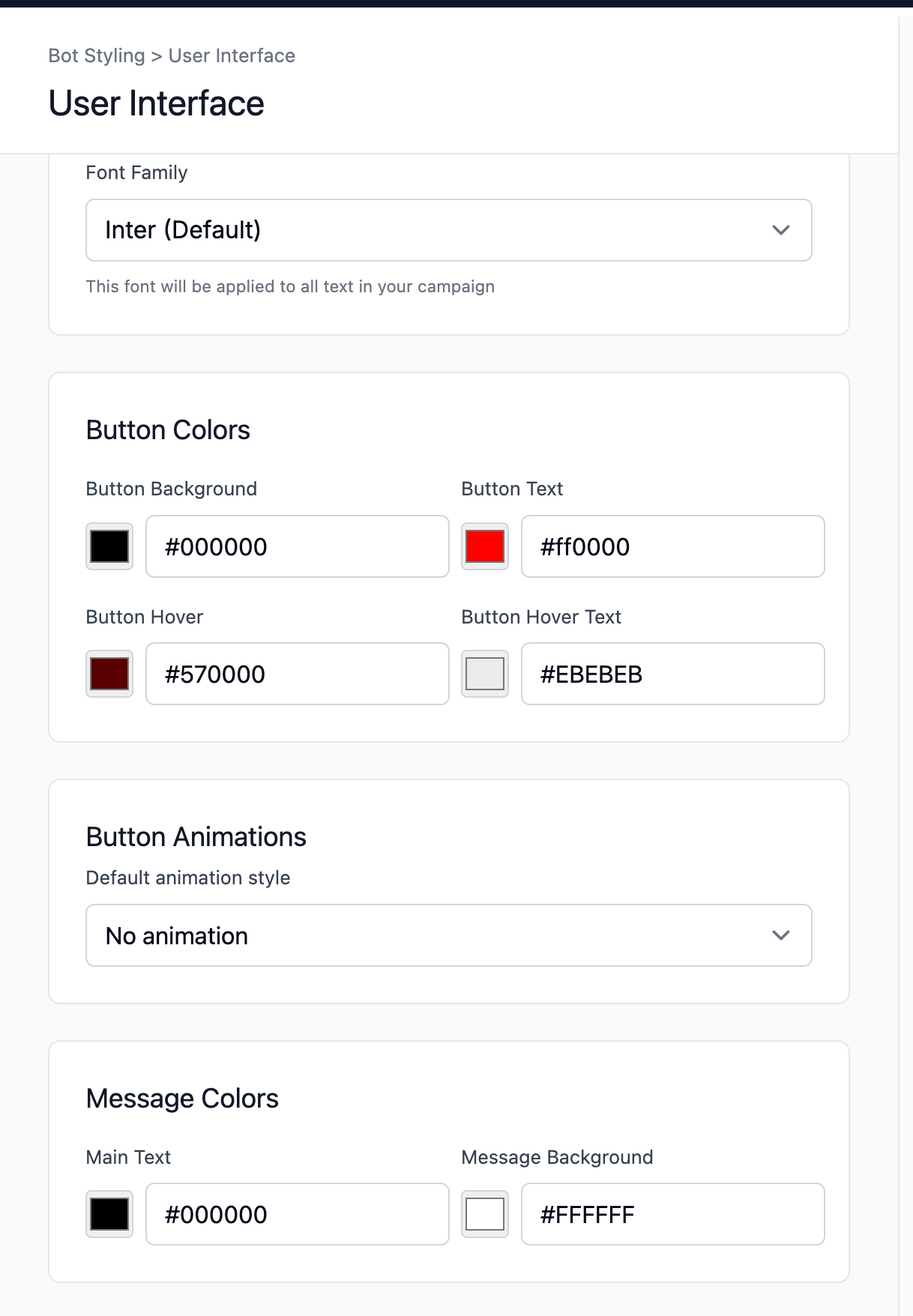
Flow appearance is configured in the styling sections (fonts, buttons, colors, backgrounds, logo, social share title/description/image, etc.), then published.
6) About Rewards
There is no standalone “Rewards settings” section in flow settings like before.
Rewards are configured through promo/reward nodes and elements inside the flow itself.